

A 500 internal server error means the web server hit a problem it could not describe more precisely, so it sent back a generic failure. To fix a 500 internal server error on a cPanel host, read the error log first, then rule out a bad .htaccess file, wrong permissions, a PHP version mismatch, a low PHP limit, a broken plugin or theme, and damaged core files, in that order.
Key takeaways
- A 500 is a generic server-side error. The cause is almost always a file or setting on the site, not your browser.
- The error log in cPanel usually names the exact file and line, so read it before changing anything.
- Most 500 errors on a WordPress or PHP site come from
.htaccess, a plugin or theme, a PHP version change, or a PHP limit. - Change one thing at a time and keep a copy of what you change, so you can undo it.
What a 500 internal server error means
The HTTP standard defines it. RFC 9110 says the 500 (Internal Server Error) status code "indicates that the server encountered an unexpected condition that prevented it from fulfilling the request." It is a catch-all. The server knows something failed, but the status code does not say what.
That is why the same error page can come from a typo in a config file, a PHP script that crashed, or a script that ran out of memory. The useful details are in the server's error log, not in the browser.
A visitor can only reload the page, clear the cache or come back later. If the site is yours, the steps below get you to the cause.
Symptom, likely cause and fix
Use this table to jump to the right step. The order of the steps that follow is the order that saves the most time.
| What you see | Likely cause | Fix |
|---|---|---|
500 on every page right after editing .htaccess | Invalid rule in .htaccess | Rename the file, then rebuild it |
| 500 after a plugin or theme update | Plugin or theme code error | Disable plugins, switch theme |
| 500 after changing PHP version | Code or plugin not compatible with that PHP version | Switch the version back in MultiPHP Manager |
| 500 only on heavy pages or imports | Memory or execution time limit reached | Raise memory_limit or max_execution_time |
| 500 after uploading files by FTP | Wrong permissions or ownership | Reset files to 644 and folders to 755 |
| 500 after a failed update | Missing or damaged core files | Re-upload core files |
Step 1. Read the error log in cPanel
Start here, because it replaces guessing with a message.
- Log in to cPanel.
- Open Errors in the Metrics section.
- Reload the broken page in another tab so a fresh entry appears.
- Read the newest entries at the top.
According to the cPanel documentation, the Errors interface shows up to 300 of the most recent entries from your web server's error logs, newest first, and only for your own domains. The error text often includes a file path and a line number.
Look for phrases like these.
- A message that names
.htaccesspoints to a bad rewrite rule. - A message about memory points to the PHP memory limit.
- A message about maximum execution time points to the time limit.
- A PHP error that names a plugin, theme or code file points to that file.
- A message about permission denied points to file permissions.
If the log is empty, the error may be older than the last 300 entries, or the failing script may write its own log. In WordPress, step 6 shows how to turn on a dedicated debug log.
Step 2. Test for a bad .htaccess file
A single wrong line in .htaccess stops the whole site. WordPress, Laravel and most PHP frameworks rely on it for URL rewriting, so it is the most common culprit after a settings change or a plugin install.
LiteSpeed describes itself as a drop-in replacement for Apache, so .htaccess rules written for Apache apply on a LiteSpeed server as well. That means the same fix works on both.
- In cPanel, open File Manager.
- Click Settings and select Show Hidden Files (dotfiles), then click Save. Without this,
.htaccessstays invisible. - Open your site's folder, usually
public_html. - Select
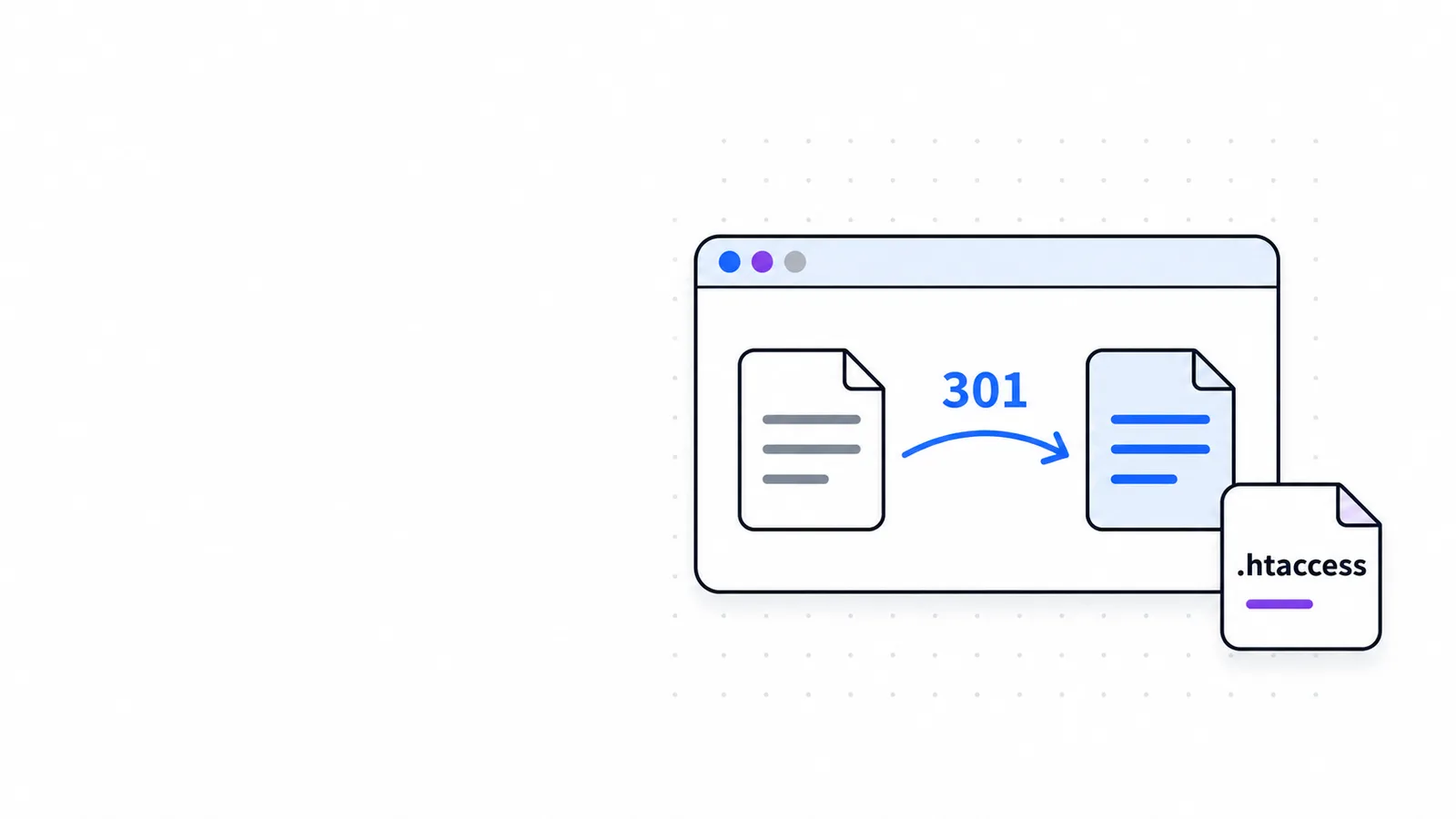
.htaccessand click Rename. Change the name to.htaccess_old. - Reload the site.
If the 500 error is gone, the old file was the problem. Your site may now show a home page but break on inner pages, because the rewrite rules are missing. For WordPress, go to Settings > Permalinks and click Save Changes to generate a fresh file, as the WordPress documentation describes. If you prefer to restore it by hand, the default WordPress block looks like this.
# BEGIN WordPress
RewriteEngine On
RewriteRule .* - [E=HTTP_AUTHORIZATION:%{HTTP:Authorization}]
RewriteBase /
RewriteRule ^index\.php$ - [L]
RewriteCond %{REQUEST_FILENAME} !-f
RewriteCond %{REQUEST_FILENAME} !-d
RewriteRule . /index.php [L]
# END WordPress
If the error stays, rename the file back to .htaccess so you do not lose custom rules, and move to the next step.
Step 3. Check file and folder permissions
If the server cannot read a script, it returns a 500. Permissions can change after a restore, a migration or an upload from a tool that sets them differently.
The common convention is 644 for files and 755 for folders. cPanel's File Manager uses 0644 as its default permission, which matches the file value.
- In File Manager, select a file such as
index.php. - Click Permissions in the toolbar.
- Check that the value is 644 (read and write for the owner, read for everyone else).
- Do the same for a folder such as
wp-content. It should be 755. - Click Change Permissions to save.
Avoid setting anything to 777. It rarely fixes the error and makes files writable by everyone. If many files are wrong, contact support rather than changing them one by one.
Step 4. Check the PHP version in MultiPHP Manager
A site written for one PHP version can fail on another. This happens after an upgrade, after a host moves your account, or after you pick a new version to speed things up. On WaseerHost, PHP 8.0 to 8.5 is selectable per site in cPanel, so you can move one site without touching the others. See the PHP hosting page for details.
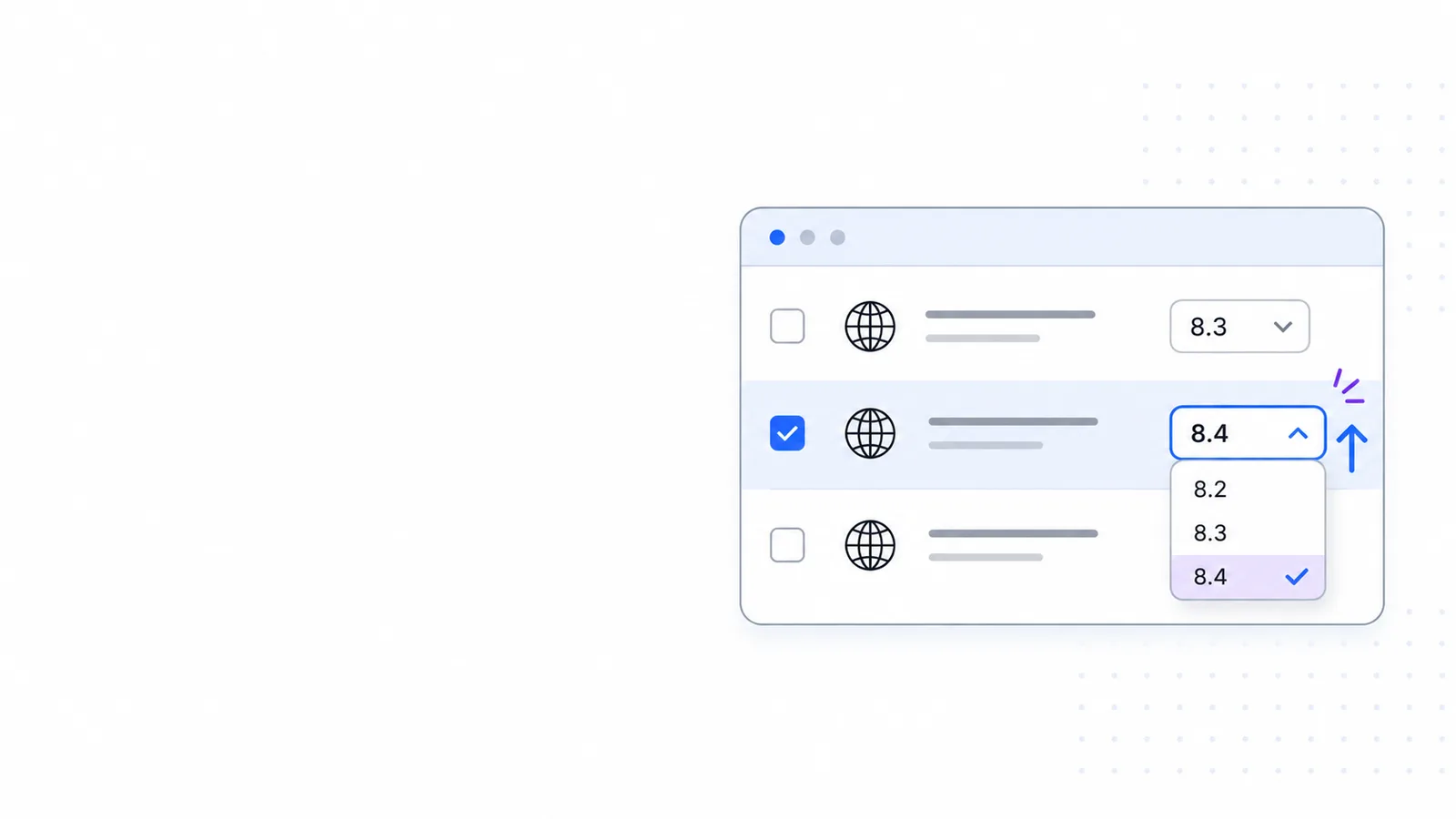
- In cPanel, open MultiPHP Manager.
- Select the checkbox next to the domain.
- Choose a version from the PHP Version menu.
- Click Apply.
If the 500 started right after a version change, go back to the previous version and confirm the error disappears. Then update the plugin, theme or code that needs a newer or older release, and try the new version again. If you see inherit next to a domain, that domain uses the system default version.
Step 5. Check memory_limit and max_execution_time
PHP stops scripts that use too much memory or run too long, and the result can be a 500 error.
The PHP manual lists memory_limit with a default of 128M, and says it sets the maximum number of bytes a script may allocate. max_execution_time sets how long a script may run before PHP stops it. Heavy imports, backups, image processing and large plugin tasks hit these limits first.
To raise them in cPanel, use MultiPHP INI Editor.
- Open MultiPHP INI Editor and choose the Basic Mode tab.
- Pick your domain from the menu.
- Find
memory_limitandmax_execution_time. If one is missing, your PHP version does not offer it in this editor. - Enter a higher value, for example 256M for memory.
- Click Apply.
cPanel recommends keeping its default values unless you have a reason to change them, so raise a limit only if the log shows that it was exceeded. If you keep needing more, the better fix is to find the plugin or script that uses so much.
Step 6. Find a broken plugin or theme
On a WordPress site, a faulty plugin or theme is one of the most frequent causes of a 500 error. This is especially likely if the error began after an update or after you installed something new.
Turn off all plugins
If you cannot reach the dashboard, do it from File Manager.
- Open the
wp-contentfolder. - Rename the
pluginsfolder toplugins_off. - Reload the site.
WordPress then treats every plugin as deactivated. If the site loads, rename the folder back to plugins, which leaves the plugins deactivated, then activate them one at a time from the dashboard until the error returns. The last one you activated is the cause.
Switch to a default theme
If plugins are not the cause, rename your active theme's folder inside wp-content/themes. WordPress falls back to a default theme if one is installed. The WordPress documentation suggests activating a default theme as a test.
Turn on the WordPress debug log
To see the actual error, edit wp-config.php in the site root and add these lines above the comment that says to stop editing.
define( 'WP_DEBUG', true );
define( 'WP_DEBUG_LOG', true );
define( 'WP_DEBUG_DISPLAY', false );
WordPress then writes errors to wp-content/debug.log, and WP_DEBUG_DISPLAY set to false keeps them off the visible page. Reload the broken page, open the log and read the last lines. The WordPress documentation advises against leaving debug tools on a live site, so set WP_DEBUG back to false when you are done and delete debug.log, since it can contain file paths. If you run WordPress on WaseerHost WordPress hosting, the same steps apply.
Step 7. Replace corrupted core files
If a WordPress update stopped halfway, core files can be missing or damaged. The WordPress documentation lists this as the last fix for a 500 error.
- Download a fresh copy of WordPress from wordpress.org.
- Unzip it on your computer.
- Upload the
wp-adminandwp-includesfolders to your site, replacing the old ones. - Do not upload the
wp-contentfolder orwp-config.php, because they hold your themes, uploads and settings.
For other PHP apps, restore the application files from a clean copy or a backup taken before the error. Keep a backup before you overwrite anything.
If it still does not work
Some causes are outside your files.
- A database that is down or has wrong credentials in the config file. WordPress usually shows a database connection message, but custom code may return a 500.
- A script or cron job that is using the account's resources at the moment of the error. Try again after a few minutes.
- A fault in the server's own configuration, which you cannot see from cPanel.
At that point, contact your host. Send the exact time of the error, the page address and the last lines from the cPanel Errors log. WaseerHost plans include 24/7 support and run cPanel with LiteSpeed. See current shared hosting plans, or if the 500 appeared after a move, check the free website migration page.
Frequently asked questions
It is the HTTP status code for an internal server error. RFC 9110 defines it as the server meeting an unexpected condition that stopped it from completing the request. It does not say what failed, so you need the server error log to find the cause.

Written by
Founder & CEO
Founder and CEO of Wasevo LLC, the company that runs WaseerHost. He works on cPanel/WHM servers, WHMCS billing and the Next.js storefront.