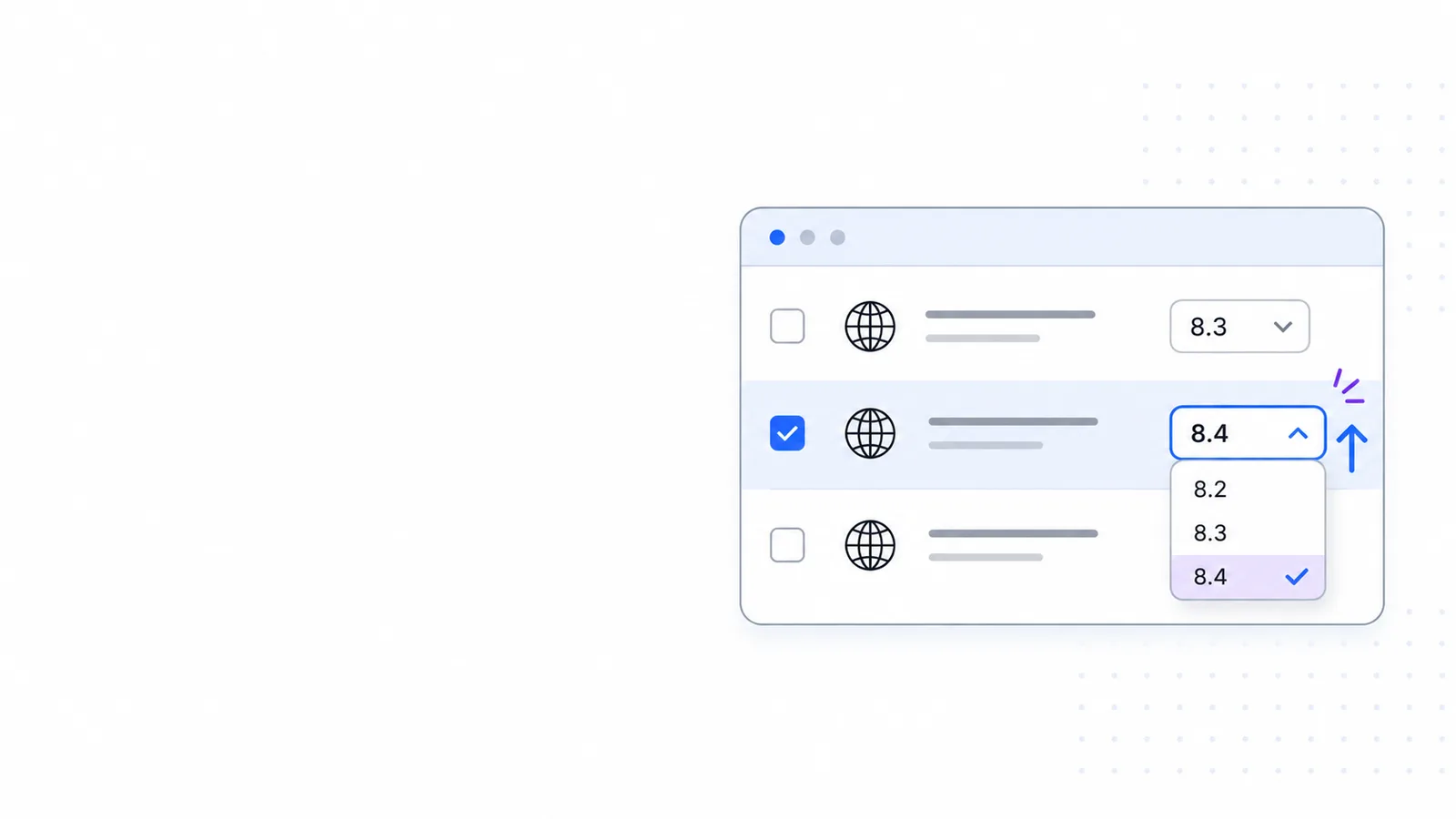


To change the PHP version in cPanel, open MultiPHP Manager in the Software section, tick the domain, pick a version from the PHP Version menu and click Apply. Each domain keeps its own setting, so you can move one site to a newer PHP release and leave the others alone. This guide covers the three PHP screens you may find in cPanel, how to enable extensions, how to confirm the change with phpinfo(), and how to fix the errors that tend to follow an upgrade.
Key takeaways
- cPanel sets the PHP version per domain. Changing one site does not touch the others unless they inherit the setting.
- Your account has MultiPHP Manager, Select PHP Version, or the newer Websites hub, depending on how your host set up the server.
- Write down the current version before you switch. Rolling back is the same steps with the old version selected.
- Most errors after an upgrade come from old code that calls removed functions, or from an extension that is not enabled for the new version.
- A one-line
phpinfo()file shows the version and extensions a site runs. Delete the file when you finish.
Before you change the PHP version
A PHP upgrade takes a minute. The preparation decides whether the site still works afterwards.
- Find out which PHP versions your application supports. For WordPress, the requirements page currently recommends PHP 8.3 or greater. For other software, read its documentation or release notes.
- Update the application, its plugins and its themes first. Old plugin code is the usual reason a site breaks on a newer PHP release.
- Take a backup of the files and the database.
- Note the PHP version the domain uses now, so you can switch back if you need to.
PHP itself follows a fixed schedule. According to the PHP supported versions page, each release branch gets two years of active support and then two more years of security fixes only. After those four years the branch reaches end of life and receives no fixes at all. A site on an end-of-life branch still runs, but nobody patches new security holes in it.
Find the PHP tool in your cPanel account
cPanel has more than one screen for this job. Which one you see depends on the server software your host runs, and the host can turn each screen on or off.
| Screen | Where it is | What you can do there |
|---|---|---|
| MultiPHP Manager | Software section of cPanel | Set the PHP version for each domain |
| Select PHP Version | Software section, on servers that run CloudLinux | Set the PHP version, switch extensions on and off, change PHP options |
| Websites hub | The newer cPanel interface | Set the PHP version on a domain's Settings tab |
If none of these appear, your host has disabled the feature. Ask support to enable it or to change the version for you.
Change the PHP version with MultiPHP Manager
These steps follow the cPanel MultiPHP Manager documentation.
- Log in to cPanel and open MultiPHP Manager in the Software section.
- Look at the list of domains. Each row shows the domain name and the PHP version it uses now. A row marked Inherited follows the server default instead of its own setting.
- Select the checkbox for the domain you want to change.
- Choose a version from the PHP Version menu. If your host recommends a version, the menu shows a Recommended label next to it.
- Click Apply.
The list then shows the new version next to the domain. Open the site in a browser and click through a few pages, including a form and the admin area.
What "inherit" means
The PHP Version menu also has an inherit option. A domain set to inherit uses the system default PHP version, which only the server administrator can change. On shared hosting that means your site's PHP version can change on a day you did not choose. Pick a specific version for any site you care about.
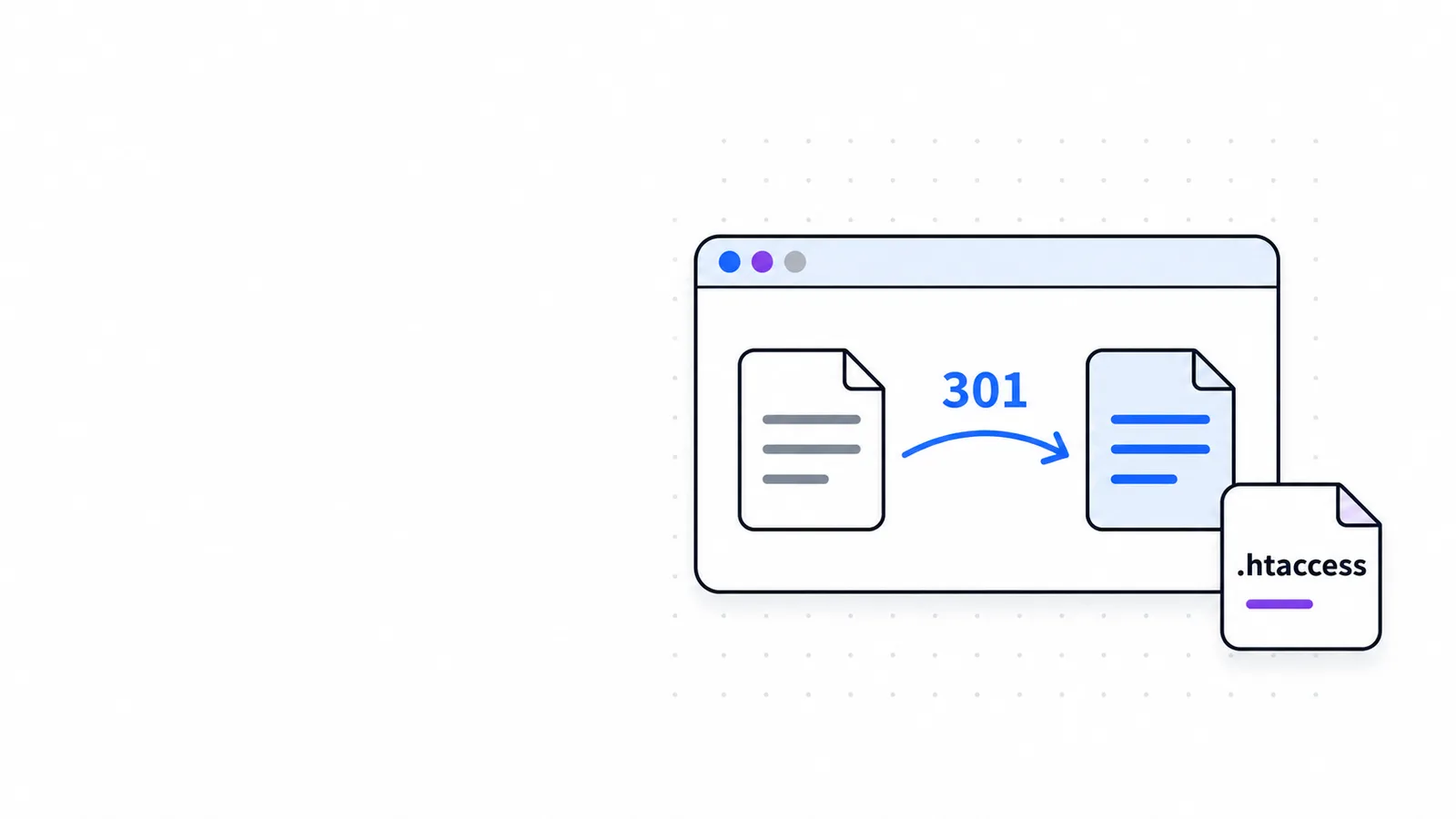
Inheritance can also come from a folder above the site. The cPanel PHP inheritance documentation explains that Apache reads the PHP version from the first .htaccess file it finds as it walks up the directory tree. An addon domain stored inside the main site's folder can pick up the main site's version this way. Setting a version for that domain directly stops this.
Alias domains
MultiPHP Manager lists only domains that have their own website folder. An alias (parked domain) shares the folder of the domain it points to, so it always runs that domain's PHP version.
PHP-FPM
Each row also shows whether PHP-FPM is on. PHP-FPM is a way of running PHP that keeps a pool of worker processes ready for requests. System administrators control it from WHM. cPanel does not allow PHP-FPM on a domain set to inherit, which is another reason to choose a specific version.
Change the PHP version in the Websites hub
cPanel's newer interface has a Websites hub. The cPanel guide for this interface gives these steps.
- Open the Websites hub. The PHP column shows the current version for each domain.
- Click the domain's PHP version in the table. This opens the domain's Settings tab.
- In the PHP Version menu, select the version you want. Inherit (System default) makes the domain follow the server default.
Change the PHP version with Select PHP Version
Hosts that run CloudLinux often show Select PHP Version instead of, or next to, MultiPHP Manager. The CloudLinux documentation describes it as the place where you choose the current PHP version, its extensions and its options.
- In cPanel, go to the Software section and open Select PHP Version. The PHP Extensions page opens.
- Choose the PHP version you want as the current version.
- Review the extension list for that version, then test the site.
The page saves each change as you make it, so there is no separate save step.
Enable PHP extensions
Extensions add functions to PHP. Database access and image resizing both depend on them. An application that needs a missing extension stops with a "Call to undefined function" error.
How you enable one depends on the screen your host gives you.
- In Select PHP Version, tick the extension in the list for the PHP version you selected. Each PHP version has its own list, so check it again after every version change.
- On servers with MultiPHP Manager only, the administrator installs extensions for the whole server through EasyApache 4 in WHM. You cannot add one yourself. Send your host the name of the extension and the PHP version you need it for.
To adjust PHP settings such as memory_limit or upload_max_filesize, use MultiPHP INI Editor in the Software section. Per the cPanel MultiPHP INI Editor documentation, you choose a domain or Home Directory from the menu on the Basic Mode tab, edit the values and click Apply. In Select PHP Version, the same kind of settings sit behind Switch to PHP options.
Check the PHP version with phpinfo
The cPanel screen shows what you asked for. A phpinfo() page shows what the site runs, including every loaded extension and the path of the configuration file in use.
- Open File Manager in cPanel and go to the site's document root. For the main domain this is usually
public_html. - Create a file with a name that is hard to guess, for example
check-7f3k.php. - Put this code in it and save.
<?php
phpinfo();- Visit
https://yourdomain.com/check-7f3k.phpin a browser. The PHP version is in the heading at the top of the page. Search the page for an extension name such asmysqliorcurlto confirm it is loaded. - Delete the file.
Do not skip the last step. The PHP manual says phpinfo() prints configuration values, paths, server information and environment data. That is useful to an attacker too.
WordPress users have a second option. In the dashboard, go to Tools, then Site Health, then Info, and open the Server section to read the PHP details without creating a file.
Fix common errors after a PHP upgrade
If the site breaks, switch the domain back to the version you noted earlier. The site returns to its old state and you can investigate without visitors seeing errors. Then find the real message.
Read the error first
cPanel's Errors screen in the Metrics section shows up to 300 of the most recent entries from the web server error log. The entry normally names the file and line that failed.
On WordPress, turn on the debug log by adding these lines to wp-config.php, before the line that says to stop editing. The lines come from the WordPress debugging documentation.
define( 'WP_DEBUG', true );
define( 'WP_DEBUG_LOG', true );
define( 'WP_DEBUG_DISPLAY', false );
WordPress then writes errors to wp-content/debug.log and keeps them off the page. Set WP_DEBUG back to false when you finish.
Match the message to a cause
| Error message | Cause | Fix |
|---|---|---|
Call to undefined function mysql_connect() | PHP 7.0 removed the old mysql functions | Update the application, or change the code to mysqli or PDO |
Call to undefined function create_function() or each() | PHP 8.0 removed both functions | Update the plugin or theme named in the error, or replace it |
Call to undefined function mysqli_connect(), curl_init() or similar | The extension is not enabled for the new PHP version | Enable the extension, or ask your host to install it |
Uncaught TypeError in a calculation | PHP 8.0 throws an error for arithmetic on non-numeric text, where older versions gave a warning | Update the code that the error names |
| A blank page or a 500 error | A fatal error with display turned off | Read the error log, then use the rows above |
The removed functions are listed in the PHP manual's migration notes for PHP 7.0 and PHP 8.0.
When the version does not change
If phpinfo() still reports the old version, check three things. Confirm you ticked the right domain, because subdomains and addon domains have their own rows. Confirm the domain is not an alias of another domain. Then look for an .htaccess file in a parent folder that sets a different PHP version, as described in the inherit section above.
When the version you need is missing
The PHP Version menu lists only the versions your host installed and allowed for your account. If the one you need is absent, ask your host to add it. Every WaseerHost hosting plan uses cPanel, and you can select PHP 8.0 to 8.5 for each site. The PHP hosting page has the details.
Frequently asked questions
Open MultiPHP Manager in the Software section. The list shows the PHP version next to each domain. In the newer interface, the Websites hub shows the same value in its PHP column. To confirm what the site runs, load a phpinfo() page and read the heading.

Written by
Web & AI Systems Lead
Web and AI Systems Lead at Wasevo, the company behind WaseerHost. He builds web applications and AI systems.