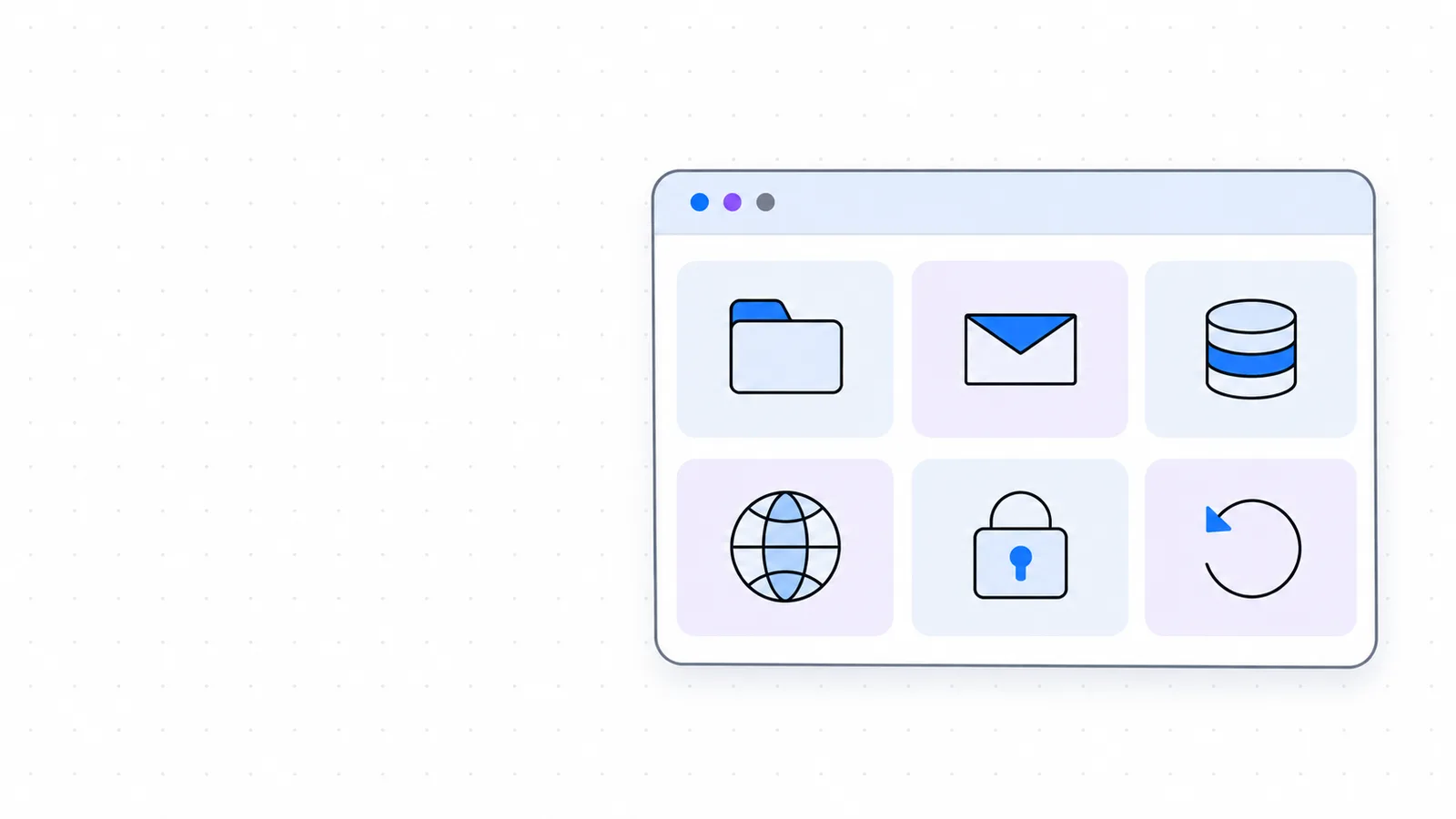


What is cPanel used for? cPanel is the control panel you use to run a web hosting account from your browser. Website owners use it to manage website files, email addresses, databases, domains, SSL certificates and backups without typing server commands. This tour shows what each main tool does and what to set up first.
Key takeaways
- cPanel is a web-based control panel for one hosting account. It runs on Linux servers and opens in any browser.
- Its main jobs are files, email, databases, domains, SSL certificates and backups.
- cPanel is for the website owner. WHM is the companion panel that the hosting provider or a reseller uses to manage the server and create cPanel accounts.
- Your host decides which tools appear, so two cPanel accounts at different hosts can look slightly different.
- Some jobs sit outside cPanel, including renewing a domain registration and restoring a full account backup.
What is cPanel?
cPanel is hosting control panel software made by WebPros International. The cPanel glossary describes it as "the companion software to WHM", designed "to simplify website maintenance for website owners" (cPanel glossary).
cPanel is a website you log in to. Its home page, called the Tools page, groups every tool by job, such as Email, Files, Databases, Domains and Security. The same page shows your primary domain, your home directory and usage figures such as disk space and bandwidth (cPanel interface documentation).
cPanel runs on Linux servers only. The supported operating systems are AlmaLinux OS, CloudLinux, Rocky Linux and Ubuntu (system requirements).
cPanel vs WHM
The two are parts of one product.
| cPanel | WHM | |
|---|---|---|
| Who uses it | The website owner | The hosting provider, server owner or reseller |
| What it manages | One hosting account and its sites, email and databases | The whole server and all the cPanel accounts on it |
| Secure login port | 2083 | 2087 |
The WHM documentation says WHM gives "the server's root user and resellers" access to server administration (WHM interface). On shared hosting you only get cPanel. You see WHM if you rent a VPS with a cPanel licence or buy reseller hosting.
What is cPanel used for?
This table maps the common jobs to the cPanel tool that does each one.
| Job | cPanel tool | Section |
|---|---|---|
| Upload, edit or delete website files | File Manager | Files |
| Create an address such as [email protected] | Email Accounts | |
| Read mail in a browser | Webmail | |
| Create a database for WordPress or another app | Manage My Databases | Databases |
| Look inside a database | phpMyAdmin | Databases |
| Add another domain or a subdomain | Domains | Domains |
| Edit DNS records | Zone Editor | Domains |
| Check the SSL certificate on each domain | SSL/TLS Status | Security |
| Download a copy of the site | Backup or Backup Wizard | Files |
| Change the PHP version | MultiPHP Manager | Software |
| Run a script on a schedule | Cron Jobs | Advanced |
How to log in to cPanel
- Open the cPanel address from your host's welcome email. The standard secure address is your domain followed by port 2083, for example
https://yourdomain.com:2083. Port 2083 is the cPanel SSL port (cPanel firewall documentation). Many servers also redirecthttps://yourdomain.com/cpanelto that port. - Enter the cPanel username and password your host gave you.
- On the Tools page, type a tool name in the search box at the top. Pressing the
/key moves the cursor to that search box.
A tour of the main cPanel tools
Files with File Manager
File Manager is a file browser for your hosting account. The folder that matters most is public_html. The glossary defines it as the directory whose files "are publicly-accessible through the HTTP protocol", and your primary domain's document root normally defaults to it.
File Manager has three limits to know, all listed in the File Manager documentation:
- You cannot upload a folder. Compress the folder into a .zip file on your computer, upload the file, select it and click Extract.
- The built-in editor refuses files larger than 1 MB. Download a larger file, edit it on your computer and upload it again.
- Deleted files move to a Trash folder first. They stay there until you click Empty Trash.
Email accounts on your own domain
The Email Accounts tool creates mailboxes that end in your domain name. To create one, follow the steps in the Create an Email Account documentation:
- Open Email Accounts and click Create.
- Pick the domain if your account has more than one.
- Type the part before the @ sign in the Username box.
- Set a password, or click Generate to get a random one.
- Click Create.
Back in the list, Check Email opens the mailbox in Webmail, and Connect Devices opens the setup screen for a mail app on your computer or phone (Email Accounts documentation). The Forwarders tool sends incoming mail on to another address, which helps when you want sales@ and info@ to reach one inbox. Our guide to SMTP, IMAP and POP3 ports explains the server and port settings a mail app asks for. If you only need mailboxes and no website, look at a business email plan instead.
Databases
Many content management systems, including WordPress, store their content in a MySQL or MariaDB database. The Manage My Databases tool creates databases and database users and sets which user can access which database. cPanel versions up to 118 call the same tool MySQL Databases (Manage My Databases documentation).
phpMyAdmin is the second database tool. The documentation describes it as "a third-party tool that you can use to manipulate MySQL or MariaDB databases", for example to add or delete records (phpMyAdmin in cPanel).
If your host includes WP Toolkit, you manage WordPress from one screen instead. The documentation describes WP Toolkit as the tool to install, configure and manage WordPress sites (WP Toolkit documentation).
Domains and DNS
The Domains tool lets you "create and manage multiple domains from a single cPanel account" (Domains documentation). Use it to add a second website, create a subdomain such as shop.yourdomain.com, or change the folder a domain loads from.
The Zone Editor creates, edits and deletes DNS records such as A, CNAME and MX records (Zone Editor documentation). It only controls your DNS when the domain uses your host's nameservers. If the nameservers point somewhere else, edit the records at that provider. Our guide to DNS records explains each record type, and the DNS lookup tool shows what the public internet sees for your domain.
SSL certificates
The SSL/TLS Status tool lists the domains on the account and shows the certificate status of each one. Your host may have turned on AutoSSL. The glossary defines it as a feature "that provides free, Domain-Validated SSL certificates to users' domains", and it replaces certificates that are about to expire.
A certificate alone does not send visitors to the secure address. In the Domains tool, switch Force HTTPS Redirect on for each domain. The documentation notes that the toggle needs a valid SSL certificate on the domain first.
Backups
The Backup Wizard creates two kinds of backup (Backup Wizard documentation):
- A full backup packs the whole account into one
.tar.gzfile. You can download it, but you cannot restore it yourself. The documentation says a full restore "is only available in WHM", so your host has to do it. - A partial backup covers one part of the account. The options are the home directory, MySQL databases, and email forwarders and filters. You can restore any of these yourself from the Restore step of the same wizard.
Download a backup to your own computer before a redesign or a move to another host. A backup stored only on the same server does not survive a server failure.
PHP version and scheduled tasks
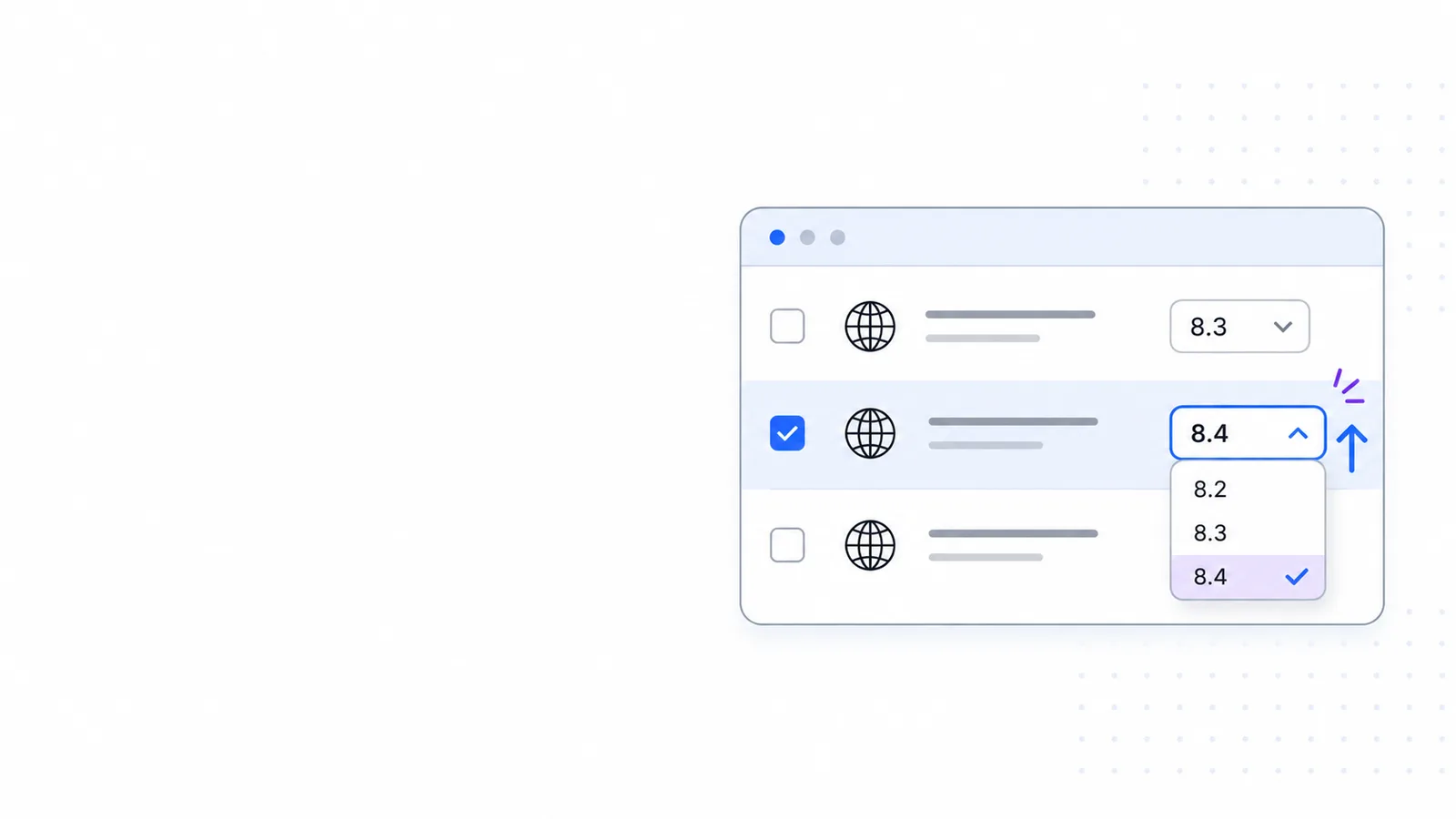
MultiPHP Manager sets the PHP version for each domain. Select the domain's checkbox, choose a version from the PHP Version menu and click Apply (MultiPHP Manager documentation). The menu only lists versions that are installed on the server and available to your account.
Cron Jobs runs a command at set times, such as a nightly import script. The documentation warns against running jobs too often. The server could start a new run before the last one ends, and that can degrade performance (Cron Jobs documentation).
What you cannot do in cPanel
These jobs need your host or your domain registrar.
- You cannot renew a domain registration. The Domains documentation states that "you cannot update or renew a domain's registration in cPanel". Do that at the company where you registered the domain.
- You cannot raise your own disk or bandwidth limits. The documentation tells you to contact your hosting provider for both.
- You cannot restore a full account backup. Ask your host.
- You cannot install a PHP version that is missing from the menu. The server administrator does that in WHM.
Five things to set up first
- Add a contact email address in Contact Information, and use an address that is not hosted on the same account. cPanel needs it for password resets and sends account notices there (Contact Information documentation).
- Turn on two-factor authentication. After setup, cPanel asks for your password and a six-digit code from an authenticator app on your phone (two-factor authentication documentation).
- Open SSL/TLS Status, confirm each domain has a valid certificate, then switch on Force HTTPS Redirect.
- Create your first email address and send a test message in both directions.
- Download a full backup once the site is live, and repeat it before every large change.
Common beginner problems
A tool from this guide is missing
Hosting providers can enable or disable individual cPanel tools. If a tool does not appear in search, your account does not have it. Ask your host whether it can be enabled.
The disk is full
When the account reaches its quota, you see a "disk quota exceeded" warning and cannot save files, and backups can fail too. Open Disk Usage to find the files and folders that use the most space (Disk Usage documentation). Check for old backup files in the home directory, files left in the Trash folder and large mailboxes.
The website does not change after an upload
Check that you uploaded into the document root of the right domain. The Domains tool lists the document root next to each domain. The primary domain normally uses public_html, and an added domain or subdomain can use a different folder.
Where WaseerHost fits
Every WaseerHost hosting plan uses cPanel, so this tour previews the panel you log in to with us. Shared hosting plans include free SSL certificates, and you can select PHP 8.0 to 8.5 per site in cPanel on PHP hosting. If your site already lives in cPanel at another host, free website migration is available, and our cPanel to cPanel migration guide explains how that kind of move works. If you are still choosing a panel, read our comparison of cPanel and CWP.
Frequently asked questions
cPanel is a browser-based control panel for a hosting account. You need it, or another control panel, to do the jobs around a website that the website itself cannot do, such as creating email addresses, adding domains, making databases and downloading backups.

Written by
Web & AI Systems Lead
Web and AI Systems Lead at Wasevo, the company behind WaseerHost. He builds web applications and AI systems.