

A WordPress security checklist is a short list of habits and settings that close the most common ways small business sites get broken into, including out-of-date software, weak logins, over-powered accounts and missing backups. Work through the list below once, then repeat the recurring items on a schedule. Each item is a checkbox you can tick off, with the official WordPress documentation behind it.
Key takeaways
- Keep WordPress core, plugins and themes updated, and delete the ones you do not use.
- Give every user a unique, long password, turn on two-step login, and use the lowest role that does the job.
- Set
DISALLOW_FILE_EDITinwp-config.php, lock down file permissions and replace the security keys and salts. - Serve the whole site over HTTPS and force logins over SSL.
- Back up both files and database, store copies off the server, and restore one to prove it works.
How to use this checklist
The items are grouped by how often you touch them. Do the "once" items today. Put the "monthly" and "weekly" items in a calendar. The table gives a quick view, and the sections after it explain each item and show the exact settings.
| Item | How often | Where you do it |
|---|---|---|
| Update core, plugins, themes | Weekly | Dashboard, Updates |
| Delete unused plugins and themes | Monthly | Dashboard, Plugins and Appearance |
| Review user accounts and roles | Monthly | Dashboard, Users |
| Unique passwords and two-step login | Once, then on staff changes | Profile page and a login plugin |
| Disable the file editor | Once | wp-config.php |
| Check file permissions | Once, after any restore or move | cPanel File Manager or SFTP |
| Replace keys and salts | Once, and after any suspected breach | wp-config.php |
| Force HTTPS | Once | Certificate plus wp-config.php |
| Back up and test a restore | Backups on a schedule, restore test quarterly | cPanel or a backup plugin |
Keep everything updated
WordPress.org says to always run the latest version, because older versions no longer receive security updates (Hardening WordPress). Minor core releases, which include maintenance and security releases, install automatically by default (Upgrading WordPress). Leave that on.
- Core is on the current release.
- Every plugin and theme shows no pending update.
- Automatic minor core updates are not disabled.
- You downloaded WordPress, plugins and themes from wordpress.org or the vendor's own site, never from a "free premium" download page.
Take a backup before major updates. The WordPress backup guide also says to back up the database before an upgrade or a move (WordPress backups).
Delete what you do not use
Every installed plugin is code that can have a bug, even when it is switched off. The hardening guide says to keep plugins updated and delete any plugin you are not using. Apply the same rule to themes: keep your active theme and, if you want a fallback, one default theme.
- You deleted each unused plugin instead of only deactivating it.
- You can name what every remaining plugin does.
- Each plugin comes from the WordPress.org directory or a vendor you can identify, and has been updated recently.
Fewer plugins also means fewer updates to apply each week.
Passwords, two-step login and accounts
Use strong, unique passwords
WordPress.org's own security guidance calls the password "the weakest link in the security of anything you do online" (Two-step authentication). Use a password manager to generate a long random password for every account, and never reuse one across services. The "my site was hacked" guide lists the places to change: WordPress admin, SFTP/FTP, cPanel or your host's panel, and the MySQL database user (FAQ: My site was hacked).
- Every administrator has a unique password from a password manager.
- Your hosting panel and SFTP passwords are also unique.
- No account uses
adminorwebmasteras its username.
On that last point, the hardening guide advises against easily guessed names like admin and gives this SQL example for renaming an existing account, which you can run in phpMyAdmin after a backup:
UPDATE wp_users SET user_login = 'newuser' WHERE user_login = 'admin';Your table prefix may differ from wp_, so check yours first.
Turn on two-step login
Two-step (two-factor) authentication asks for a second proof, such as a code from an authenticator app on your phone, in addition to the password. The WordPress documentation says SMS is not a secure channel and that app-based tools were built to improve on it. It lists Duo, Google Authenticator, Rublon, Two-Factor and Wordfence among the popular WordPress.org plugins for the job (Two-step authentication).
- Every administrator and editor has two-step login enabled.
- You saved the recovery codes somewhere other than your phone.
The same page notes the trade-off: it adds a step to every login and can lock out a real user who does not have their phone. That is why you save recovery codes first.
Protect the login page
A reputable security plugin from the WordPress.org directory can rate-limit or block repeated failed logins. Two-step login does most of the work here, because a guessed password alone no longer gets anyone in.
- Repeated failed logins are limited or blocked by a plugin you trust.
- The login page is only reachable over HTTPS (see below).
Give each person the lowest role that works
WordPress has six predefined roles, and each is a set of capabilities (Roles and capabilities). In short:
| Role | What the person can do |
|---|---|
| Administrator | Access all administration features within a single site |
| Editor | Publish and manage posts, including other users' posts |
| Author | Publish and manage their own posts |
| Contributor | Write and manage their own posts, but not publish them |
| Subscriber | Read only |
Super Admin applies to multisite networks. Most small business sites need one or two administrators and nobody else with that role. A writer is an Author or Contributor. A web agency needs an administrator account only while it works on the site.
- The Users screen lists only people who still work with you.
- Each person has the lowest role that lets them do their job.
- Former staff and old contractors are removed, and their content reassigned.
If an attacker takes over an Author account, they can do far less damage than with an Administrator.
Lock down wp-config.php and files
Disable the built-in file editor
The dashboard has a theme and plugin file editor. If an attacker gets into a privileged account, the editor lets them change site code from the browser. Add this line to wp-config.php, above the line that says "That's all, stop editing":
define( 'DISALLOW_FILE_EDIT', true );WordPress.org describes this as an extra layer of security if an attacker gains access to a well-privileged user account (wp-config.php). The hardening guide is careful about its limits. It does not stop an attacker from uploading malicious files, but it may block some attacks.
A stricter option is DISALLOW_FILE_MODS, which also blocks plugin and theme installs and updates from the admin area and disables the file editor too (Editing wp-config.php). Use it only if you update through another process, because it also stops you installing updates from the dashboard.
-
DISALLOW_FILE_EDITis set totrue.
Set file permissions
The hardening guide gives these commands for permissions, run from the WordPress folder with your own path:
find /path/to/your/wordpress/install/ -type d -exec chmod 755 {} \;
find /path/to/your/wordpress/install/ -type f -exec chmod 644 {} \;
For wp-config.php, only you and the web server should be able to read it, which the guide says generally means a 400 or 440 permission. It also says the core directories (/, /wp-admin/, /wp-includes/) and /wp-content/plugins/ should be writable only by your user account. In cPanel you can change permissions in File Manager without using the command line.
- Directories are 755 and files are 644.
-
wp-config.phpis 400 or 440. - You re-checked permissions after any restore or site move.
Replace the security keys and salts
wp-config.php holds eight secret values: AUTH_KEY, SECURE_AUTH_KEY, LOGGED_IN_KEY, NONCE_KEY and the four matching _SALT values. WordPress.org provides a generator at https://api.wordpress.org/secret-key/1.1/salt/. Paste the output over the existing block in wp-config.php.
The documentation says you can change them at any time to invalidate all existing cookies, and that all users then have to log in again (wp-config.php). That is useful after a staff member leaves or after a suspected breach.
- The keys and salts are unique to this site, not the placeholder text.
- You know how to regenerate them if you need to log everyone out.
Use HTTPS everywhere
HTTPS encrypts traffic between the visitor and the server, and browsers label sites without it as "not secure". WordPress.org says support for HTTPS is strongly recommended (HTTPS for WordPress). WaseerHost plans include free SSL certificates, and you can see what each plan covers on the shared hosting page.
Once the certificate is installed, force logins and admin sessions over SSL by adding this to wp-config.php:
define( 'FORCE_SSL_ADMIN', true );WordPress.org says this keeps passwords and cookies from ever being sent in the clear, and that the constant must be defined in wp-config.php itself, not in a plugin. SSL must already work on the server before you set it.
- The site loads over
https://with no browser warning. -
FORCE_SSL_ADMINis set totrue. - Your site address in Settings, General uses
https://.
Back up, and test the restore
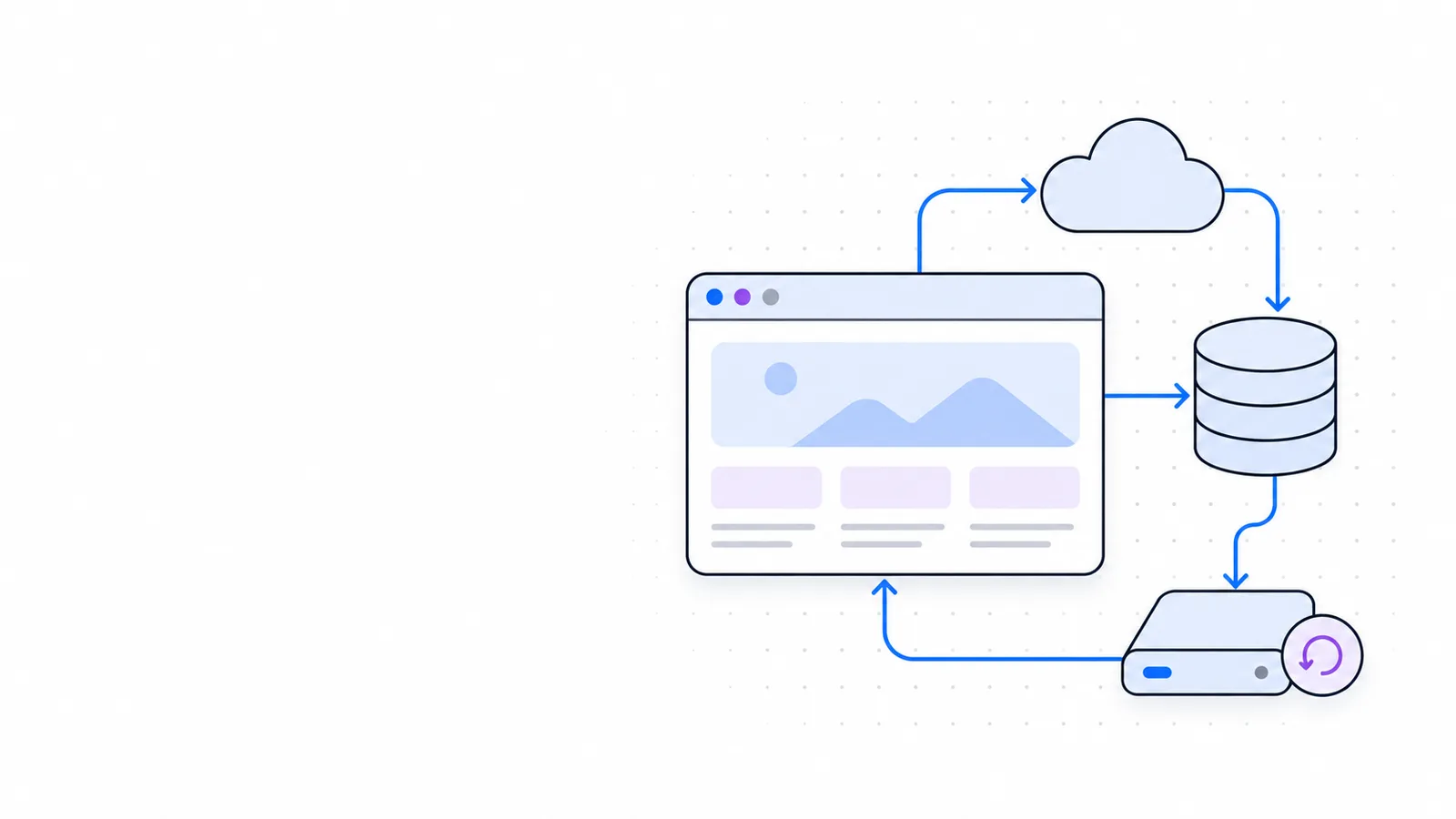
A WordPress site has two parts, the files and the database. The backup guide says you need both to restore a typical site, because the database is stored separately from the WordPress folder (WordPress backups). Its guidance:
- Weekly for small sites, daily for busy ones, and always before an upgrade or a move.
- Keep at least three to five recent backups.
- Store copies in different places, for example the server, cloud storage and your own computer.
- Back up the database first, then the files. To restore, put the files back first, then import the database.
The guide also suggests an occasional manual backup to confirm that automatic backups are working. Go one step further and restore a backup to a test location, because a backup you have never restored may not work.
Every WaseerHost hosting plan uses cPanel, which has a Backup Wizard. It can create a full backup as a .tar.gz file, plus partial backups of the home directory, email forwarders and filters, and MySQL databases. cPanel's documentation states one limit. Full backups cannot be restored through the cPanel interface, only in WHM, so ask your host to do it. Partial backups can be restored from the Backup Wizard with Restore, Choose File and Upload (cPanel Backup Wizard). For a regular schedule, use a backup plugin or ask your host what backup options your plan offers, and keep a copy off the server either way.
- Files and database are both backed up on a schedule that matches how often you change the site.
- At least one copy is stored away from the web server.
- You restored a backup to a test location within the last three months.
- You know who to ask if a full backup needs restoring.
What to do if your site is hacked
Work through these steps in order. They follow WordPress.org's guide (FAQ: My site was hacked).
- Write down what you see and when you first noticed it, plus recent changes such as a new plugin or theme.
- Contact your host. A shared server can be affected beyond your site, and the host can confirm what is happening. WaseerHost offers 24/7 support, and the security page covers site safety on our platform.
- Scan your own computer for malware too. The guide notes that attacks often start from a local machine that steals FTP or admin logins.
- Reset passwords for WordPress, SFTP/FTP, your hosting panel and the database user, and replace the keys and salts to log everyone out.
- Take a snapshot of the current state, even though it is infected, so you have a reference. Then restore a clean backup or clean the site.
- If you clean by hand, replace
/wp-adminand/wp-includeswith a fresh copy of the same WordPress version, and check.htaccessand theme files such asindex.php,header.phpandfooter.php. Use SFTP rather than the dashboard reinstall, because that only overwrites files and hacks often add new ones. - Update everything, then change the passwords again now that the site is clean.
- Work out how the attacker got in, so the same hole does not stay open.
If you are not comfortable with step 6, hire a WordPress security professional rather than guessing.
Things this checklist does not cover
Security plugins that scan for malware and firewalls add a layer on top of everything above, but they do not replace updates, good passwords or backups. If you add one, choose a plugin from the WordPress.org directory with recent updates and an active community. The WordPress.org hacked-site guide lists Quttera, GOTMLS, Wordfence and Sucuri as long-standing scanner plugins.
For WordPress sites on WaseerHost, the WordPress page lists what is available.
Frequently asked questions
Update core, plugins and themes, delete anything unused, give every account a unique strong password plus two-step login, and use the lowest user role that works. Then set DISALLOW_FILE_EDIT, fix file permissions, force HTTPS for logins and keep tested backups.

Written by
Founder & CEO
Founder and CEO of Wasevo LLC, the company that runs WaseerHost. He works on cPanel/WHM servers, WHMCS billing and the Next.js storefront.