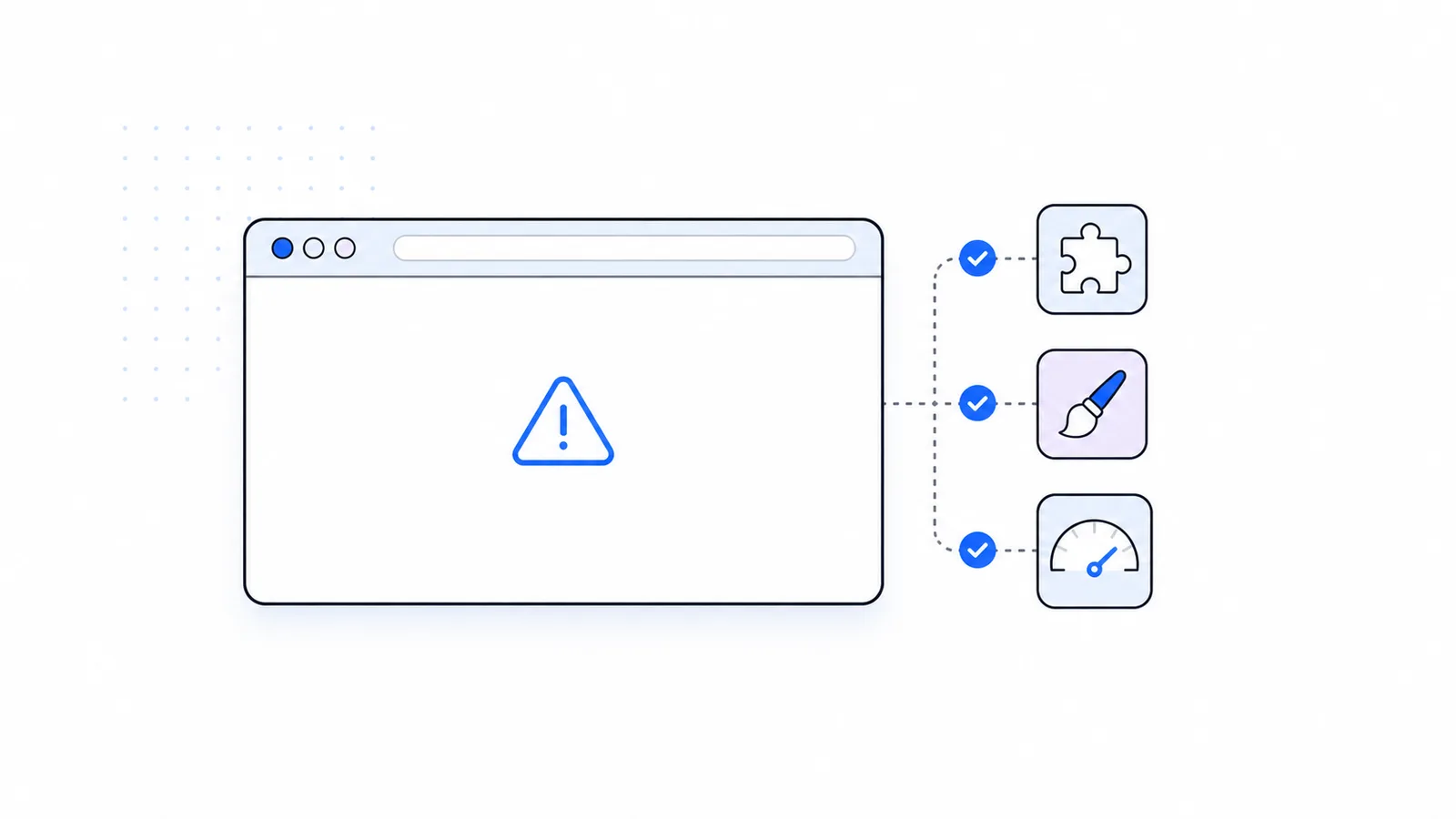


The WordPress white screen of death is a blank page, or the message "There has been a critical error on this website", that appears when a PHP or database error stops WordPress from loading. To fix it, find the error first with the recovery email or the debug log, then rule out plugins, the theme, the memory limit and the PHP version, one at a time.
Key takeaways
- A blank white page and the critical error message have the same causes. The message is what current WordPress versions show in place of the blank page.
- WordPress emails a recovery mode link to the site admin address when a plugin or theme crashes. Check that inbox before you touch any files.
- The debug log names the file and line that failed, so turn it on before you start disabling things.
- You can turn off plugins and themes without the dashboard by renaming a folder in File Manager.
- Change one thing at a time and write down what you changed, so you can undo it.
What the WordPress white screen of death means
The WordPress documentation says that both PHP errors and database errors can show up as "a white screen, a blank screen with no information". The community calls it the WordPress White Screen of Death, or WSOD. The page is empty because PHP stopped before WordPress could print anything, and the server hides error text from visitors.
Since WordPress 5.2, a fatal error handler catches most of these crashes. Visitors see a short notice in place of the blank page, and the site admin gets an email. The WordPress documentation quotes the full message as "There has been a critical error on this website. Please check your site admin email inbox for instructions."
The same documentation lists the usual causes of that message as conflicts between plugins, compatibility issues with the theme, an incompatible PHP version, the memory limit and corrupted WordPress files. The steps below follow that list.
If your browser shows a 500 status page from the server and not a WordPress page, read the 500 internal server error guide too. It covers .htaccess, file permissions and the cPanel error log.
Symptom, likely cause and where to start
| What you see | Likely cause | Start with |
|---|---|---|
| Critical error message on every page | A plugin or theme crashed | Step 1, the recovery mode email |
| Blank page right after a plugin update or install | That plugin | Step 3 |
| Blank page right after activating or editing a theme | The theme | Step 4 |
| Blank page only on heavy pages, imports or the editor | Memory limit reached | Step 5 |
| Blank page after the host or you changed the PHP version | Code that does not run on that PHP version | Step 6 |
| Site works for you in recovery mode but not for visitors | The broken plugin or theme is only paused for you | Step 1, then deactivate it |
Step 1. Check your email for the recovery mode link
Start with the inbox of the site's admin email address. When a fatal error happens, WordPress sends that address an email with a secret link to recovery mode.
- Open the email from your site and click the recovery mode link.
- Log in with your normal admin account.
- Read the notice in the dashboard. It names the plugin or theme that WordPress paused and shows the error.
- Go to Plugins or Appearance > Themes and deactivate the paused item, or update it if a fix is available.
- Click the exit recovery mode button in the admin bar when you are done.
Recovery mode works through a cookie in your browser. According to the WordPress core team's description, the broken plugin or theme is paused only for the browser that is in recovery mode. Visitors still see the error until you deactivate or fix the item. If you exit recovery mode without doing that, the error comes back for you as well.
If no email arrives, check the spam folder and confirm which address is the admin email. Then continue with step 2, which does not depend on email.
Step 2. Turn on the WordPress debug log
The debug log shows the file name and line number of the error. You need File Manager in cPanel or an FTP program.
- In cPanel, open File Manager and go to your site's folder, usually
public_html. - Make a copy of
wp-config.phpso you can restore it. - Open
wp-config.phpfor editing. - Add the lines below before the comment that says
/* That's all, stop editing! Happy blogging. */. If aWP_DEBUGline already exists, change it instead of adding a second one. - Save the file and reload the broken page.
// Enable WP_DEBUG mode
define( 'WP_DEBUG', true );

// Enable Debug logging to the /wp-content/debug.log file
define( 'WP_DEBUG_LOG', true );

// Disable display of errors and warnings
define( 'WP_DEBUG_DISPLAY', false );
@ini_set( 'display_errors', 0 );
These settings come from the WordPress debugging documentation. WordPress now writes errors to wp-content/debug.log and keeps them off the public page. Write true and false without quotes. The documentation warns that a quoted 'false' counts as true.
Open wp-content/debug.log and read the newest lines at the bottom. Look for a line that starts with PHP Fatal error. The path in that line tells you where to go next.
- A path under
wp-content/plugins/followed by a plugin's folder name points to that plugin. Go to step 3. - A path under
wp-content/themes/points to the theme. Go to step 4. - The text
Allowed memory size of ... bytes exhaustedpoints to the memory limit. Go to step 5. - A syntax error in a file you edited by hand means the edit broke the file. Restore the previous version of that file.
WordPress does not recommend debug tools on live sites. When the site works again, set WP_DEBUG back to false and delete debug.log, because the file sits in a public folder and can reveal file paths.
Step 3. Disable your plugins
Test plugins first, especially if the screen went white after an update or a new install. They are the first cause on the WordPress documentation's list.
If you can open the dashboard
- Go to Plugins > Installed Plugins.
- Deactivate all plugins.
- Reload the site. If it loads, activate the plugins one by one and reload after each. The plugin that brings the blank page back is the cause.
If you cannot log in
- In File Manager, open the
wp-contentfolder. - Select the
pluginsfolder and click Rename in the toolbar. Name itplugins_old. - Open
/wp-admin/plugins.phpon your site and log in. WordPress cannot find the plugins and deactivates them. - Rename the folder back to
plugins. The WordPress troubleshooting FAQ says all plugins stay deactivated after this, and that the method keeps their settings. - Activate the plugins one by one until the error returns.
If the debug log already named one plugin, rename only that plugin's folder inside wp-content/plugins. The rest of the site keeps working while you look for an update or a replacement.
With WP-CLI
If your host gives you SSH access and WP-CLI, one command does the same job. The --skip-plugins and --skip-themes flags stop WP-CLI from loading the broken code while it runs.
wp plugin deactivate --all --skip-plugins --skip-themesStep 4. Switch to a default theme
If the site is still blank with every plugin off, test the theme. The WordPress documentation says a theme is especially likely to be the cause right after you activate a new one.
- If the dashboard works, go to Appearance > Themes and activate a default theme such as Twenty Twenty-One.
- If it does not, open
wp-content/themesin File Manager and rename the folder of your active theme, for example tomytheme_old. - Reload the site.
WordPress needs a default theme in the themes folder to switch to, so check that one is installed before you rename anything. If the site loads with the default theme, the old theme has the error. Undo any recent edit to its functions.php, or install a fresh copy of the theme, then rename the folder back and activate it again.
With WP-CLI, the command is wp theme activate followed by the theme's folder name.
wp theme activate twentytwentyone --skip-plugins --skip-themesStep 5. Raise the memory limit
When a page needs more memory than PHP allows, PHP stops and the page stays blank. The debug log shows this as "Allowed memory size of xxxxxx bytes exhausted".
By default, WordPress tries to set PHP memory to 40MB for a single site and 64MB for multisite, according to the wp-config.php documentation. To ask for more, add this line to wp-config.php above the stop editing comment.
define( 'WP_MEMORY_LIMIT', '256M' );This setting raises memory only for WordPress, and the documentation notes that some hosts do not let WordPress raise the limit this way. If the error stays the same, change the PHP setting itself.
- In cPanel, open MultiPHP INI Editor and choose the Basic Mode tab.
- Select your domain from the menu.
- Set
memory_limitto a higher value, for example 256M. - Click Apply.
The PHP manual lists 128M as the default for memory_limit. The WordPress documentation adds a warning. A higher limit can hide the real problem, which is often one plugin that uses too much memory. If you need to raise the limit again after a few weeks, find that plugin with the debug log.
Step 6. Check the PHP version
Old plugins and themes can crash on a new PHP version, and new ones may need a version your site does not run yet. WordPress recommends PHP 8.3 or greater and still works with PHP 7.4 and later.
- In cPanel, open MultiPHP Manager.
- Select the checkbox for the domain.
- Choose a version from the PHP Version menu.
- Click Apply.
If the white screen started right after a PHP change, go back to the previous version and confirm that the site loads. Then update WordPress, the plugins and the theme, and try the newer version again. Do not stay on an old PHP release for long, because WordPress notes that versions past their end of life can expose the site to security problems.
On WaseerHost, you can select PHP 8.0 to 8.5 per site in cPanel, so one site can change version while the others stay as they are. The PHP hosting page has the details.
If it still does not work
A few causes are not plugins, themes or PHP settings.
- Corrupted core files after an update that stopped halfway. Re-upload the
wp-adminandwp-includesfolders from a fresh WordPress download. The 500 error guide lists the exact steps. - A cached copy of the broken page. If the dashboard works but visitors still see a blank page, clear your caching plugin, server cache and CDN cache, then reload.
- A database problem. WordPress usually shows a database connection message for this, but the documentation notes that database errors can also produce a white screen. The debug log prints database errors when
WP_DEBUGis true.
If none of this helps, contact your host. Send the time of the error, the page address and the last lines of debug.log. WaseerHost plans include 24/7 support and run on cPanel, so the File Manager and MultiPHP steps above apply as written. See current WordPress hosting plans, or the shared hosting plans if you run more than WordPress.
Frequently asked questions
It means PHP or the database hit an error before WordPress could build the page, so the browser received an empty page. Current WordPress versions often show "There has been a critical error on this website" in its place.

Written by
Founder & CEO
Founder and CEO of Wasevo LLC, the company that runs WaseerHost. He works on cPanel/WHM servers, WHMCS billing and the Next.js storefront.