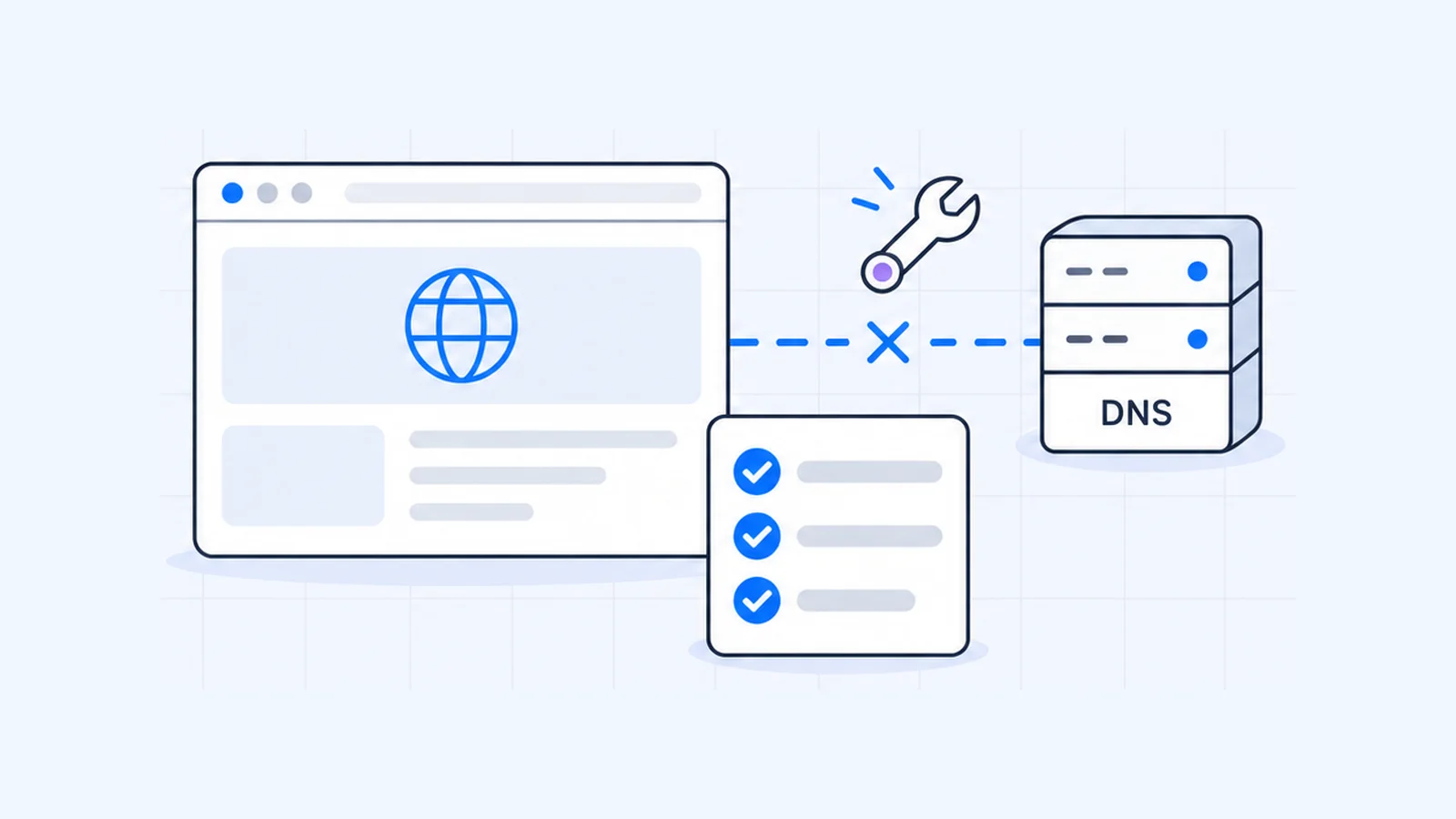


"DNS server not responding" means your device sent a name lookup and got no answer back, so it can't turn a web address into an IP address. The cause is usually local, such as a stuck router, a stale cache or a bad DNS setting. The fixes below run from quickest to most involved, and each command and menu path comes from Microsoft, Apple, Google or Cloudflare documentation.
Key takeaways
- First check whether DNS is the cause at all. Run
nslookup example.com 1.1.1.1and compare it with a plainnslookup example.com. - Most cases clear after you restart the modem and router (unplug them for at least 30 seconds) and flush the DNS cache.
- A public resolver fixes most of the rest. Google Public DNS is
8.8.8.8/8.8.4.4and Cloudflare is1.1.1.1/1.0.0.1. - Windows has deeper resets (
netsh winsock reset, Network reset) for when the first fixes fail. - If only your own website fails, look at its DNS records or nameservers, not your computer.
What "DNS server not responding" means
Your computer doesn't know the IP address of example.com. It asks a DNS server, usually one your router or internet provider assigns, and waits. If no reply arrives in time, Windows reports that the DNS server isn't responding and the page won't load.
Microsoft's nslookup reference describes the same failure from the command line. A "timed out" result means "the server didn't respond to a request after a certain amount of time and a certain number of retries" (Microsoft Learn: nslookup). The DNS server might be down, your router might not forward requests, or software on your device might block them.
Check whether DNS is the problem
Open Command Prompt (Windows) or Terminal (Mac) and run two lookups:
nslookup example.com
nslookup example.com 1.1.1.1
The first uses your current DNS server. The second asks Cloudflare's resolver directly, a form Microsoft shows in its own examples.
| Result | What it tells you |
|---|---|
| Both work | DNS works now. Flush your cache (fix 3) and retry the browser. |
| First times out, second works | Your configured DNS server is failing. Go to fix 4. |
| Both time out | Your connection, router or a firewall is blocking DNS. Start at fix 1. |
| "Nonexistent domain" | The server answered, and that name doesn't exist. Check the spelling, or see the website section below. |
Google suggests a similar check. If a fixed IP address loads but names don't resolve, look at your DNS configuration (Google Public DNS).
How to fix "DNS server not responding" (easiest first)
1. Try another device or network
Load the same site on your phone over mobile data, then over Wi-Fi. If every device on your Wi-Fi fails but mobile data works, the router or provider is at fault, so go to fix 2. If only one computer fails, skip to fix 3.
2. Restart your modem and router
Microsoft's steps are to unplug the modem and router, remove any backup battery from the modem, wait at least 30 seconds, and plug everything back in. Give the devices several minutes to start before you test again (Microsoft Support).
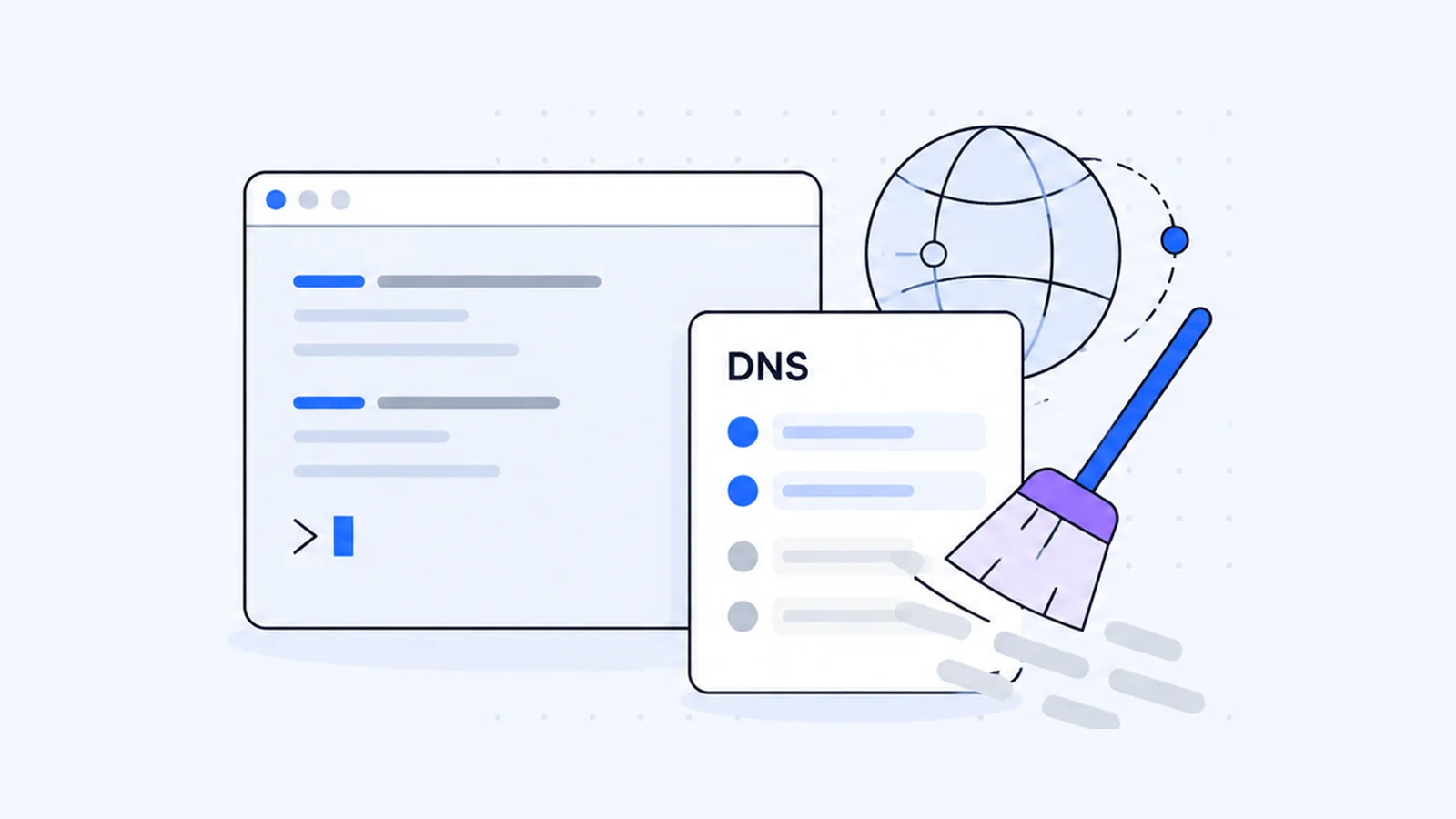
3. Flush your DNS cache
Your computer can cache a failed lookup and keep showing the error after the real cause is gone. Microsoft notes that a flush lets you "discard negative cache entries" (Microsoft Learn: ipconfig).
On Windows, open Command Prompt as administrator and run:
ipconfig /flushdnsOn a Mac with OS X 10.10.4 or later, Apple lists this Terminal command:
sudo killall -HUP mDNSResponderFor Linux, PowerShell and Chrome's own cache, see the full guide on how to flush DNS.
4. Switch to a public DNS server
If your provider's DNS server is the one failing, use a public resolver instead. These addresses come from each provider's official page:
| Provider | IPv4 | IPv6 |
|---|---|---|
| Google Public DNS | 8.8.8.8, 8.8.4.4 | 2001:4860:4860::8888, 2001:4860:4860::8844 |
| Cloudflare 1.1.1.1 | 1.1.1.1, 1.0.0.1 | 2606:4700:4700::1111, 2606:4700:4700::1001 |
Sources: Google Public DNS, Cloudflare 1.1.1.1. Cloudflare also runs filtering variants. 1.1.1.2 blocks malware, and 1.1.1.3 blocks malware and adult content.
On Windows 11, follow Cloudflare's steps:
- Go to Start > Settings > Network & internet and select your Wi-Fi or Ethernet connection.
- Next to DNS server assignment, select Edit.
- Change Automatic (DHCP) to Manual and turn on IPv4.
- Enter a primary address under Preferred DNS and a second one under Alternate DNS, then select Save.
Windows 11 also offers a DNS over HTTPS option in this dialog. Microsoft notes that Windows 10 doesn't have it (Microsoft Support).
On Windows 10, go to Settings > Network & Internet > Change adapter options, right-click your connection, and choose Properties. Open Internet Protocol Version 4 (TCP/IPv4) and select Use the following DNS server addresses.
On a Mac, follow Apple Support:
- Choose Apple menu > System Settings, then click Network in the sidebar.
- Click your network service, then click Details.
- Click DNS, click the Add button under the DNS servers list and enter the address.
5. Pause your VPN or security software
VPN clients and some security apps route or filter DNS on their own. Google's troubleshooting guide notes that on some networks DNS queries "may be blocked or hijacked" (Google Public DNS troubleshooting). Disconnect the VPN or pause the app for one test. If lookups start working, change that app's DNS or firewall settings instead of leaving it off.
6. Reset the Windows network stack
Microsoft's Wi-Fi guide runs these commands in order from an administrator Command Prompt:
netsh winsock reset
netsh int ip reset
ipconfig /release
ipconfig /renew
ipconfig /flushdns
Your connection drops for a moment during /release.
7. Reinstall the network adapter driver
Microsoft's steps: open Device Manager, expand Network adapters, right-click your adapter and choose Uninstall device. Tick Attempt to remove the driver for this device, then restart. Windows reinstalls the driver by itself.
8. Run a full network reset
- On Windows 11, go to Start > Settings > Network & internet > Advanced network settings > Network reset > Reset now > Yes.
- On Windows 10, go to Start > Settings > Network & Internet > Status > Network reset > Reset now > Yes.
Microsoft warns that you may need to reinstall VPN clients and other networking software afterwards.
9. Check your router's DNS settings
If every device fails, log in to the router. Google notes that the admin console usually sits at 192.168.0.1 or 192.168.1.1. Find the DNS settings and enter Google's or Cloudflare's addresses, and every device on the network will use them.
10. Contact your internet provider
If both test lookups still time out on every device after a router restart, the provider's line or DNS service may be down. Tell support what you tested and the exact error. That shortens the call.
Is it your website's DNS?
If the internet works but your own domain won't load, your computer is probably fine. Look at the domain's DNS instead.
- Run
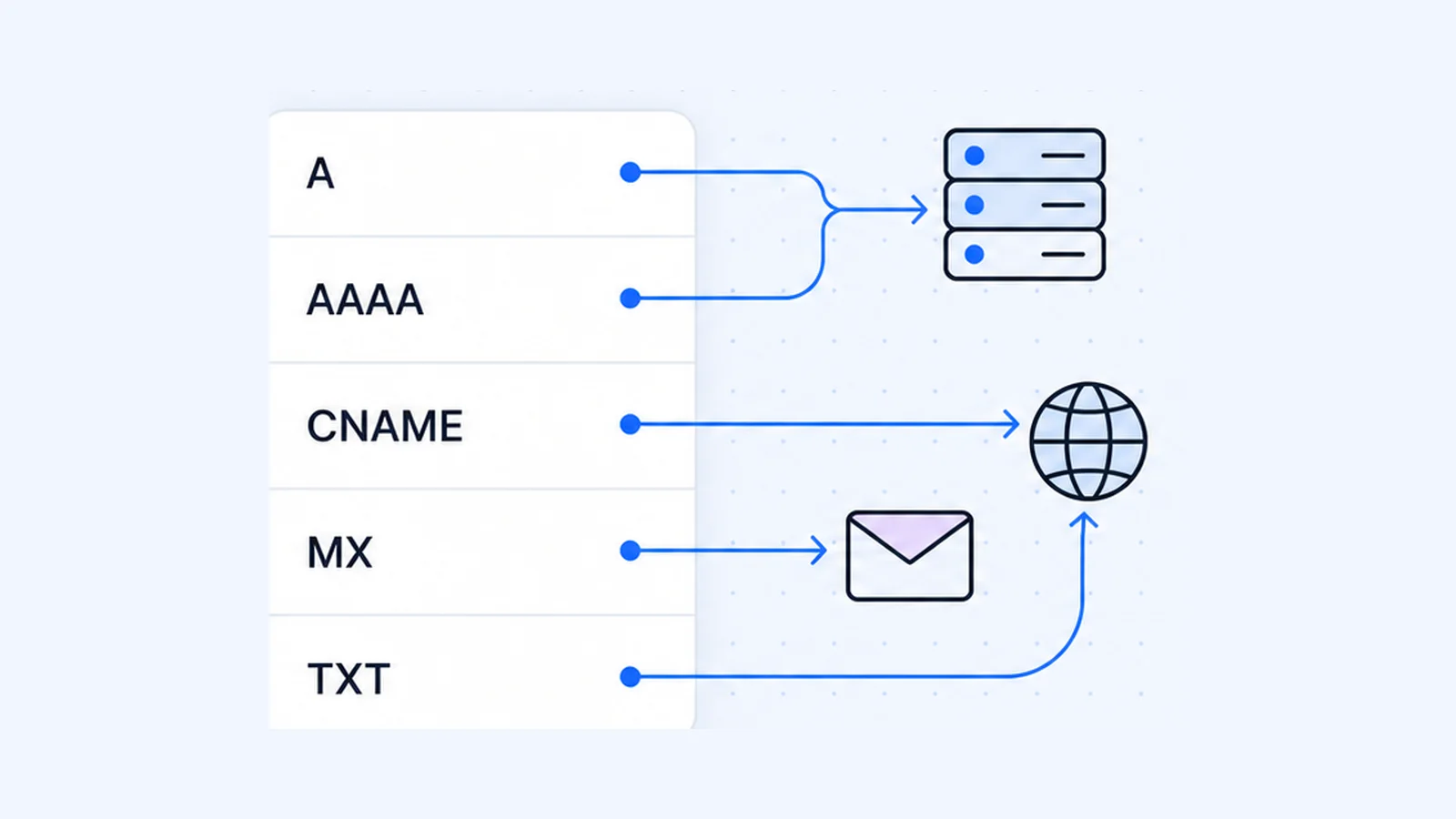
nslookup yourdomain.com 8.8.8.8. "Nonexistent domain" means the name doesn't resolve anywhere. "Server failure" means the DNS server couldn't return a valid answer, and a timeout means no answer came back. Both of those point at the domain's nameservers, not your computer. - Use the DNS lookup tool to see the domain's current A, CNAME and NS records as the internet sees them.
- Run a WHOIS lookup to confirm that the domain hasn't expired and that the registrar lists the nameservers you expect.
- If you recently changed nameservers or moved hosts, resolvers can keep old answers until their TTL runs out. Flush your own cache, then retest against a public resolver.
If you're moving a site to new hosting, WaseerHost offers free website migration, and every hosting plan uses cPanel. See current plans.
Frequently asked questions
On your own device, "resetting DNS" usually means two things. You flush the cache (ipconfig /flushdns on Windows, sudo killall -HUP mDNSResponder on a Mac), and you set DNS back to automatic or to a public resolver. On Windows 11, choose Automatic (DHCP) under DNS server assignment to go back to your router's DNS.

Written by
Founder & CEO
Founder and CEO of Wasevo LLC, the company that runs WaseerHost. He works on cPanel/WHM servers, WHMCS billing and the Next.js storefront.