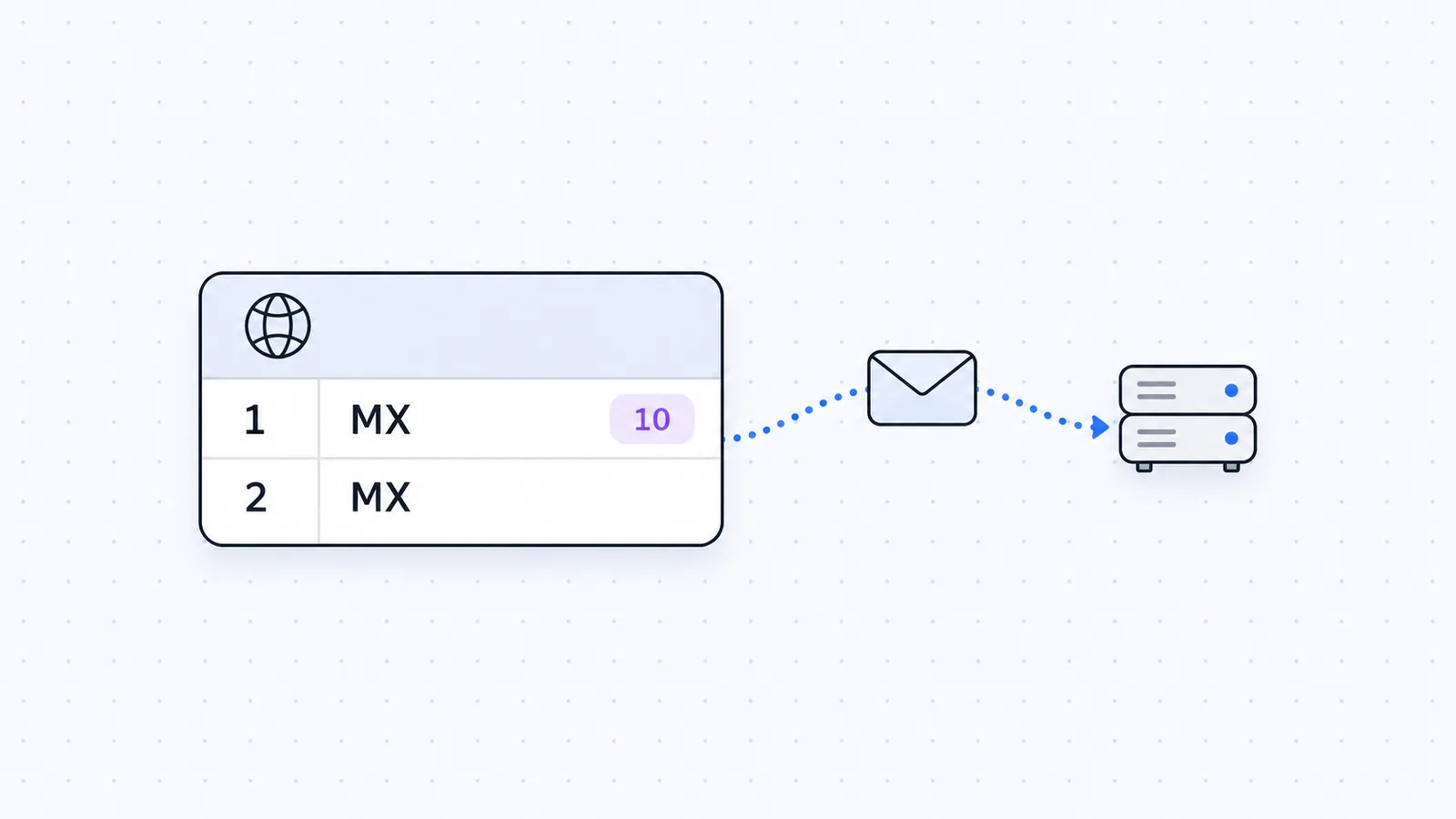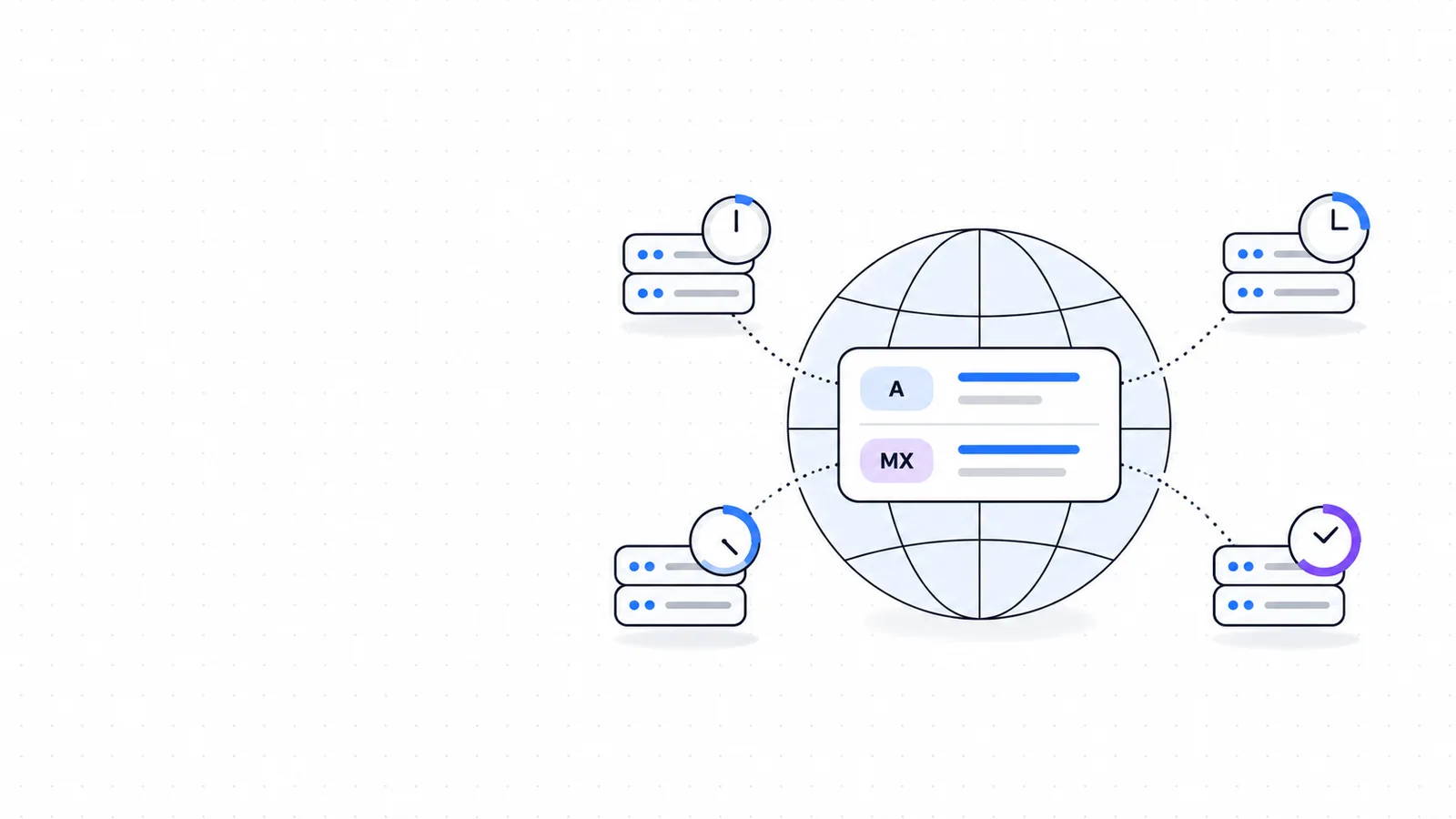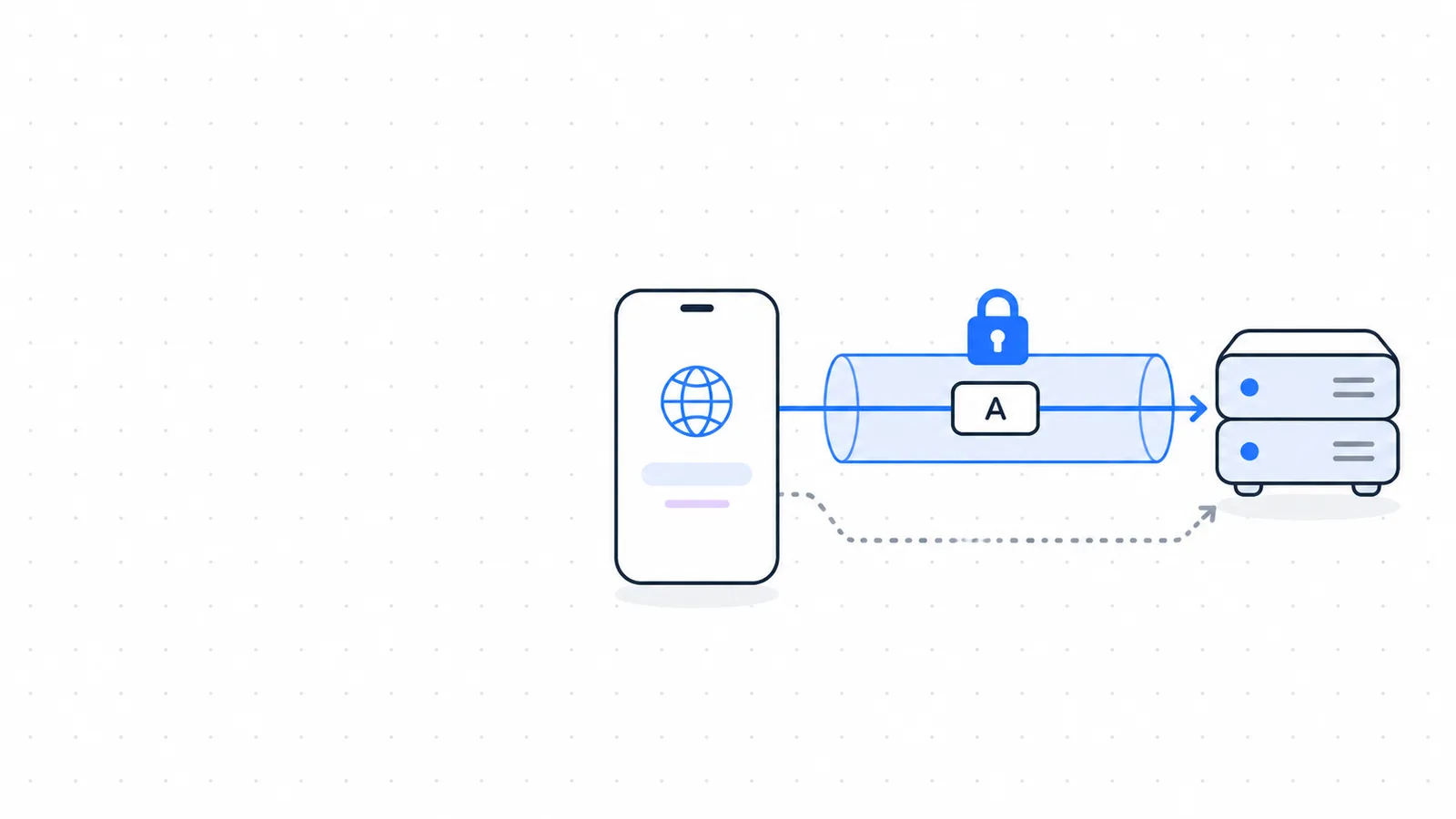


Private DNS is a setting that encrypts the DNS lookups your phone or computer makes, so nobody on the network between you and your DNS provider can read or change them. Android calls the feature Private DNS and runs it over DNS over TLS. Apple, Microsoft and browser makers offer the same protection under names such as encrypted DNS, secure DNS and DNS over HTTPS.
Key takeaways
- Private DNS encrypts one thing, the question "what is the IP address of this website?" and its answer. It does not encrypt the rest of your traffic or hide your IP address.
- Android 9 and later have a Private DNS setting. Its default option, Automatic, encrypts lookups when the network's DNS server supports it.
- DNS over TLS has its own port, 853. DNS over HTTPS travels on port 443 with ordinary web traffic. The two give similar protection.
- Your DNS provider still sees every lookup, so choose one whose privacy policy you accept.
- Private DNS is a setting on the visitor's device. If you run a website, your DNS records stay the same and you have nothing to switch on.
What is private DNS on Android?
Each time you open a site or an app, your device asks a DNS resolver to turn a name such as example.com into an IP address. Traditional DNS sends that question and its answer without encryption. Google's documentation says this leaves them open to eavesdropping and spoofing (Google Public DNS).
Android 9 added Private DNS to fix that. It uses DNS over TLS, the protocol defined in RFC 7858. The Android team's announcement says that once the secure channel is up, "DNS queries and responses can't be read or modified by anyone else who might be monitoring the connection" (Android Developers Blog).
The setting has three options.
| Option | What Android does |
|---|---|
| Off | Sends DNS lookups without encryption. |
| Automatic | Keeps the DNS server the network assigns, tries a TLS connection to it on port 853 and falls back to unencrypted DNS on port 53 if that fails. |
| Private DNS provider hostname | Sends every lookup to the provider you name, on Wi-Fi and on mobile data. If Android cannot reach that provider securely, lookups fail. |
Google describes the Automatic behavior in its Public DNS setup guide. Android Help says the device uses Private DNS by default on every network that supports it, and recommends you keep it turned on.
Cloudflare's documentation adds that Private DNS on Android can also use DNS over HTTP/3 (Cloudflare Docs). You do not choose between the two. Android handles it.
How private DNS differs from DNS over HTTPS and plain DNS
All three do the same job, which is to carry a DNS question to a resolver and bring the answer back. They differ in how they carry it.
| Plain DNS | DNS over TLS (DoT) | DNS over HTTPS (DoH) | |
|---|---|---|---|
| Standard | RFC 1035 | RFC 7858, May 2016 | RFC 8484, October 2018 |
| Port | 53 | 853 | 443 |
| Encrypted | No | Yes, inside a TLS connection | Yes, inside HTTPS |
| Where you meet it | The default on most networks | Android Private DNS, some routers | Chrome, Windows 11, Apple devices |
DoT gives DNS a dedicated port. A network administrator can see that a device is using encrypted DNS, and can block port 853, but cannot read the lookups.
DoH sends DNS as normal HTTPS requests. RFC 8484 notes that using port 443 and mixing DNS with other HTTPS traffic can "make DNS traffic analysis more difficult". The same RFC says DoT "provides similar protections" against surveillance and against attacks that divert DNS to a rogue server.
A third standard, DNS over QUIC (RFC 9250), has privacy properties similar to DoT.
For everyday use your device or browser makes the choice, so use the protocol it offers.
How to turn on private DNS
Android 9 and later
These steps come from Android Help.
- Open the Settings app.
- Tap Network & internet, then Private DNS. If you can't find it, search Settings for "Private DNS". Some phone makers put it in a different menu.
- Choose Private DNS provider hostname.
- Type the hostname of your DNS provider.
- Tap Save.
The field asks for a hostname, and Android uses that name to verify the provider's TLS certificate. These hostnames come from the providers' own setup pages.
| Provider | Hostname | Filtering |
|---|---|---|
| Google Public DNS | dns.google | None |
| Cloudflare 1.1.1.1 | one.one.one.one | None |
| Cloudflare 1.1.1.1 for Families | security.cloudflare-dns.com | Blocks malware |
| Cloudflare 1.1.1.1 for Families | family.cloudflare-dns.com | Blocks malware and adult content |
To go back, repeat the steps and choose Automatic.
iPhone, iPad and Mac
Apple devices have no switch labeled Private DNS. They have supported both DoT and DoH since iOS 14 and macOS 11, and Apple gives two ways to turn encrypted DNS on for the whole system (Apple Developer, WWDC20).
- Install an app from your DNS provider. The app registers its DNS server with the system, and you then turn that server on in Settings.
- Install a configuration profile that contains a DNS Settings payload. Apple's documentation says a profile you install by hand also applies to cellular networks.
Install a profile only from a DNS provider or employer you trust, because it controls where every lookup goes.
You can also type a DNS server address by hand under Settings > Wi-Fi > (i) > Configure DNS on iPhone, or System Settings > Network > Details > DNS on a Mac. That changes the resolver for one network. Cloudflare's guides give both paths and point out that the iPhone method does not work for cellular connections (iOS, macOS).
If you pay for iCloud+, iCloud Private Relay encrypts DNS for browsing in Safari. Apple says it is not available in every country or region (Apple Support).
Windows 11
Windows 11 uses DNS over HTTPS. Microsoft notes that the setting is not available in Windows 10 (Microsoft Support).
- Open Settings > Network & internet.
- Select Wi-Fi or Ethernet and open the network you are connected to.
- Find the DNS server setting and select Edit. Depending on the build, the DNS boxes appear under DNS server assignment or IP assignment.
- Choose Manual and turn on IPv4.
- In Preferred DNS, type the address of a resolver that supports DoH, such as
1.1.1.1or8.8.8.8. - Set DNS over HTTPS to On (automatic template).
- Turn Fallback to plaintext off if you want lookups to fail when Windows cannot encrypt them.
- Select Save.
Microsoft's list of known DoH servers includes Cloudflare, Google and Quad9 (Microsoft Learn).
Chrome and other browsers
A browser can encrypt its own lookups even when the operating system does not. In Chrome, open Settings > Privacy and security > Security and find Use secure DNS under Advanced. Google Chrome Help says secure DNS is on by default in automatic mode, and Chrome falls back to unencrypted lookups if it has a problem. If you pick a custom provider, Chrome does not fall back.
This covers the browser only. Other apps on the computer keep using the system resolver.
Routers
A DNS setting on the router applies to every device on the network, so you don't have to change each phone and laptop. Whether the router can encrypt DNS depends on its firmware. Cloudflare's router guide lists OpenWrt and FRITZ!OS 7.20 or later as supporting DNS over TLS (Cloudflare Docs).
Log in to the router's admin page and look in the DNS or internet settings for an option named DNS over TLS, DoT or DNS privacy. If you find only two boxes for DNS server addresses, the router sends plain DNS. Use the device settings above instead.
A router setting protects devices at home or in the office only. A phone that leaves the building needs its own Private DNS setting.
What private DNS protects and what it does not
Private DNS protects the lookup while it travels between your device and the resolver. Someone on the same public Wi-Fi, or the network operator, cannot read which names you look up and cannot swap in a false answer.
It leaves several things as they were.
- The DNS provider sees every lookup. RFC 9076 puts it this way: "your recursive resolver knows a lot about you". Encrypted DNS moves that knowledge from your internet provider to the resolver you chose.
- Your internet provider still sees the IP addresses you connect to.
- The site name can still appear in the TLS handshake when you open an HTTPS site. RFC 9076 calls this field, the Server Name Indication, one of the last identifiers of a connection that travel in clear text.
- The website sees your IP address. Private DNS is not a VPN.
- Page content is a separate matter. An SSL certificate on the site protects that.
Android Help states it in one line: Private DNS "helps secure only DNS questions and answers. It can't protect anything else."
Private DNS blocks nothing by default. You get blocking only if you choose a resolver that filters, such as the two Families hostnames in the table above.
Fix "private DNS server cannot be accessed"
Android shows this message when you set a provider hostname and the phone cannot open a secure connection to it. In that mode Android does not fall back to unencrypted DNS, so the network looks as if it has no internet.
- Check the hostname for typing mistakes. It must be a name such as
dns.google, with nohttps://in front. - Switch Private DNS to Automatic and test again. If the connection works, either the hostname is wrong or the network you are on blocks the provider or port 853.
- Try mobile data or another Wi-Fi network to confirm.
- Set the hostname again when you are back on a network that allows it.
If lookups fail on every setting, the cause is somewhere else. Our guide to the DNS server not responding error covers those checks, and flushing the DNS cache clears stale answers.
How private DNS relates to your website's DNS
If you run a website, you do not have to enable anything for visitors who use private DNS.
Private DNS covers the path from a visitor's device to a recursive resolver. Your domain's records sit on authoritative nameservers, and the resolver fetches them from there in the usual way. A visitor on plain DNS and a visitor on Private DNS receive the same DNS records.
Three things follow from that.
- Changing your own phone's Private DNS setting does not change your site's DNS. Edit records in the DNS zone at your DNS host.
- An encrypted resolver caches answers like any other resolver. After you change a record, visitors get the new answer when the old TTL runs out. See how long DNS propagation takes.
- A filtering resolver can block a domain it classes as harmful. If one visitor cannot reach your site and everyone else can, ask which DNS provider they use.
To see what your domain publishes to every resolver, run it through our DNS lookup tool.
The phrase has two other meanings you may meet. In company networks, private DNS means a DNS server that answers for internal names only. Apple's engineers note that a public DNS server cannot resolve private names that only a local network knows. In web hosting, private nameservers are nameservers named after your own domain, such as ns1.yourdomain.com. Neither has anything to do with the Android setting.
If you are still choosing a name for your site, you can search the ending you want on our domains page. WaseerHost hosting plans include free SSL certificates, so visitors get an encrypted connection to the site itself. You can see current shared hosting plans.
Frequently asked questions
Leave it on. Android Help recommends keeping Private DNS turned on, and the Automatic option needs no setup. Turn it off only to test a connection problem, then turn it back on.

Written by
Web & AI Systems Lead
Web and AI Systems Lead at Wasevo, the company behind WaseerHost. He builds web applications and AI systems.