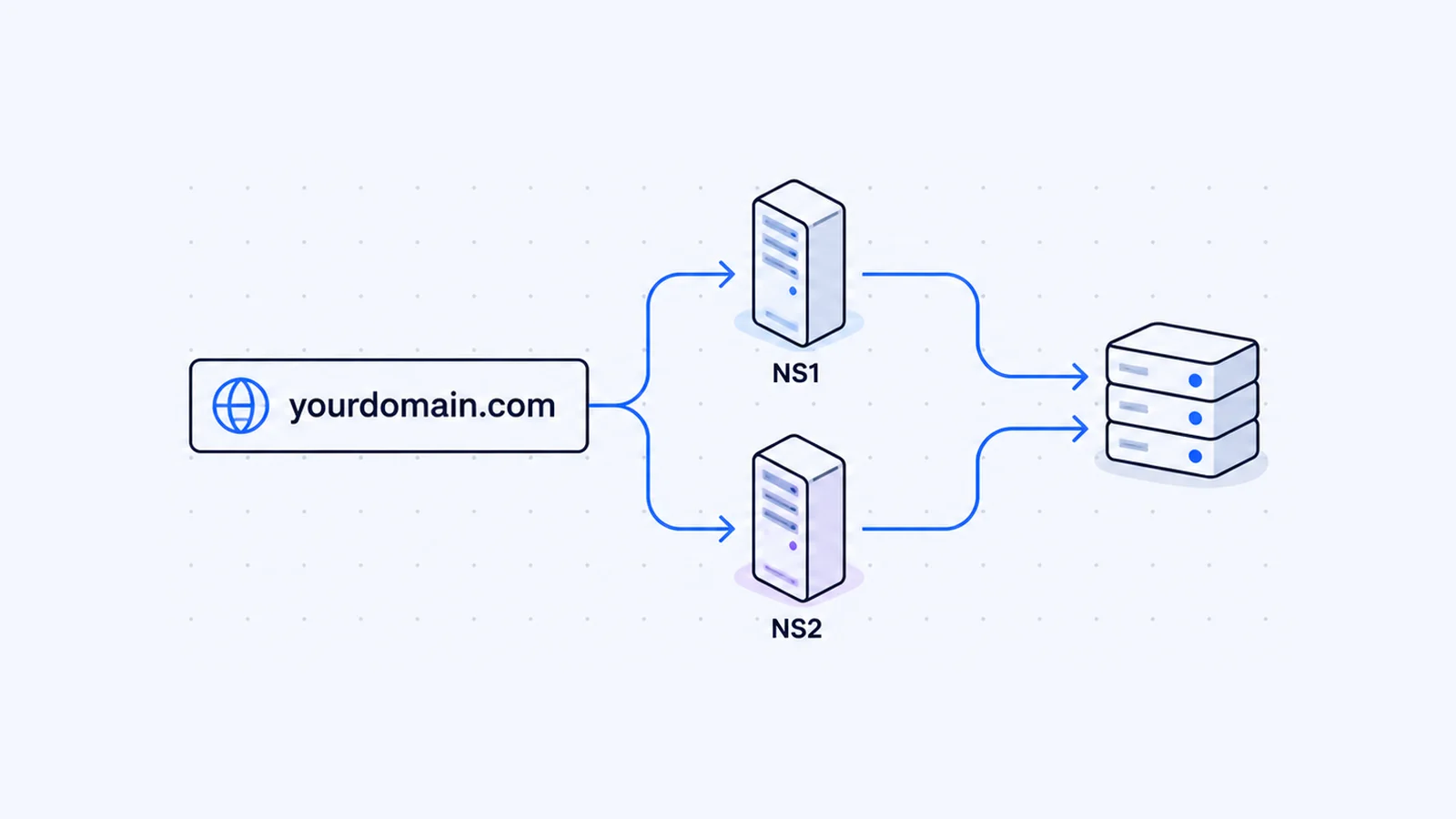


Nameservers are the DNS servers that hold the official records for your domain and answer questions about it, such as which server hosts the website and where email should go. Your registrar tells the rest of the internet which nameservers to ask. If you change them, you change who controls your domain's DNS. This guide explains what nameservers are, how to check them, and how to change them without breaking your site or email.
Key takeaways
- Nameservers are authoritative DNS servers. They hold your domain's DNS records and give the final answer in a lookup.
- Nameservers decide where your DNS records live. DNS records (A, MX, TXT and so on) decide what the answers are.
- Check a domain's nameservers with
dig NS example.com,nslookup -type=NS example.com, or a WHOIS lookup. - Before you change nameservers, copy every DNS record to the new provider and turn off DNSSEC at your registrar.
- You make the change at the registrar, but caches can keep the old nameservers for up to the TTL, which is two days for .com delegations.
What are nameservers?
Cloudflare's documentation defines nameservers as "DNS servers that answer DNS queries about the domains they are authoritative for." It describes authoritative nameservers as the servers that hold the definitive DNS records for a domain and give the final response in DNS resolution (Cloudflare Docs).
"Authoritative" is the word that matters. Plenty of DNS servers can tell you a domain's IP address from their cache, but only the domain's own nameservers hold the source data. The DNS standard also requires redundancy: "we require every zone to be available on at least two servers" (RFC 1034, section 4.1). That is why registrars ask for at least two nameservers.
Here is a real example. In October 2026, example.com used two Cloudflare nameservers.
$ dig NS example.com +short
hera.ns.cloudflare.com.
elliott.ns.cloudflare.com.
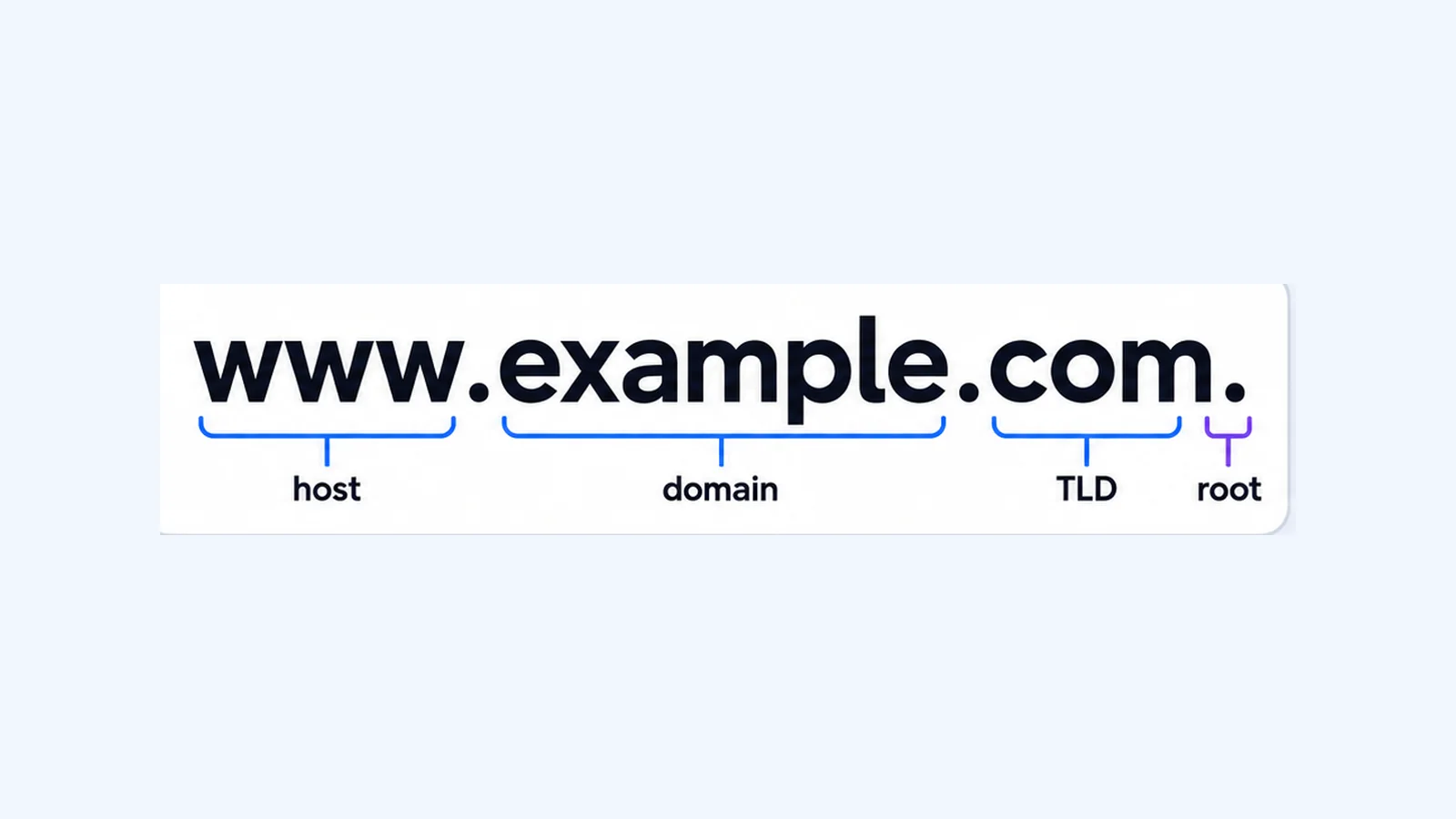
Where nameservers fit in a DNS lookup
When someone visits your site, their DNS resolver works its way down the DNS tree:
- It asks a root server, which refers it to the servers for the top-level domain (for example
.com). - The
.comservers don't know your website's address, but they know your domain's nameservers. You set that referral, called the delegation, at your registrar. - The resolver asks your nameservers, and they return the record it wants, for example the A record with your server's IP address.
You can watch each step with dig +trace. The BIND documentation says it traces "the delegation path from the root name servers for the name being looked up" (BIND 9 manual):
dig +trace example.comNameservers vs DNS records
People often mix these up, and the confusion causes most "I changed my DNS but nothing happened" problems.
| Nameservers | DNS records | |
|---|---|---|
| What they are | The servers that are authoritative for your domain | The individual entries in your domain's zone |
| Examples | ns1.host.example, hera.ns.cloudflare.com | A, AAAA, CNAME, MX, TXT |
| Where you change them | At your domain registrar | At whichever provider your nameservers point to |
| What they control | Who answers DNS questions for the domain | What the answers are (website IP, mail server, verification text) |
In DNS terms, an NS record names "a host which should be authoritative for the specified class and domain" (RFC 1035, section 3.3.11). The records under it live in the zone on those servers.
So edit records with the provider your nameservers point to. Say your domain uses your registrar's nameservers. Then nobody will see changes you make in your hosting control panel, for example in cPanel's Zone Editor, which creates and edits A, CNAME, MX, TXT and other records per cPanel's docs. The reverse holds too.
How to find a domain's current nameservers
With an online tool
A WHOIS lookup shows the nameservers listed in the domain's registration and the registrar that manages it. The DNS lookup tool shows the NS records next to the domain's other records.
With dig (macOS and Linux)
dig NS example.com +shortTo see what the registry itself hands out, which is the delegation set at the registrar, ask a .com server directly with recursion turned off. The BIND manual explains that +norecurse clears the "recursion desired" bit, so the server answers from its own data:
dig +norecurse @a.gtld-servers.net example.com NSThe authority section of the reply lists the nameservers and their TTL. In October 2026 the .com servers returned these delegations with a TTL of 172800 seconds (48 hours). For other TLDs, use the matching registry servers. For .org, for example, dig NS org +short lists them.
With nslookup (Windows)
Microsoft documents the -type=<resourcerecordtype> option, which returns a specific record type (Microsoft Learn):
nslookup -type=NS example.comTo query a specific resolver, add its address at the end, for example nslookup -type=NS example.com 1.1.1.1.
How to change nameservers
Registrar dashboards differ, but the job stays the same. Follow these steps in order.
1. Get the exact nameserver names
Your new DNS provider or host gives you the nameserver hostnames. If you're moving to WaseerHost, use the nameservers in your WaseerHost welcome email or client area. Copy them exactly. Cloudflare warns that if the names "are not copied exactly, your DNS will not resolve correctly" (Cloudflare Docs).
2. Recreate your DNS records at the new provider first
The new nameservers know only the records you have added there. Before you switch, copy every record that matters. That means the A/AAAA records for the root domain and www, any subdomains, the MX records for email, and the TXT records for SPF, DKIM, DMARC and site verification. Cloudflare notes that if you activate a domain without the correct records, visitors can get DNS_PROBE_FINISHED_NXDOMAIN errors. Run a DNS lookup of your domain before the change and work from that list.
3. Turn off DNSSEC if it is on
If your domain uses DNSSEC, your registrar holds a DS record that matches your current DNS provider's signing keys. Cloudflare tells you to remove the DS record at the registrar first and wait for its TTL to expire before you change nameservers. They suggest 24 to 48 hours, and you can check with dig DS example.com. If you skip this, validating resolvers return SERVFAIL, because the cached DS record no longer matches the new provider's keys (Cloudflare DNSSEC docs).
dig DS example.com +shortAn empty result means no DS record is published.
4. Update the nameservers at your registrar
- Log in to the registrar that manages the domain. A WHOIS lookup tells you which one it is.
- Open the domain's settings and find the nameserver or DNS section.
- Choose the option to use custom nameservers.
- Remove all the old nameservers and enter the new ones. Don't leave a mix of old and new.
- Save the change.
Cloudflare's official video shows this flow at a registrar. The steps don't change with the DNS provider you're moving to:
5. Wait, then verify
Cloudflare says to allow up to 24 hours for the registrar to update the nameservers. After that, check the registry's delegation directly, as shown above, and then your own resolver:
dig +norecurse @a.gtld-servers.net example.com NS
dig NS example.com +short
Keep the old DNS provider's zone and the old hosting running until both commands show the new nameservers.
6. Turn DNSSEC back on
When the change has settled, enable DNSSEC at the new provider and add its DS record at your registrar.
Propagation and TTL: what the wait is
"Propagation" mostly means caching. Every DNS record carries a TTL. RFC 1035 defines it as the time interval "that the resource record may be cached before the source of the information should again be consulted," measured in seconds (RFC 1035, section 3.2.1). In Cloudflare's words, a longer TTL "means that updates to your records take longer to go into effect" (Cloudflare TTL docs).
A nameserver change involves two waits, one after the other:
- The registrar and registry update. This is the up-to-24-hours step above.
- Caches that hold the old delegation. A resolver that looked up your domain recently may keep using the old nameservers until its cached NS records expire. The
.comservers used a 48-hour TTL in October 2026, so plan for up to two days.
During that window, some visitors reach the old provider and some reach the new one. That does no harm if both serve the same records, which is why step 2 matters. Your own computer may also keep a cached answer for a while, and Cloudflare notes that local caches can take longer to update.
Common mistakes when changing nameservers
- A typo or a mixed set. One misspelled nameserver, or old and new nameservers listed together, gives inconsistent answers. Replace the full set.
- Missing MX and TXT records. The website comes back, but email stops or SPF and DKIM checks fail. Copy the mail records before you switch.
- A DS record left in place. With DNSSEC on, a nameserver change without removing the DS record makes the domain fail for validating resolvers.
- Child nameservers without glue. If your nameservers sit inside your own domain, such as
ns1.yourdomain.com, resolvers can't find their IP addresses without glue records. RFC 1034 describes glue as address records for name servers, needed only when "the name server's name is 'below' the cut" (RFC 1034, section 4.2.1). Register the nameserver hostnames with their IP addresses at your registrar. Cloudflare's docs warn that without these records "DNS lookups for your domain will fail" (Cloudflare Docs). To see glue in a live reply, rundig +norecurse @a.gtld-servers.net cloudflare.com NS. Its additional section lists the IP addresses forns3.cloudflare.comand its siblings. - Records edited in the wrong place. After the switch, make DNS changes at the new provider only.
- The old service cancelled too early. Wait until the new nameservers show everywhere and email arrives at the new server.
If you're also moving the site itself to new hosting, free website migration covers copying the site. You can register new domains on the domains page. For how domains and hosting fit together, see web hosting vs domain name.
Frequently asked questions
A nameserver stores a domain's DNS records and gives authoritative answers about them. When a browser needs your website's IP address, or a mail server needs your MX records, the lookup ends at your nameservers. They point your domain at your hosting and email.

Written by
Founder & CEO
Founder and CEO of Wasevo LLC, the company that runs WaseerHost. He works on cPanel/WHM servers, WHMCS billing and the Next.js storefront.