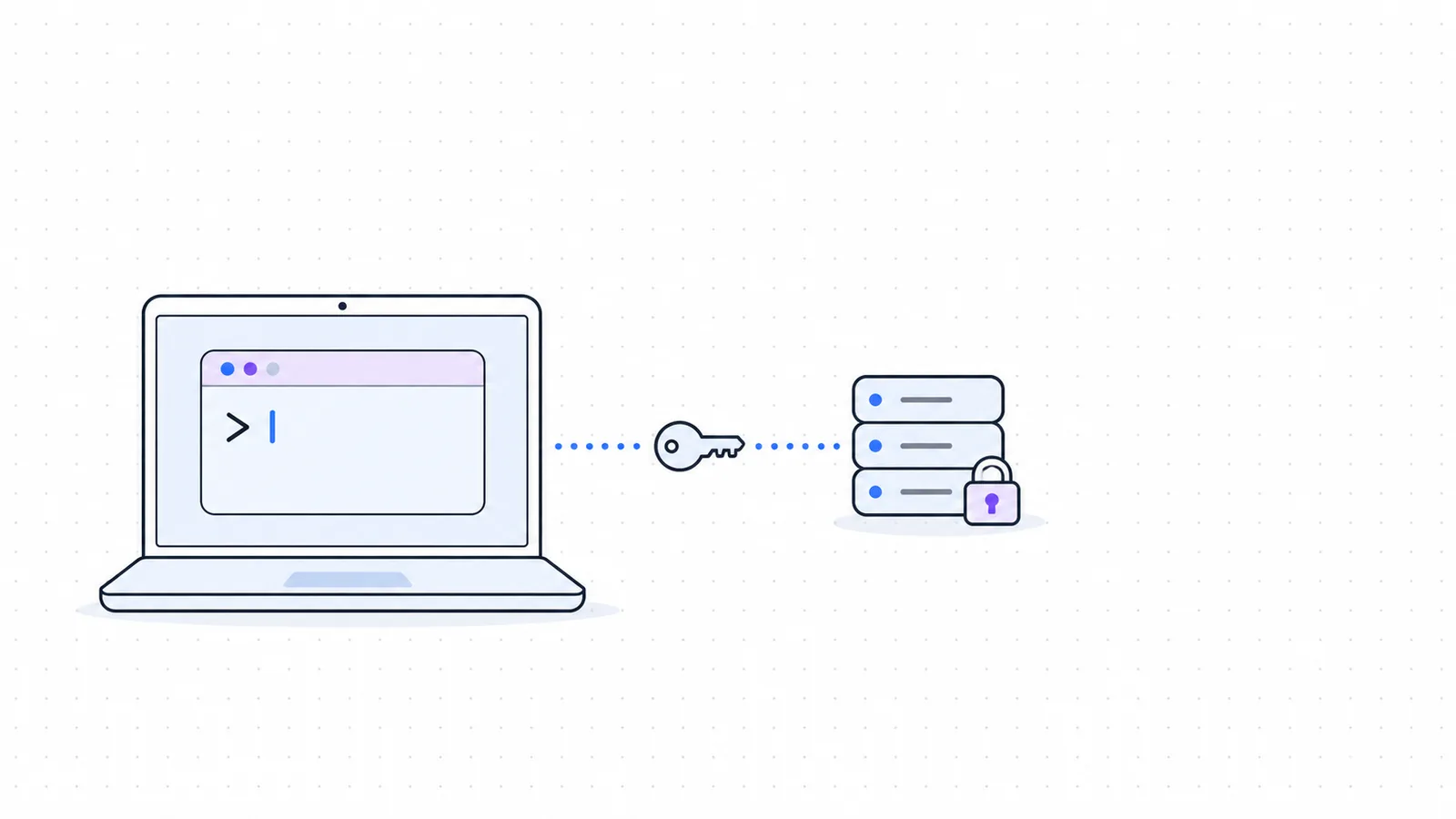


To SSH into a VPS, open a terminal and run ssh username@server-ip, confirm the server's host key, then enter your password or key passphrase. This guide shows how to SSH into a VPS from Windows, macOS and Linux, how to switch to a key pair, and how to fix the errors that block most first logins.
Key takeaways
- The same command works on Windows, macOS and Linux, because all three can run the OpenSSH client.
- You need four details from your provider, which are the server IP address, a username, a password or key, and the port (22 unless they say otherwise).
- On the first connection, compare the host key fingerprint with the one your provider shows before you type
yes. - A key pair made with
ssh-keygen -t ed25519replaces the password, and the private key never leaves your computer. - "Permission denied", "host identification has changed" and "connection timed out" each have a short list of causes you can check in order.
What you need before you connect
Your VPS provider sends the login details when the server is ready, usually by email or in the control panel. Collect these before you start.
| Detail | Example | Where it comes from |
|---|---|---|
| Server address | 203.0.113.10 or a hostname | Provider panel or welcome email |
| Username | root or a named user | Provider panel or welcome email |
| Password or key | A password, or the public key you uploaded at order time | You or the provider |
| Port | 22 | The sshd_config manual lists 22 as the default |
The address 203.0.113.10 is a placeholder in every command below. Replace it with your own server's address.
How to SSH into a VPS with OpenSSH
OpenSSH is the client behind the ssh command. The steps are the same on every system once a terminal is open.
1. Open a terminal
On Windows, open PowerShell or Windows Terminal. Microsoft's OpenSSH guide covers Windows 10 (build 1809) and later, and Windows 11. To check that the client is installed, run this in an elevated PowerShell window.
Get-WindowsCapability -Online | Where-Object Name -like 'OpenSSH*'If the client shows as not present, install it.
Add-WindowsCapability -Online -Name OpenSSH.Client~~~~0.0.1.0On macOS, open Spotlight, type Terminal and select it. Apple's Terminal guide also points to the Utilities folder inside Applications.
On Linux, open your terminal app. If the ssh command is missing on Ubuntu, the Ubuntu Server documentation gives the install command.
sudo apt install openssh-client2. Run the ssh command
Type the username, an @ sign and the server address.
ssh [email protected]If your provider uses a port other than 22, add -p and the port number. The ssh manual describes -p as the port to connect to on the remote host.
ssh -p 2222 [email protected]3. Check the host key on the first login
The first time you connect, ssh shows a fingerprint of the server's public key and asks a question.
The authenticity of host '203.0.113.10' can't be established.
ED25519 key fingerprint is SHA256:(a long string).
Are you sure you want to continue connecting (yes/no)?
This is normal. Your computer has never seen this server, so it cannot confirm the server's identity for you. Compare the fingerprint with the one in your provider's panel. If the panel does not show one, open the provider's web console and run the command from the ssh manual on the server.
ssh-keygen -l -f /etc/ssh/ssh_host_ed25519_key.pubWhen the two fingerprints match, type yes. The client saves the host key in ~/.ssh/known_hosts and checks it on every later connection.
4. Log in
Enter the password when ssh asks for it. After the server accepts you, the prompt changes to the server's own shell, and every command you type now runs on the VPS. Type exit to close the session.
Set up an SSH key pair
A key pair has two files. The private key stays on your computer, and the public key goes on the server. The PuTTY documentation explains the benefit. With a password, you send the secret to the server each time. With a key, your computer signs a message and the server checks the signature, so the server never receives the private key.
1. Generate the key
Run this on your own computer, not on the VPS. The command is the same in PowerShell, macOS Terminal and Linux.
ssh-keygen -t ed25519Press Enter to accept the default file, then set a passphrase. The ssh-keygen manual warns that nobody can recover a lost passphrase. If you forget it, you generate a new key and copy the new public key to the server.
You now have a private key at ~/.ssh/id_ed25519 and a public key at ~/.ssh/id_ed25519.pub. On Windows, ~ is your user folder, such as C:\Users\yourname.
2. Copy the public key to the VPS
On macOS and Linux, one command appends the key to ~/.ssh/authorized_keys on the server. It asks for your server password once.
ssh-copy-id [email protected]On Windows, use PowerShell. Microsoft's VS Code remote documentation gives these commands for copying a key from Windows to a Linux server.
$USER_AT_HOST="[email protected]"
$PUBKEYPATH="$HOME\.ssh\id_ed25519.pub"

$pubKey=(Get-Content "$PUBKEYPATH" | Out-String); ssh "$USER_AT_HOST" "mkdir -p ~/.ssh && chmod 700 ~/.ssh && echo '${pubKey}' >> ~/.ssh/authorized_keys && chmod 600 ~/.ssh/authorized_keys"
Many providers also let you paste the public key into the order form or control panel, and the server then starts with the key in place.
3. Test the key
Connect again with the usual command.
ssh [email protected]This time ssh asks for the key passphrase, not the server password. If you saved the key under a different file name, point to it with -i.
ssh -i ~/.ssh/my-vps-key [email protected]4. Turn off password logins (optional)
Once the key works, you can stop the server from accepting passwords. Open /etc/ssh/sshd_config on the VPS and set this line.
PasswordAuthentication noRestart the SSH service. On Ubuntu the command is below.
sudo systemctl restart ssh.serviceKeep your current session open and test the key in a second terminal window before you close the first one. If the new login fails, you still have a working session to undo the change.
Connect from Windows with PuTTY
PuTTY is a free SSH client with a graphical window. Use it if you prefer saved sessions and menus to the command line. These steps follow the PuTTY user manual.
- Open PuTTY and type the server address in the Host Name box.
- Set Connection type to SSH. Edit the Port box only if your provider uses a port other than 22.
- Select Open.
- PuTTY shows a host key warning on the first connection. Compare the fingerprint with your provider's, then accept it.
- Type the username and password when PuTTY asks for them.
PuTTY uses its own key format. To log in with a key, open PuTTYgen, select Generate, set a passphrase and select Save private key to create a .ppk file. Copy the text from the Public key for pasting into OpenSSH authorized_keys file box and add it as one line to ~/.ssh/authorized_keys on the server. Back in PuTTY, open the Credentials panel in the SSH Auth settings and choose the .ppk file under Private key file for authentication.
Save the connection in an SSH config file
Typing the address, user, port and key path on every connection is slow. OpenSSH reads a per-user file at ~/.ssh/config, and the ssh_config manual lists the options it accepts. Add a block like this one.
Host myvps
    HostName 203.0.113.10
    User root
    Port 22
    IdentityFile ~/.ssh/id_ed25519
Now ssh myvps opens the same connection. The file works the same way on Windows, macOS and Linux.
Fix common SSH errors
Start with verbose mode. Add -v to the command and ssh prints each stage of the connection, which shows where it stops.
ssh -v [email protected]| Error | What it means | First thing to check |
|---|---|---|
| Permission denied | The server answered and rejected the login | Username, then the key |
| Remote host identification has changed | The server's host key differs from the saved one | Whether you rebuilt the server |
| Connection timed out | Nothing answered on that address and port | Address, port and firewall |
Permission denied (publickey)
The server is reachable. It refused the credentials. Work through these checks.
- Confirm the username. A key added for
rootdoes not log you in as another user. - Confirm ssh offers the right key. In the
-voutput, look for the key file names it tries, and use-iif yours is not among them. - Check the file modes on the server. The sshd manual says sshd ignores
authorized_keyswhen that file, the~/.sshdirectory or the home directory is writable by other users. The PuTTY manual gives a one-line fix.
chmod go-w $HOME $HOME/.ssh $HOME/.ssh/authorized_keys- If you log in as root with a password, check
PermitRootLoginin/etc/ssh/sshd_config. The OpenSSH default,prohibit-password, allows root to use a key and blocks root password logins.
Remote host identification has changed
@ WARNING: REMOTE HOST IDENTIFICATION HAS CHANGED! @The host key the server sent does not match the one in your known_hosts file. The ssh manual explains that the client blocks password authentication at this point to stop server spoofing and man-in-the-middle attacks.
There is often a harmless cause. Reinstalling the operating system or rebuilding the VPS creates new host keys. If you did one of those, check the new fingerprint in your provider's console, then remove the old entry.
ssh-keygen -R 203.0.113.10Connect again and accept the new key. If you changed nothing on the server, do not continue until you have confirmed the fingerprint through the provider's console.
Connection timed out
A timeout means no reply came back from that address and port. Check these in order.
- Compare the IP address with the one in your provider's panel.
- Confirm in the panel that the VPS is running.
- Confirm the port. If the provider moved SSH off port 22, add
-pwith the right number. - Check the firewall. On an Ubuntu server that uses ufw, open the provider's web console and allow SSH with the command from the Ubuntu firewall documentation.
sudo ufw allow 22Many providers also run a network firewall in front of the VPS. Look for one in the control panel and allow TCP port 22 from your address. If your office or mobile network blocks outbound SSH, test from a different network.
Choosing a VPS to connect to
The steps above work with any Linux VPS that runs an SSH server. If you are still picking one, WaseerHost offers VPS hosting, with data centers in the USA, Germany and Finland and 24/7 support.
A VPS gives you a server to manage from the command line. If you would prefer a control panel in the browser, every WaseerHost shared hosting plan uses cPanel.
Frequently asked questions
Open a terminal and run ssh username@server-address. Confirm the host key fingerprint on the first connection, then enter your password or key passphrase. Add -p and a port number if the server does not use port 22.

Written by
Founder & CEO
Founder and CEO of Wasevo LLC, the company that runs WaseerHost. He works on cPanel/WHM servers, WHMCS billing and the Next.js storefront.