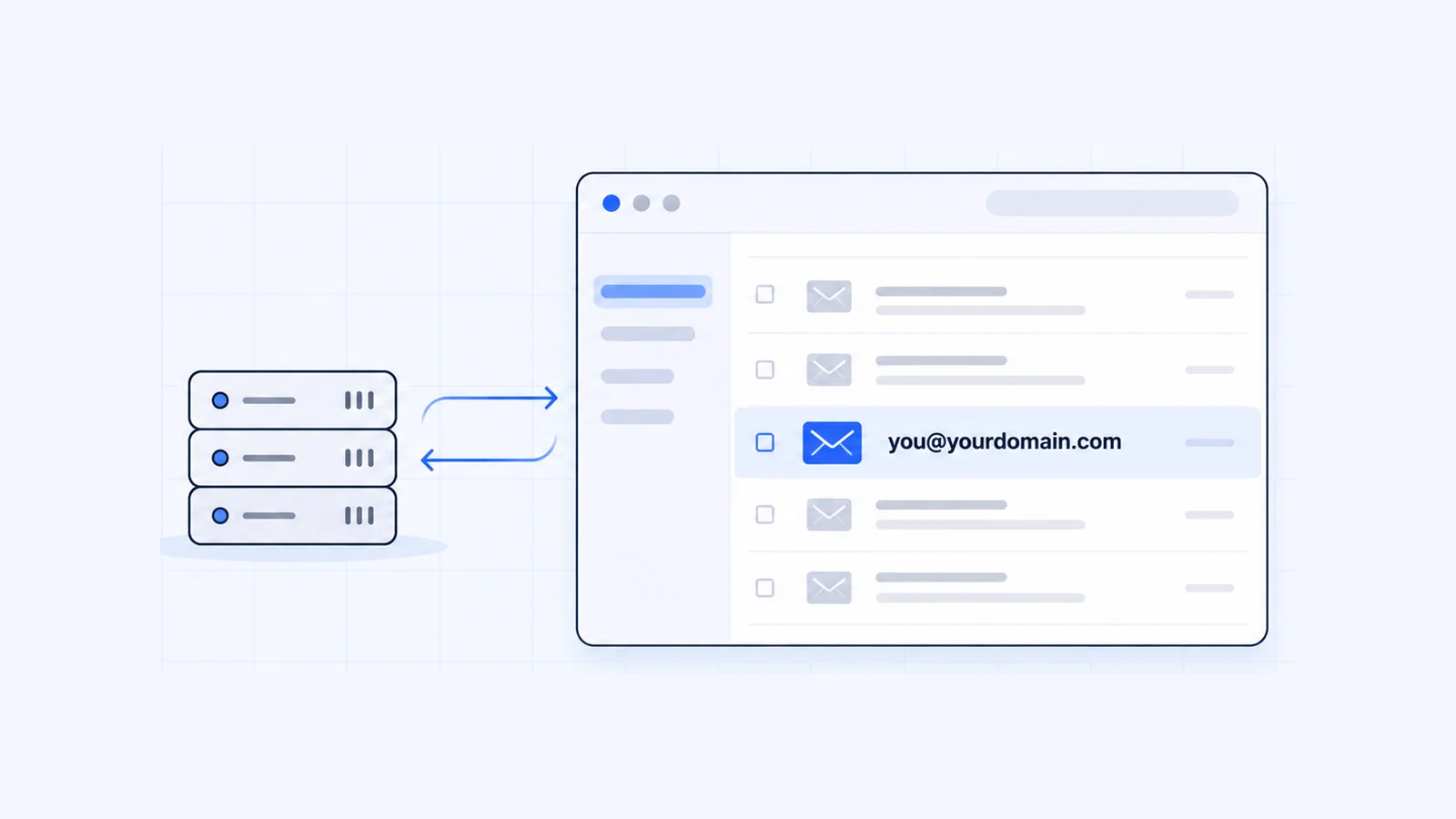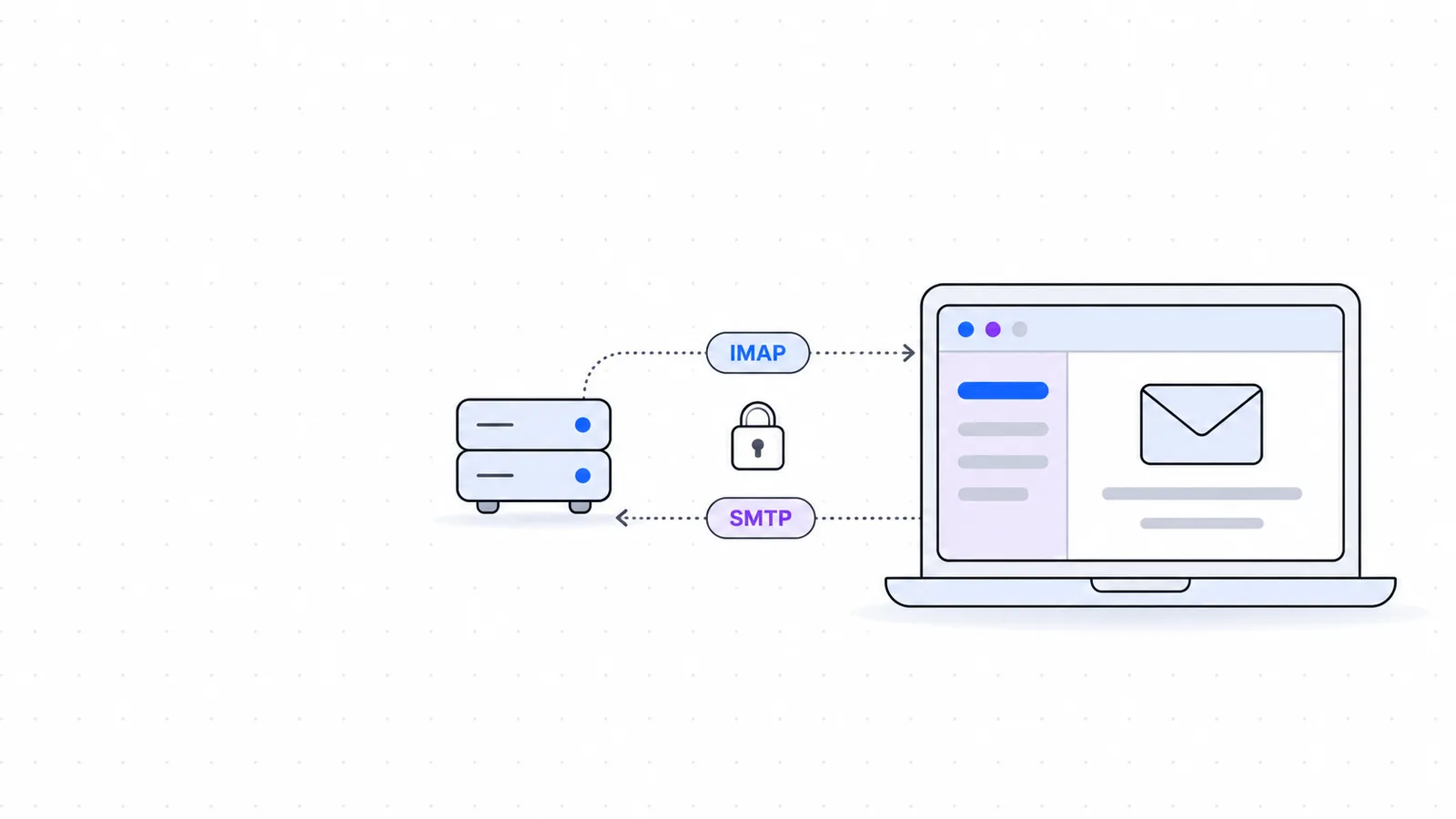


To set up email in Outlook or Apple Mail for a business address such as [email protected], you need four details from your email host. They are the incoming server, the outgoing server, the port for each, and your full email address with its password. For most hosting mailboxes that means IMAP on port 993 and SMTP on port 465, both with SSL/TLS, and the steps below cover Outlook on Windows and Mac, Apple Mail on Mac, and Mail on iPhone.
Key takeaways
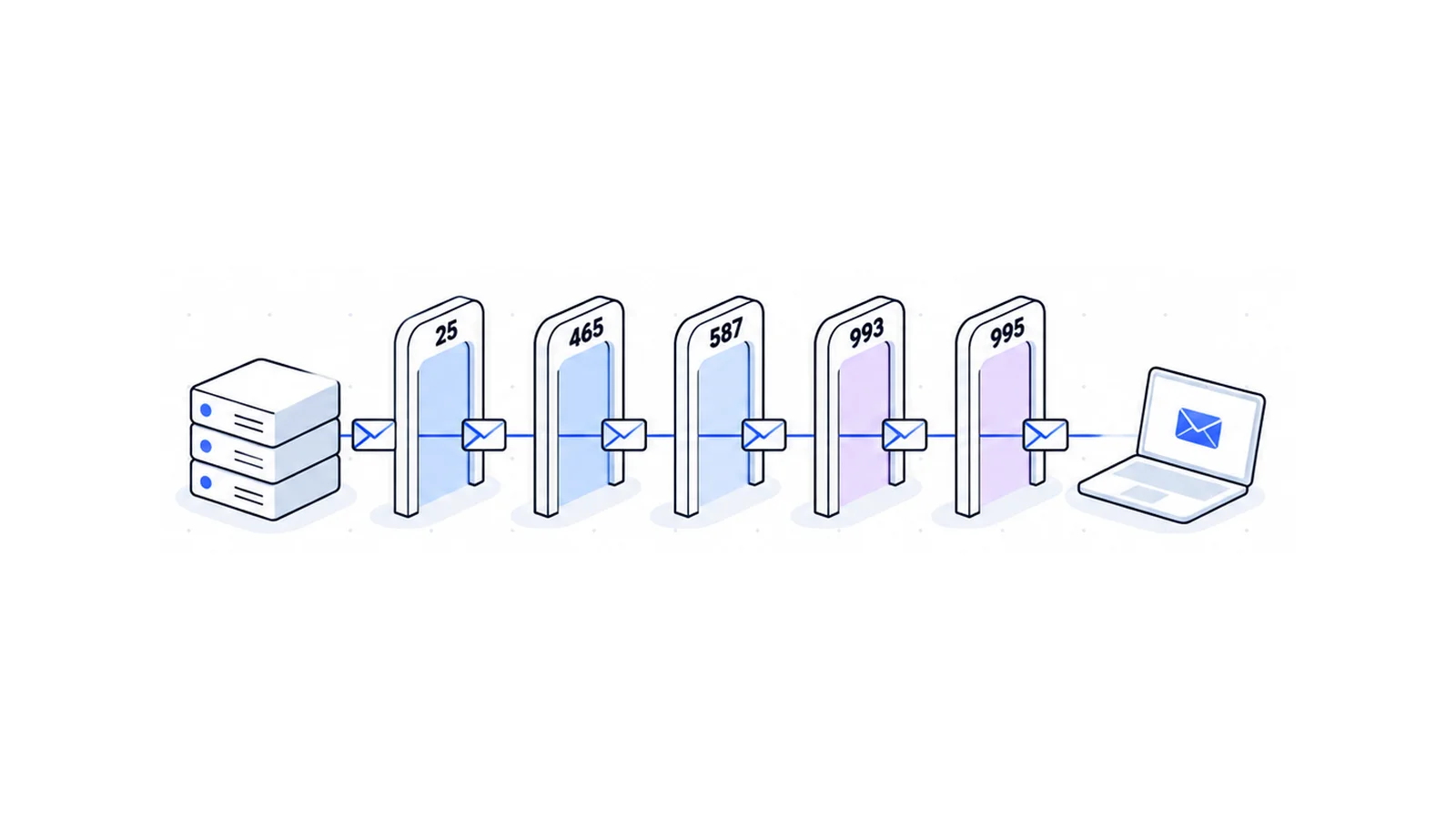
- Use IMAP on port 993 for incoming mail and SMTP on port 465 for outgoing mail, both with SSL/TLS. Use port 587 with STARTTLS only if your provider tells you to.
- Your username is the full email address, not the part before the @ sign.
- In classic Outlook for Windows, choose File > Add Account, then Advanced options and Let me set up my account manually to type the servers and ports yourself.
- In Apple Mail, choose Mail > Add Account. You can check the ports later under Mail > Settings > Accounts > Server Settings.
- Copy the server names from your host's control panel. A guessed server name is the usual cause of certificate warnings.
The settings you need before you start
Outlook and Apple Mail both try to detect mail settings from your email address. That works well for the big mailbox providers. For a mailbox on your own domain it often fails, and Microsoft's own help says that for non-Microsoft accounts "you may need to contact your email provider for their settings". Collect these values first.
| Setting | What to enter | Typical value for a cPanel mailbox |
|---|---|---|
| Account type | IMAP | IMAP |
| Username | Your full email address | [email protected] |
| Password | The mailbox password | Set when the mailbox was created |
| Incoming server | The IMAP host name from your provider | mail.yourdomain.com |
| Incoming port and encryption | 993 with SSL/TLS | 993, SSL/TLS |
| Outgoing server | The SMTP host name from your provider | mail.yourdomain.com |
| Outgoing port and encryption | 465 with SSL/TLS, or 587 with STARTTLS | 465, SSL/TLS |
| Outgoing authentication | Same username and password as incoming | Required |
The port numbers come from the standards. RFC 8314 sets 993 as the default port for IMAP over TLS and 465 as the default for mail submission over TLS. It recommends that mail apps connect this way "in preference to" opening a plain text connection and upgrading it with STARTTLS. RFC 6409 describes the older submission port, 587, which many providers still offer with STARTTLS. Outlook.com is one example. Microsoft lists its SMTP server on port 587 with STARTTLS.
Our SMTP, IMAP and POP3 port guide explains each port in more detail and shows how to test one from your computer.
Find your settings in cPanel
If your mailbox is on a hosting account with cPanel, the cPanel documentation gives this route to the exact values.
- Log in to cPanel and open Email Accounts.
- Find the mailbox and click Connect Devices. The Set Up Mail Client screen opens.
- Scroll to Mail Client Manual Settings and copy the values under Secure SSL/TLS Settings (Recommended).
That section lists IMAP port 993, POP3 port 995 and SMTP port 465, with your full email address as the username. Copy the Incoming Server and Outgoing Server exactly as shown. cPanel uses your own domain when the domain has a valid SSL certificate, and the server's host name when it does not.
Every WaseerHost hosting plan uses cPanel, so this is where to look if your mailbox is with us. If you still need a mailbox on your domain, see WaseerHost business email.
Choose IMAP unless you have a reason to use POP3
IMAP keeps your mail on the server, so your laptop and phone show the same folders. cPanel's documentation recommends IMAP and warns that with POP3 "your mail client will download all of the account's email messages, then remove the messages from the server". Microsoft's manual setup steps also say that most of the time you will select IMAP.
One limit applies to both. Microsoft notes that with an IMAP or POP account only your email syncs. Calendars and contacts do not come across.
Set up email in Outlook for Windows
Windows now has two Outlook apps. Classic Outlook has a File tab. Microsoft's instructions say that if you have no File tab, you may be using new Outlook for Windows. The steps below follow Microsoft's page Add an email account to Outlook for Windows.
Classic Outlook with manual IMAP settings
Use this path when you want to type the servers and ports yourself.
- Open classic Outlook and select File > Add Account.
- Enter your email address.
- Select Advanced options, tick Let me set up my account manually, then select Connect.
- Select IMAP as the account type.
- On the account settings screen, enter the incoming server and port 993 and choose SSL/TLS as the encryption method.
- Enter the outgoing server and port 465 with SSL/TLS, or port 587 with STARTTLS if your provider uses that. Select Next.
- Enter the mailbox password and select Connect.
Outlook may fill in some fields for you. Check each one against your provider's values, because a pre-filled guess can be wrong for a mailbox on your own domain.
If the connection fails, Microsoft's troubleshooting page says to choose Change Account Settings, correct the details and select Connect again. The same page says to leave Require logon using Secure Password Authentication (SPA) unticked if Outlook never asks for your password.
New Outlook for Windows
- On the View tab, select View settings. You can also open the File tab and select Account info.
- Select Accounts > Your accounts.
- Under Email accounts, select Add Account, enter your email address and select Continue.
- If Outlook asks for it, enter your password and select Done.
Microsoft's page gives the manual server and port steps for classic Outlook. If new Outlook cannot connect your mailbox and you also have classic Outlook installed, add the account there with the manual steps above.
Add the account to Outlook for Mac
Microsoft's steps for Outlook for Mac are short.
- Open the Outlook menu and select Settings.
- In the side panel, select Accounts, then + Add Account.
- Type your email address, select Continue and follow the prompts.
- Select Done.
Microsoft states that adding an IMAP account in Outlook for Mac "now syncs with Microsoft Cloud", which means Microsoft's data centers keep a synchronized copy of your mailbox. If you would rather have Outlook talk to your mail server directly, Microsoft describes how to turn this off. After you enter your address, select the Not [provider]? link at the top of the window, then choose Sync directly with [provider]. Microsoft documents the same cloud sync for IMAP accounts in Outlook for iOS and Android.
Set up the account in Apple Mail on Mac
Apple's Mail User Guide gives these steps.
- Open the Mail app.
- Choose Mail > Add Account.
- Enter your email address.
- Click Continue, then follow the instructions to enter the account information.
Keep the table from earlier in this guide open. If Mail cannot work out the settings for your domain, enter the username, password and server names exactly as your provider gave them.
Check the ports and TLS setting in Apple Mail
Mail manages ports for you by default. To see or change them, follow Apple's page on server settings.
- Choose Mail > Settings, then click Accounts.
- Select the account, then click Server Settings.
- Under the incoming mail server, check User Name and Host Name.
- Deselect Automatically manage connection settings to show the Port field and the Use TLS/SSL option. Set the port to 993 and keep Use TLS/SSL selected.
- Do the same under the outgoing mail server. Set the port to 465 with Use TLS/SSL selected, or use the port your provider gave you.
To edit the outgoing server itself, click the outgoing Account pop-up menu and choose Edit SMTP Server List. Apple advises that you test any change by sending yourself a message.
Add the account to Mail on iPhone or iPad
These steps come from Apple's page Add an email account to your iPhone or iPad.
- Go to Settings, then tap Apps.
- Tap Mail, then tap Mail Accounts.
- Tap Add Account, enter your email address and tap Next.
- Tap Add Other Account, then tap Mail Account.
- Enter your name, email address, password and a description, then tap Next.
- If Mail cannot find your settings, choose IMAP, fill in the Incoming Mail Server and Outgoing Mail Server details and tap Next.
- Tap Save.
Fix common setup problems
The password is rejected
Check the username first. Microsoft's troubleshooting page says a repeated password prompt can mean the username is wrong, and that the username is your full email address. Then sign in to your provider's webmail with the same address and password. Apple suggests webmail as a way to confirm the account itself is valid.
Some providers require an app password in place of your normal password. Microsoft says that if Outlook shows a message asking you to "create an app password", you generate one on your email provider's site and paste it into Outlook.
You see a certificate warning
A certificate warning usually means the server name you typed does not match the name on the server's SSL certificate. RFC 8314 requires mail apps to validate that certificate, so do not click past the warning. Open Set Up Mail Client in cPanel again and use the host names listed under the secure settings. On some accounts the correct name is the server's host name, not mail.yourdomain.com.
If the name is right and the warning stays, look up the domain with a DNS lookup tool to confirm that the mail host name points to your current email host.
You can receive but not send
Receiving and sending use different ports, so one can work while the other fails. Check three things in the outgoing settings.
- The port and encryption form a matching pair, either 465 with SSL/TLS or 587 with STARTTLS.
- Outgoing authentication is on and uses your full email address and password. RFC 6409 says a submission server must, by default, refuse mail from a session that has not logged in.
- The outgoing server name matches the one your provider lists.
On a Mac, a warning symbol or lightning bolt next to the inbox shows the error when you click it. If nothing else works, Apple's advice is to remove the account from Mail and add it again.
After setup
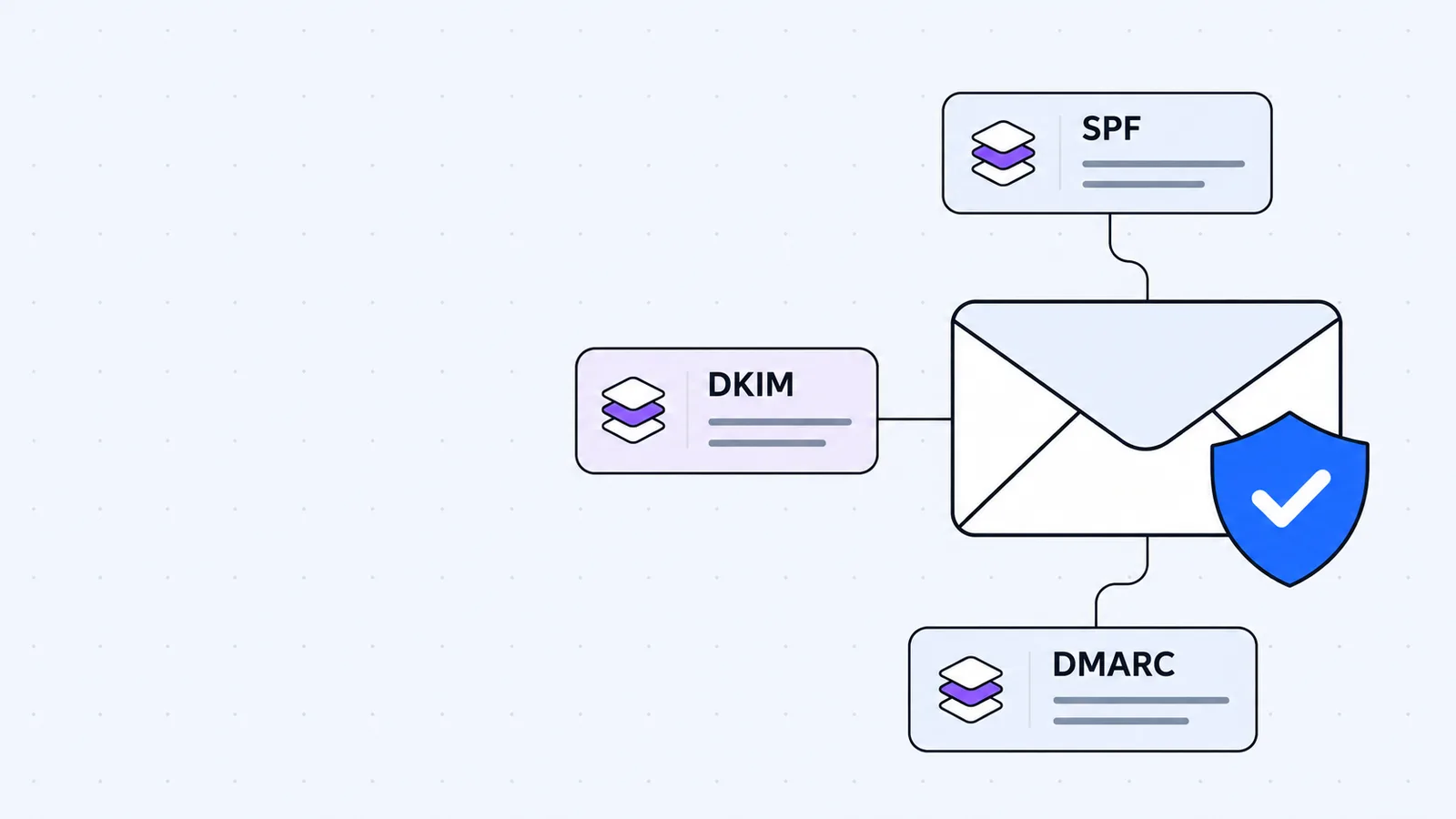
Send a message to an address on another service and reply to it, so you test both directions. If your messages reach spam folders, the mail app is not the cause. Check your domain's SPF, DKIM and DMARC records with our SPF, DKIM and DMARC guide.
If you would rather read the same mailbox in the Gmail app on your phone, see how to use Gmail with your own domain.
Frequently asked questions
Outlook is a mail app and supports both. Microsoft's manual setup steps say that most of the time you will select IMAP, and cPanel recommends IMAP because POP3 downloads messages and removes them from the server. Choose POP3 only if your provider tells you to.

Written by
Founder & CEO
Founder and CEO of Wasevo LLC, the company that runs WaseerHost. He works on cPanel/WHM servers, WHMCS billing and the Next.js storefront.