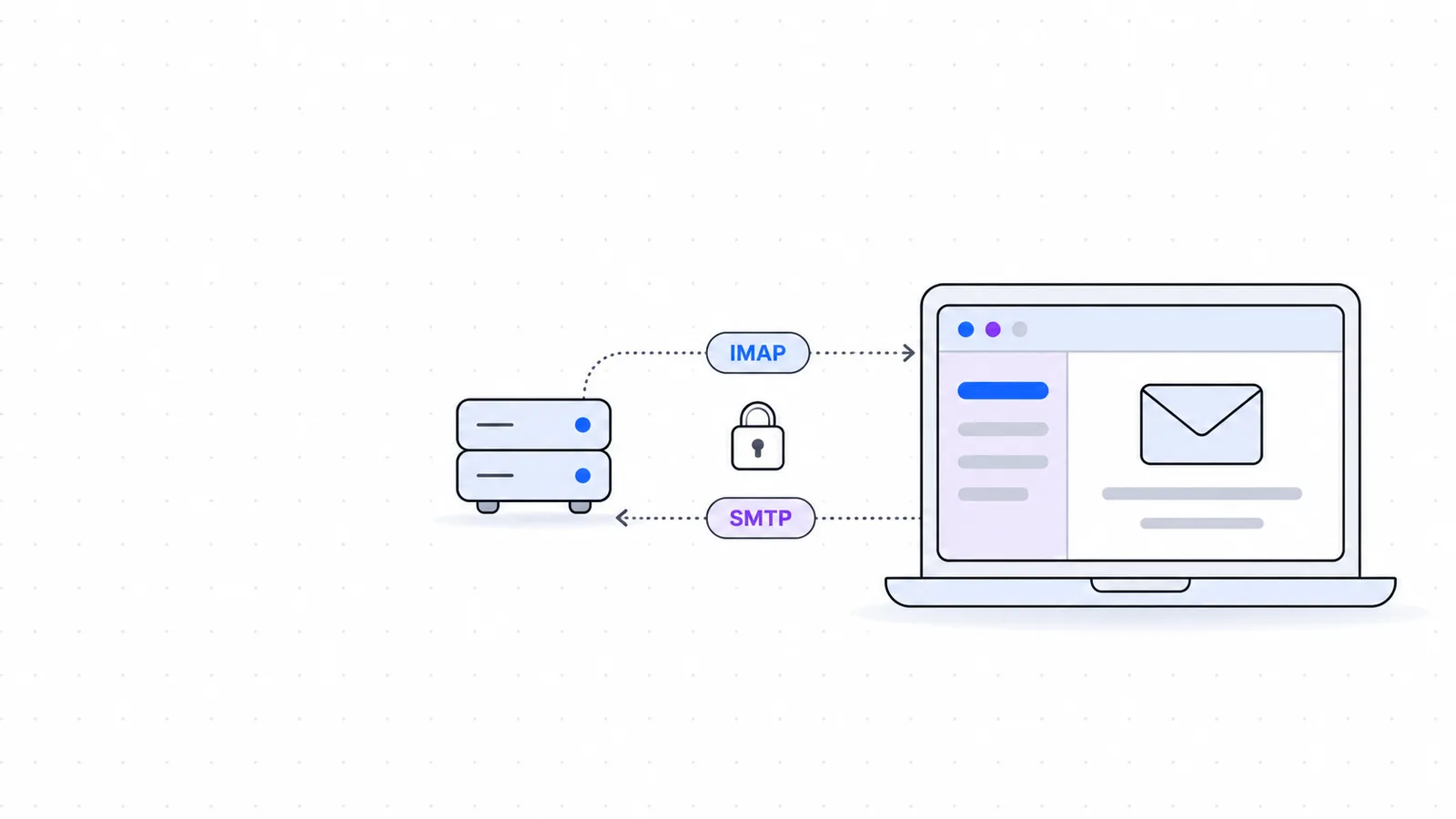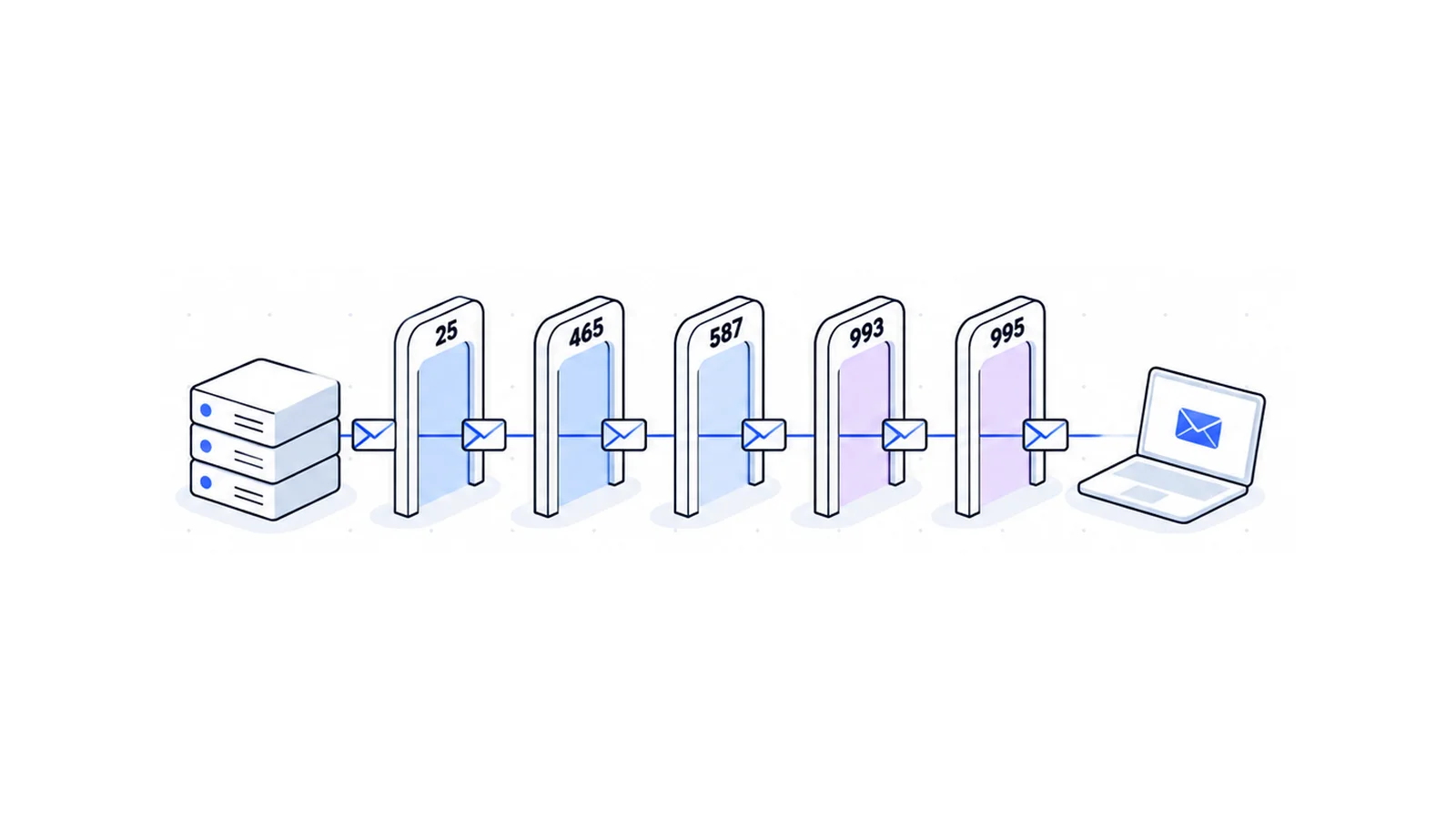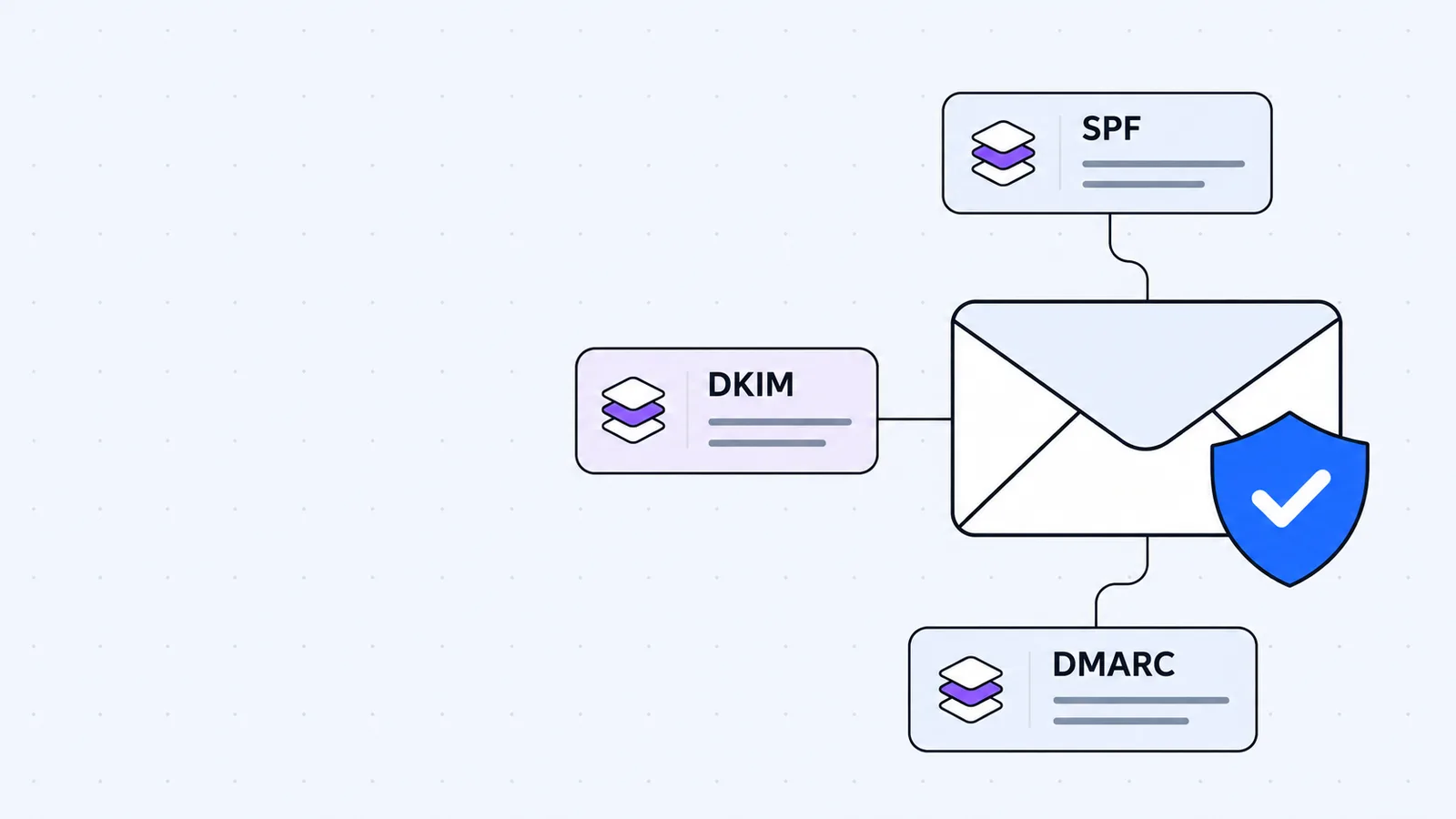


To set up SPF, DKIM and DMARC on a cPanel host, open Email Deliverability in cPanel, repair or copy the SPF and DKIM records it suggests, then add a DMARC record that starts with p=none. After a few weeks of reading reports, you tighten it to quarantine and then reject. This guide shows each step, explains how to read the records, and lists the errors that break authentication most often.
Key takeaways
- SPF lists which servers may send mail for your domain. DKIM signs each message with a key. DMARC tells receivers what to do when a message fails both checks and where to send reports.
- cPanel's Email Deliverability tool can write the SPF and DKIM records for you, but only when your server is the authoritative DNS server for the domain. If your DNS lives elsewhere, you copy the values by hand.
- Start DMARC at
p=nonewith aruaaddress, read the reports, then move toquarantineandrejectin small steps usingpct. - A domain can have only one SPF record, and SPF stops working past 10 DNS lookups. Both cause a permanent error.
- Google and Yahoo have required SPF or DKIM from all senders since February 2024, and DMARC from bulk senders.
What SPF, DKIM and DMARC do
Each record answers a different question when a mail server receives a message that claims to come from your domain.
| Record | Question it answers | Where it lives in DNS | Record type |
|---|---|---|---|
| SPF | Is this server allowed to send for the domain? | The domain itself, for example example.com | TXT |
| DKIM | Was this message signed by the domain and left unchanged? | selector._domainkey.example.com | TXT |
| DMARC | What should happen if SPF and DKIM do not line up with the From address, and who gets the reports? | _dmarc.example.com | TXT |
SPF is defined in RFC 7208, DKIM in RFC 6376 and DMARC in RFC 7489. DMARC depends on the other two. A message passes DMARC when it passes SPF or DKIM and the domain that passed matches the domain in the visible From address. That match is called alignment.
If you need a refresher on how TXT and other record types work, read what DNS records are.
Why you need all three now
Mailbox providers no longer treat authentication as optional. Per Google's email sender guidelines, since 1 February 2024 every sender to Gmail accounts must set up SPF or DKIM, use TLS and keep the spam rate below 0.3%. Senders who send more than 5,000 messages a day to Gmail accounts must set up SPF, DKIM and DMARC, and the From domain must align with the SPF or DKIM domain.
Yahoo's sender requirements follow the same pattern. All senders need SPF or DKIM. Bulk senders need both, plus a DMARC policy of at least p=none, and Yahoo strongly recommends an rua tag for monitoring.
Before you start
Check three things first, because they decide which path you follow.
- Where is your DNS hosted? If your domain uses your hosting provider's nameservers, the cPanel server is usually the authoritative DNS server and can install records for you. If it uses Cloudflare or a registrar's DNS, you add the records there by hand. The domain DNS lookup tool shows your current nameservers.
- Who sends mail as your domain? List every service: your cPanel mailboxes, a newsletter tool, a billing system, a CRM, a contact form plugin. Each one must be covered by SPF and, ideally, signed with DKIM.
- Can you see the Email Deliverability tool? Per cPanel's documentation, the interface appears only if the hosting provider enables it in WHM's Feature Manager. If it is missing from your cPanel, ask your host.
Step 1: Open Email Deliverability in cPanel
- Log in to cPanel.
- Find Email Deliverability. Use the search box at the top if you cannot see it.
- Look at the list of your domains. Each row shows the status of the domain's mail-related DNS records and has a Manage button. When a record has a problem, a Repair button appears.
Per cPanel's docs, Repair lets you review and confirm the system's recommended records, and you can copy or customize a suggested record before approving. The system rechecks repaired records, which can take up to five minutes. Repair is unavailable if the server does not control the domain's DNS records. In that case, use Manage and copy the values.
Step 2: Set up SPF
SPF is a single TXT record at the root of your domain. A typical record looks like this:
v=spf1 +a +mx +ip4:203.0.113.10 ~allHere is how to read it, left to right.
| Part | Meaning |
|---|---|
v=spf1 | Marks the record as SPF version 1. It must come first. |
+a | The IP addresses in the domain's A record may send mail. |
+mx | The servers in the domain's MX records may send mail. |
ip4:203.0.113.10 | This IPv4 address may send mail. The address is a documentation example. |
include:other.example | Also trust the SPF record of another domain, such as a mail service. |
~all | Everything else is a softfail. |
The qualifier in front of each mechanism is + for pass, - for fail, ~ for softfail and ? for neutral. RFC 7208 section 4.6.2 says the qualifier is optional and defaults to +, so a and +a mean the same thing. A softfail, per section 2.6.5, is "a weak statement" that the host is probably not authorized. -all is a hard fail.
Install the record
- In Email Deliverability, click Manage next to your domain.
- Scroll to the SPF section. If the record is missing or wrong, a suggested record is shown.
- If your server is the authoritative nameserver, click Repair on the domain list. If not, click Copy to get the Name and Value and paste them into your DNS provider as a TXT record.
- To add outside senders, click Customize in the SPF section. The Customize an SPF Record screen has fields for additional hosts, additional MX servers, IP blocks in CIDR notation and an include list, plus an option for the
-allending. cPanel's default recommendation is~all. The preview shows the final record before you click Install a Customized SPF Record.
Add an include: for every service that sends mail for you. Your newsletter or billing tool documents the exact value to use.
Step 3: Set up DKIM
DKIM adds a signature header to each outgoing message. The receiver reads the d= (signing domain) and s= (selector) values from that header, looks up a public key in DNS at s._domainkey.d, and checks the signature. RFC 6376 section 3.6.2.1 says all DKIM keys are stored in a subdomain named _domainkey.
The key record is a TXT record that looks like this:
default._domainkey.example.com. TXT "v=DKIM1; k=rsa; p=MIIBIjANBgkqh...long base64 key..."The tags are v=DKIM1 for the version, k=rsa for the key type and p= for the public key. Per RFC 6376 section 3.6.1, an empty p= value means the key has been revoked. The selector (default in this example) lets a domain publish several keys at once, which is how key rotation works.
Install the record
- In Email Deliverability, click Manage next to your domain.
- Open the DKIM section. If no key exists, click Generate Local DKIM Key.
- If your server is the authoritative nameserver, use Repair on the domain list. Otherwise click Copy and add the Name and Value to your DNS provider as a TXT record. Use exactly the name cPanel shows, because it includes the selector.
- Some DNS providers limit a TXT string to 255 characters. The View switch in cPanel shows the record as Full or Split (255-character parts), so you can paste whichever your provider accepts.
Do not open View the Private Key unless you must. cPanel warns that exposing the private key lets others impersonate you. Google recommends 2048-bit DKIM keys if your provider supports them, and requires at least 1024 bits.
Step 4: Wait, then confirm SPF and DKIM pass
Do not publish DMARC yet. Google's DMARC setup page advises waiting 48 hours after SPF and DKIM setup, and warns that without them, messages from your domain will probably have delivery issues.
Use the waiting time to test. Send a message from a cPanel mailbox to a Gmail address you control, open the message, and choose Show original. Gmail's header view shows PASS or FAIL for SPF, DKIM and DMARC. A free checker such as MXToolbox can also look up your records.
You can read the same records from a terminal:
# macOS or Linux: SPF and other TXT records at the root
dig TXT example.com +short

# DKIM key (replace "default" with your selector)
dig TXT default._domainkey.example.com +short

# DMARC
dig TXT _dmarc.example.com +short# Windows Command Prompt
nslookup -type=TXT example.com
nslookup -type=TXT default._domainkey.example.com
nslookup -type=TXT _dmarc.example.comIf a record does not show up, DNS changes may still be spreading. The same lookups work without a terminal in the domain DNS lookup tool.
Step 5: Publish DMARC with p=none
A DMARC record is a TXT record at _dmarc.yourdomain.com. Start with this one:
v=DMARC1; p=none; rua=mailto:[email protected]Per RFC 7489 section 6.3, these are the tags that matter for most small sites.
| Tag | Meaning | Default |
|---|---|---|
v | Must be DMARC1 and must be the first tag. | Required |
p | Policy for the domain: none, quarantine or reject. Also applies to subdomains unless sp is set. | Required |
sp | Policy for subdomains only. | Same as p |
pct | Percentage of failing mail the policy applies to, 0 to 100. | 100 |
rua | Where to send aggregate reports. | None |
adkim | DKIM alignment: r relaxed or s strict. | r |
aspf | SPF alignment: r relaxed or s strict. | r |
Relaxed alignment means the domains share the same organizational domain, so mail.example.com aligns with example.com. Strict alignment needs an exact match. Google's DMARC page notes that strict alignment can cause messages from subdomains to be rejected or sent to spam, and that relaxed is the default and usually enough. Leave both at relaxed.
Add the record
- In Email Deliverability, click Manage next to your domain and open the DMARC section. DMARC needs valid SPF and DKIM records to be active first.
- If your server is the authoritative nameserver, you can click Install the Suggested Record. Read the value it installs. If it has no
ruaaddress, edit the record afterwards in your DNS zone editor. - If your DNS is elsewhere, add a TXT record named
_dmarcwith your own value.
Use a dedicated mailbox for rua. Google advises against using your own address because report volume can be high.
Step 6: Read the DMARC reports
Receivers send aggregate reports to your rua address, usually once a day. RFC 7489 section 7.2 says aggregate data must be an XML file, and reports often arrive compressed as .xml.gz. Raw XML is hard to read, so most people feed the files into a free DMARC report viewer.
For each sending source, look for three things:
- The sending IP or service. Does it belong to something you use?
- SPF and DKIM results. Does at least one pass, and does the passing domain match your From domain?
- Volume. Is an unknown source sending a handful of messages or thousands?
Every legitimate source that fails needs fixing before you enforce anything. Common causes are a newsletter tool that was never added to SPF, a contact form sending as your domain through the web server, or a billing system with no DKIM key.
Step 7: Move to quarantine, then reject
Enforcement tells receivers to act on failing mail. Do it in steps, and only after the reports have been clean for a few weeks.
| Stage | Record | What receivers are asked to do |
|---|---|---|
| Monitor | v=DMARC1; p=none; rua=mailto:[email protected] | Take no specific action. You only collect reports. |
| Partial quarantine | v=DMARC1; p=quarantine; pct=10; rua=mailto:[email protected] | Treat 10% of failing mail as suspicious, for example by sending it to spam. |
| Full quarantine | v=DMARC1; p=quarantine; rua=mailto:[email protected] | Treat all failing mail as suspicious. |
| Reject | v=DMARC1; p=reject; rua=mailto:[email protected] | Reject failing mail, ideally during the SMTP transaction. |
RFC 7489 defines quarantine as treating failing mail "as suspicious" and says rejection SHOULD occur during the SMTP transaction. Google's DMARC page suggests raising pct gradually until you reach 100.
Two cautions. If you use BIMI, Google notes that it does not support p=none and requires pct=100. And if a new tool starts sending as your domain after you enforce, its mail will fail until you add it to SPF or give it a DKIM key. Add that step to your checklist whenever you sign up for a sending service.
Common errors and how to fix them
More than one SPF record
A domain must not have multiple SPF records. RFC 7208 section 3.2 says a domain name MUST NOT have multiple records that would cause an authorization check to select more than one record, and section 4.5 says the result is a permanent error (permerror). This usually happens when someone adds a second v=spf1 TXT record for a new service instead of editing the first.
Fix it by merging them into one record:
# Wrong: two records
v=spf1 +a +mx ~all
v=spf1 include:mail.newsender.example ~all

# Right: one record
v=spf1 +a +mx include:mail.newsender.example ~all
More than 10 DNS lookups
RFC 7208 section 4.6.4 says implementations MUST limit the number of DNS-querying terms to 10, and exceeding the limit produces permerror. The terms that count are include, a, mx, ptr and exists, plus the redirect modifier. Terms such as ip4, ip6 and all do not trigger a lookup.
Every include can contain more includes, so a few mail services can reach the limit. To get under it:
- Remove services you no longer use.
- Replace
aandmxwithip4entries where the addresses are stable. - Do not use the
ptrmechanism. RFC 7208 section 5.5 says it SHOULD NOT be published. - Remove includes that point at domains that no longer exist. Section 4.6.4 also asks implementations to limit void lookups (queries that return nothing) to two.
SPF passes but DMARC fails
DMARC needs the SPF or DKIM domain to align with the From address. If a third-party service sends with its own return-path domain, SPF can pass for that domain while failing alignment with yours. Turn on custom DKIM signing for your domain in that service, because DKIM alignment works even when the return path differs.
Keep it working
Review reports whenever you add or remove a sending service, and recheck SPF after each change to stay under the lookup limit. If you are choosing where your email lives, see how Gmail works with your own domain, and the SMTP, IMAP and POP3 ports guide for mail client settings. For business email on your own domain, see WaseerHost email. WaseerHost hosting plans use cPanel, and you can see current plans.
Frequently asked questions
If you send email from your domain, yes. Google and Yahoo require SPF or DKIM from all senders, and both require DMARC from bulk senders. Even for small senders, the three records make forged mail from your domain easier to spot and your real mail easier to trust.

Written by
Web & AI Systems Lead
Web and AI Systems Lead at Wasevo, the company behind WaseerHost. He builds web applications and AI systems.