

Two ways to use Gmail with your own domain still work in 2026. You can move your domain's email to Google Workspace, or keep your hosting mailbox and add it to the Gmail app on your phone over IMAP. The old method of connecting a domain mailbox to Gmail on the web is going away. In January 2027, Google removes "Check mail from other accounts" (POP) and "Send mail as" for non-Google addresses.
Key takeaways
- Google Workspace is Google's official way to run Gmail on your own domain. You point your domain's MX record to Google and manage users in the Admin console.
- If your email stays with your web host, add the mailbox to the Gmail app for Android, iPhone or iPad. The app connects over IMAP and can read and send.
- Gmail Help (checked 1 October 2026) says POP fetching stopped accepting new users after Q1 2026. In January 2027, Google fully removes "Send as" for third-party addresses, Gmailify and POP.
- Set up SPF, DKIM and DMARC whichever option you pick. Google requires SPF or DKIM from everyone who sends to Gmail accounts.
What Google is changing in Gmail
Two Gmail Help pages describe the change. The quotes below are from 1 October 2026.
Learn about upcoming changes to Gmailify & POP in Gmail says "Check mail from other accounts" will no longer be available in Gmail on your computer. Google gives this timeline: "After the first quarter of 2026, this feature no longer supports new users. Existing users can still use the feature until January 2027."
Learn about changes to third-party email account support in Gmail covers sending. Starting January 2027, "You will no longer be able to send mail from third-party email accounts in Gmail on the web or in the Gmail mobile apps." The page lists this timeline:
| Date | What Google says happens |
|---|---|
| Q3 2026 | "Send as" announcement and notice period begins |
| Q3 to Q4 2026 | Transition period. "Send as" for third-party accounts, Gmailify and POP keep working, but Gmail may restrict new configurations |
| January 2027 | Gmail fully removes "Send as" for third-party accounts, Gmailify and POP |
Google treats a mailbox like [email protected] at your web host as a third-party account, because it is not a Google account. Google says the change leaves "Send as" for Gmail addresses and Google Workspace aliases alone, and the Gmail mobile app keeps working with non-Google accounts. Messages you already imported stay in your mailbox.
Option 1: Google Workspace (Gmail runs your domain's email)
Pick this option if you want the full Gmail web interface on [email protected] and want Google to store the mail. Google's business email page says you can connect a domain you already own or buy one during sign-up, and that you can "use at no cost for the first 14 days" before you choose a plan. This guide doesn't cover prices, so check Google's pricing page for current plans.
Steps
- Sign up for Google Workspace and enter the domain you own. If you still need a domain, register one first.
- Verify that you own the domain. Google asks for this before it turns on Gmail for the domain.
- Add Google's MX record at your DNS host. Google's MX setup guide gives the value
smtp.google.comwith priority1. - Remove the old MX records. Google warns, "Your email might not work correctly if you keep old or incorrect MX records."
- Activate Gmail in the Admin console under Account > Domains > Manage domains.
- Wait for DNS. Google says it "can take up to 72 hours for the new MX records to be recognized."
MX records control only where mail for the domain goes (RFC 5321, Section 5.1). Your website's records can keep pointing at your web host. To see the live MX record, use the WaseerHost DNS lookup tool.
Once you change the MX record, Google receives your new mail and your host doesn't. Move any old mail you want to keep before you cancel the old mailboxes. Google points Workspace admins to its data migration service for this.
Option 2: Keep your hosting email and use the Gmail app
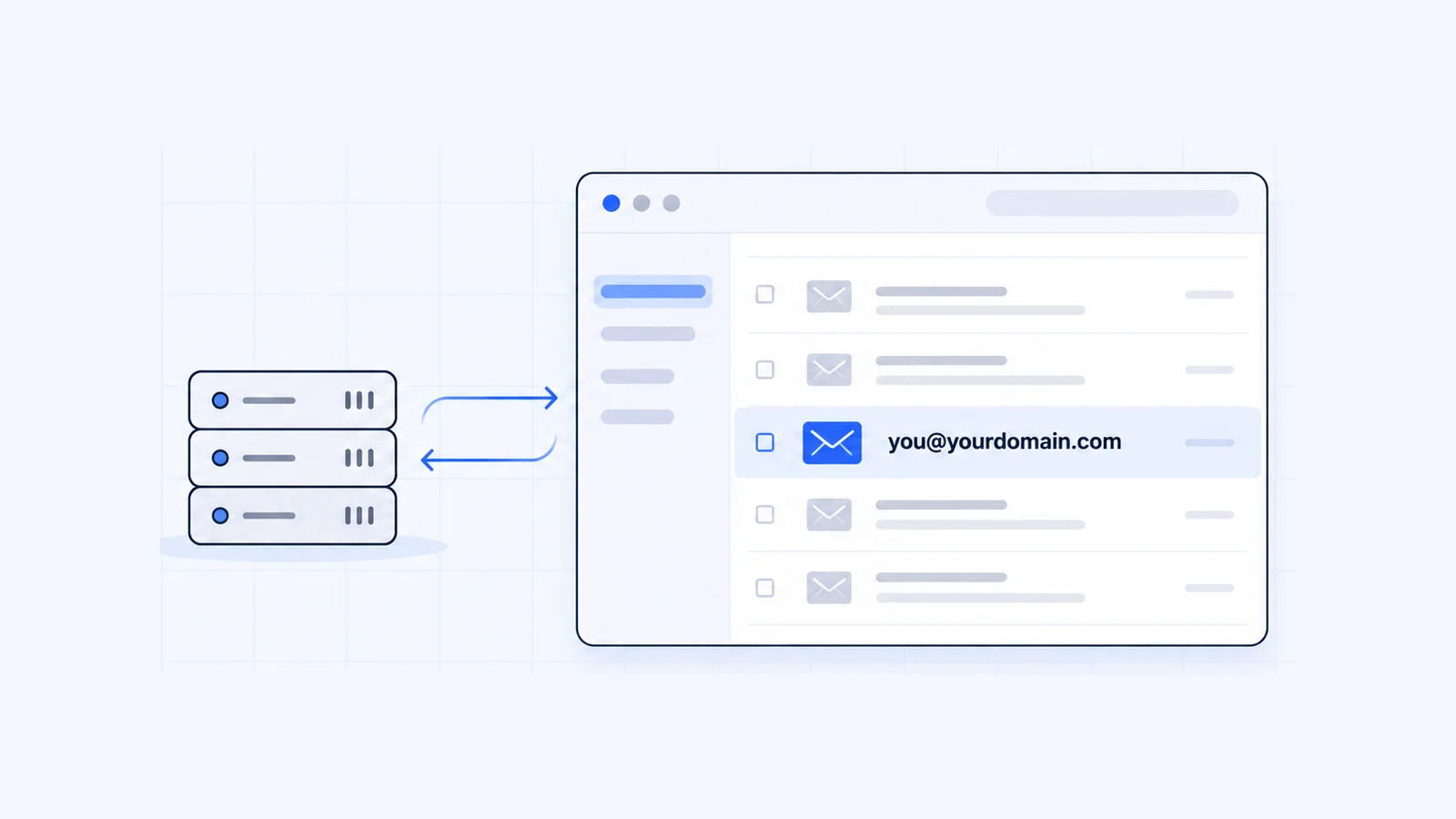
Pick this option if your mailboxes already live with your web host, for example in cPanel, and you mainly want Gmail's app on your phone. Google confirms that the Gmail app for Android, iPhone and iPad "uses a standard IMAP connection" and lets you "read and send emails from your other account" (Gmail Help).
Find your mail server settings
On a cPanel host, open Email Accounts and click Connect Devices next to the mailbox. cPanel's Set Up Mail Client documentation lists the recommended secure settings:
| Setting | Value |
|---|---|
| Username | Your full email address |
| Password | The mailbox password |
| Incoming server (IMAP) | mail.yourdomain.com (use the name cPanel shows) |
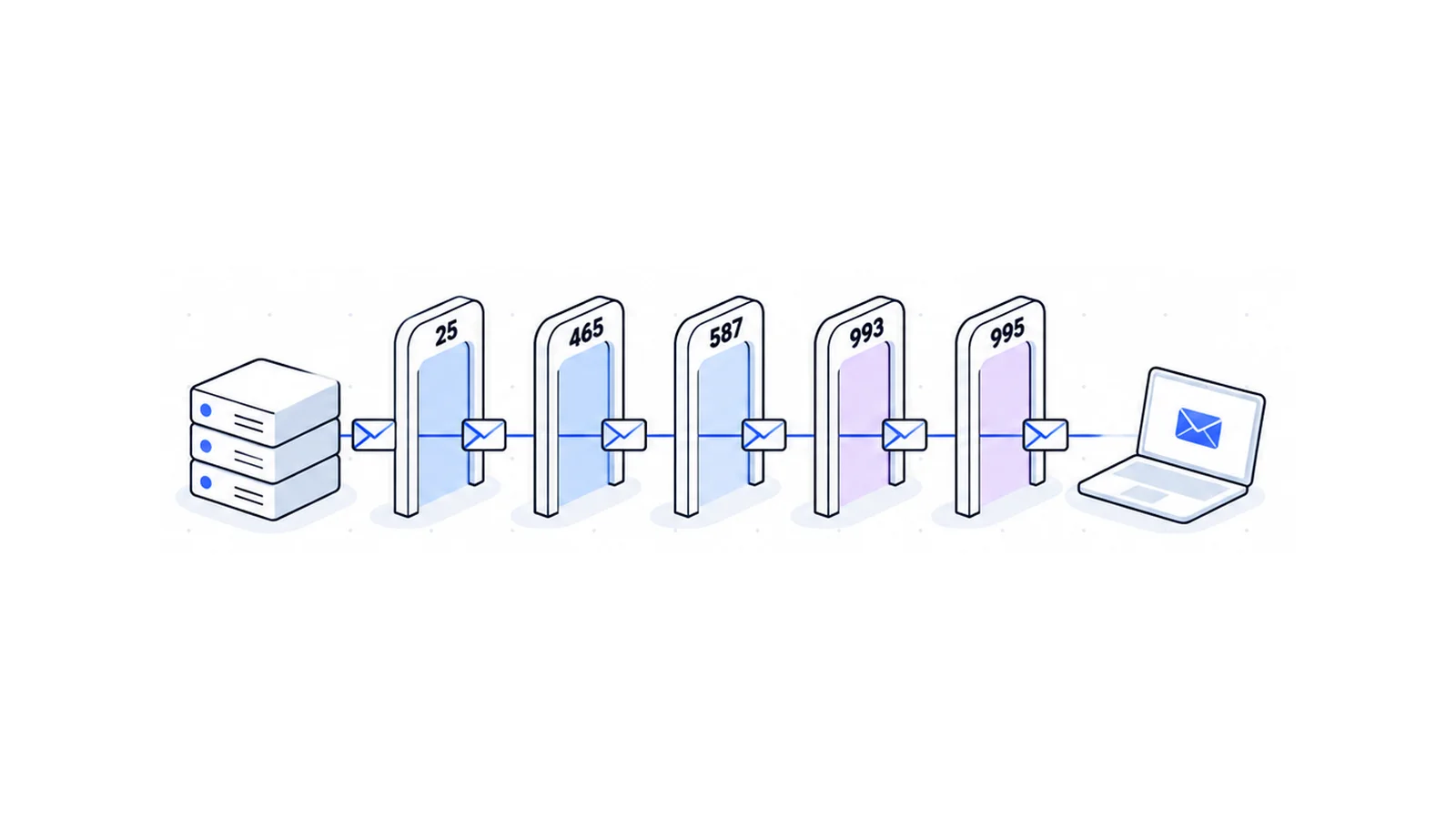
| IMAP port | 993, SSL/TLS |
| Outgoing server (SMTP) | mail.yourdomain.com (use the name cPanel shows) |
| SMTP port | 465, SSL/TLS |
The guide to SMTP, IMAP and POP3 ports explains what each port does.
Add the mailbox on Android
These steps come from Google's Add another email account in the Gmail app page:
- Open the Gmail app.
- In the search bar at the top right, tap your Profile picture.
- Tap Add another account, then Other.
- Enter your full email address and tap Next.
- Select Personal (IMAP), enter your password and tap Next.
- Enter the IMAP settings for your account and follow the on-screen steps.
Add the mailbox on iPhone or iPad
- Open the Gmail app.
- In the search bar at the top right, tap your Profile picture.
- Tap Add another account, then Other (IMAP).
- Enter your full email address and tap Next.
- Enter the IMAP settings for your account and follow the on-screen steps.
The app holds up to 5 email addresses. To see every account in one list, tap Menu > All inboxes. If the app warns "Email security not guaranteed", Google lets you continue with the security type set to None. Your password and mail then travel unencrypted, so ask your host for the correct server name and SSL/TLS settings instead.
On a computer, use a desktop mail client such as Outlook, Apple Mail or Thunderbird with the same IMAP and SMTP settings. Google recommends that route for third-party accounts after January 2027.
Option 3: Forward your domain mail to Gmail (receive only)
If you only need to read domain mail in Gmail, forward it. Google's FAQ confirms that a third-party provider can still "auto-forward messages to your Gmail address".
In cPanel, go to Email > Forwarders and click Add Forwarder. Enter the mailbox username in Address to Forward, choose Forward to Email Address, and enter your Gmail address (cPanel docs).
Your replies go out from your @gmail.com address. After "Send as" for third-party addresses ends in January 2027, Gmail on the web can't send as [email protected] unless the domain runs on Google Workspace.
If you already use "Check mail from other accounts" or "Send mail as"
Existing setups keep working until January 2027. In Gmail on the web, open Settings > See all settings > Accounts and import (or Accounts). The settings sit in the Check mail from other accounts and Send mail as sections (Gmail Help).
If "Send mail as" shows "Couldn't reach server" or "TLS Negotiation failed", Google suggests these combinations:
- SSL with port 465
- TLS with port 25 or 587
Use the time left to move to Option 1 or Option 2, so your mail keeps flowing after Google removes the features.
SPF, DKIM and DMARC: set them up either way
Gmail checks whether mail from your domain is authenticated. Google's email sender guidelines set two tiers:
- Everyone who sends to Gmail accounts needs SPF or DKIM, valid forward and reverse DNS for the sending server, and a TLS connection.
- Anyone who sends more than 5,000 messages a day needs SPF, DKIM and DMARC, with the From domain aligned to SPF or DKIM.
Each record has one job:
- SPF is a DNS TXT record that lists the servers allowed to send mail for your domain. A domain must not publish more than one SPF record (RFC 7208, Section 3.2). If only Google Workspace sends your mail, Google's SPF guide gives
v=spf1 include:_spf.google.com ~all. If your host also sends mail, for example from website forms, put both senders in that one record. - DKIM signs each message with a key published in DNS. Google requires a key of at least 1024 bits and recommends 2048 bits.
- DMARC tells receiving servers what to do with mail that fails SPF and DKIM. To pass, the authenticating domain must match the domain in the From header.
If your mail stays on a cPanel host, the Email Deliverability interface checks your DKIM, SPF, DMARC and reverse DNS records and can repair invalid ones. If you move to Google Workspace, update SPF and turn on DKIM in the Admin console.
Which option should you choose for Gmail with your own domain?
| You want | Best fit |
|---|---|
| Gmail on the web and phone for [email protected] | Google Workspace |
| To keep the mailboxes that come with your hosting | Gmail app over IMAP, plus a desktop mail client |
| To read domain mail in Gmail and rarely reply | Forwarding (replies come from @gmail.com) |
For mailboxes on your own domain, see WaseerHost business email. The Gmail app works with any mailbox that offers IMAP and SMTP, cPanel mailboxes included, using the settings above.
Frequently asked questions
Yes, through Google Workspace. You verify your domain, point its MX record to smtp.google.com and create users like [email protected]. Google's business email page says you can connect a domain you already own or buy one during sign-up.

Written by
Founder & CEO
Founder and CEO of Wasevo LLC, the company that runs WaseerHost. He works on cPanel/WHM servers, WHMCS billing and the Next.js storefront.