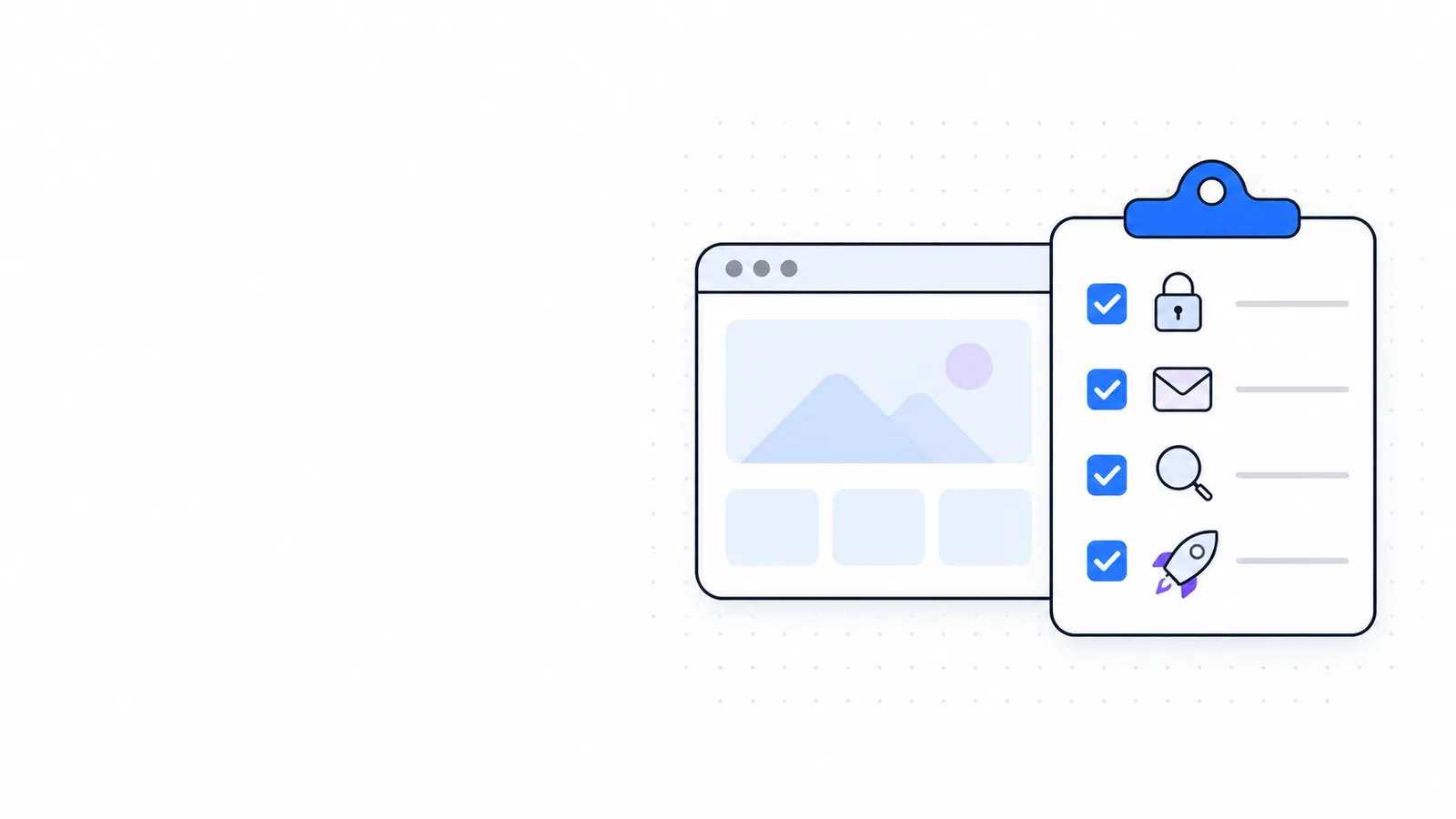


A website launch checklist stops a small business from going live with a contact form that sends nothing or a site that search engines cannot index. This one covers the checks to run before launch, the order to follow on launch day and the tasks for the first month. Most items take a few minutes and need no developer.
Key takeaways
- Register the domain in an account your business controls, turn on auto-renew and keep the contact email current.
- Before launch, open the site over HTTPS, send a test message through every form and remove any noindex setting left over from development.
- Set up Google Search Console and an analytics tool on launch day so you have data from the first visit.
- Download a backup before you launch and confirm that you can restore it.
- Use the first month to fix what Search Console reports and real visitors show you.
Before you start, confirm who owns each account
Check that no freelancer or former employee holds the only login to the domain or the hosting account. The business owner should be able to sign in to every account in this table without asking anyone.
| Account | What it controls | What to check |
|---|---|---|
| Domain registrar | Ownership and renewal of the domain name | The account email belongs to the business and auto-renew is on |
| DNS provider | Where the domain sends web and email traffic | You know which company hosts the DNS zone |
| Web hosting | Site files, databases and SSL certificates | You have the control panel login |
| Email service | Mailboxes on your domain | An owner account can reset every mailbox |
| Website admin | Pages, plugins and users | The owner has an administrator account |
| Search Console and analytics | Search and traffic data | The owner's Google account is listed as an owner |
Give staff and contractors their own user accounts.
Pre-launch website launch checklist
Work through the eight parts in order, because email and Search Console verification both depend on DNS.
1. Domain and DNS
- Sign in to the registrar and confirm that the domain sits in an account the business owns. If you have not picked a name yet, you can search for a domain first.
- Turn on auto-renew and check that the payment card has not expired.
- Check that the registrant email is an inbox someone reads. For domains such as .com, ICANN's registrar agreement makes registrars verify contact details. ICANN states that registrars must suspend or delete names that are not verified in time.
- Confirm that the domain and the
wwwversion both point to your host. A DNS lookup tool shows the live records. - If you plan to move an existing domain to a new host, look at the TTL value on each record you will change. TTL sets how long resolvers cache a record, so a shorter TTL makes a change reach visitors sooner.
Our guide to DNS records explains what each record type does.
2. Hosting and SSL
- Open the home page and a few inner pages with
https://at the start of the address. The browser should load each one without a certificate warning. - Check that the
http://address redirects tohttps://, and that thewwwand non-wwwaddresses end up at one version. You can test this from a terminal.
curl -I http://example.com
curl -I http://www.example.com
The -I option tells curl to fetch only the response headers. Look for a 301 status and a Location header that starts with https://.
- If your host uses cPanel, open the SSL/TLS Status page. It lists the certificate status of each domain on the account and lets you spot unsecured or expiring domains.
Every WaseerHost hosting plan uses cPanel and comes with free SSL certificates, so the steps above apply to any of our shared hosting plans.
3. Business email
- Create at least one mailbox on your own domain, such as
hello@yourdomain. A business email address matches the name on your site and invoices. - Send a message from that mailbox to a Gmail address and an Outlook address, then reply from each. Check the spam folder if a message does not arrive.
- Set up email authentication. Google's sender guidelines require every sender to Gmail accounts to set up SPF or DKIM. Senders of more than 5,000 messages a day to Gmail need SPF, DKIM and DMARC. Our SPF, DKIM and DMARC guide lists the records to add.
- Submit every form on the site yourself and confirm that each message reaches the right inbox.
4. Content, contact and trust basics
A visitor decides whether to contact you based on a few plain details. Check each of these on a phone as well as a computer.
- The business name, phone number, address or service area and opening hours are the same on every page.
- The contact page offers more than one way to reach you, and every phone number and email address is a working link.
- The about page names the people behind the business.
- Each service or product page says what it costs or how to get a quote.
- No page still contains placeholder text or sample images from the theme.
- Every menu item and button leads to a real page.
- A mistyped address shows a helpful "page not found" page with a link back to the home page.
5. Legal pages
This section lists pages to consider. It is not legal advice, and the rules differ by country and by industry. Ask a qualified adviser which ones apply to you.
- A privacy policy says what personal data the site collects through forms, analytics and cookies, and who receives it. Some tools require one. The Google Analytics terms of service say you must post a privacy policy that gives notice of your use of cookies and discloses your use of Google Analytics.
- A terms page sets out the conditions for using the site or buying from it.
- Refund, delivery and cancellation pages matter if you sell online.
- A cookie notice or consent banner may be required, depending on where your visitors live.
Link these pages from the footer so that visitors can reach them from any page.
6. Search visibility
- Remove any setting that hides the site from search engines. A site built with indexing blocked stays blocked until someone changes the setting. On WordPress, open Settings, then Reading, and make sure Discourage search engines from indexing this site is not selected. On any site, view the page source and search for this tag.
<meta name="robots" content="noindex">If you find it on a page that should appear in search, remove it.
- Give every page its own title and meta description that say what the page offers.
- Check the site on a phone. Google uses the mobile version of a site's content for indexing and ranking, so content that is missing on mobile is missing for Google.
- Create a sitemap if your site builder does not make one for you. Google says a site with about 500 pages or fewer and good internal links might not need one, but a sitemap helps Google find pages on a new site that few other sites link to yet.
7. Speed
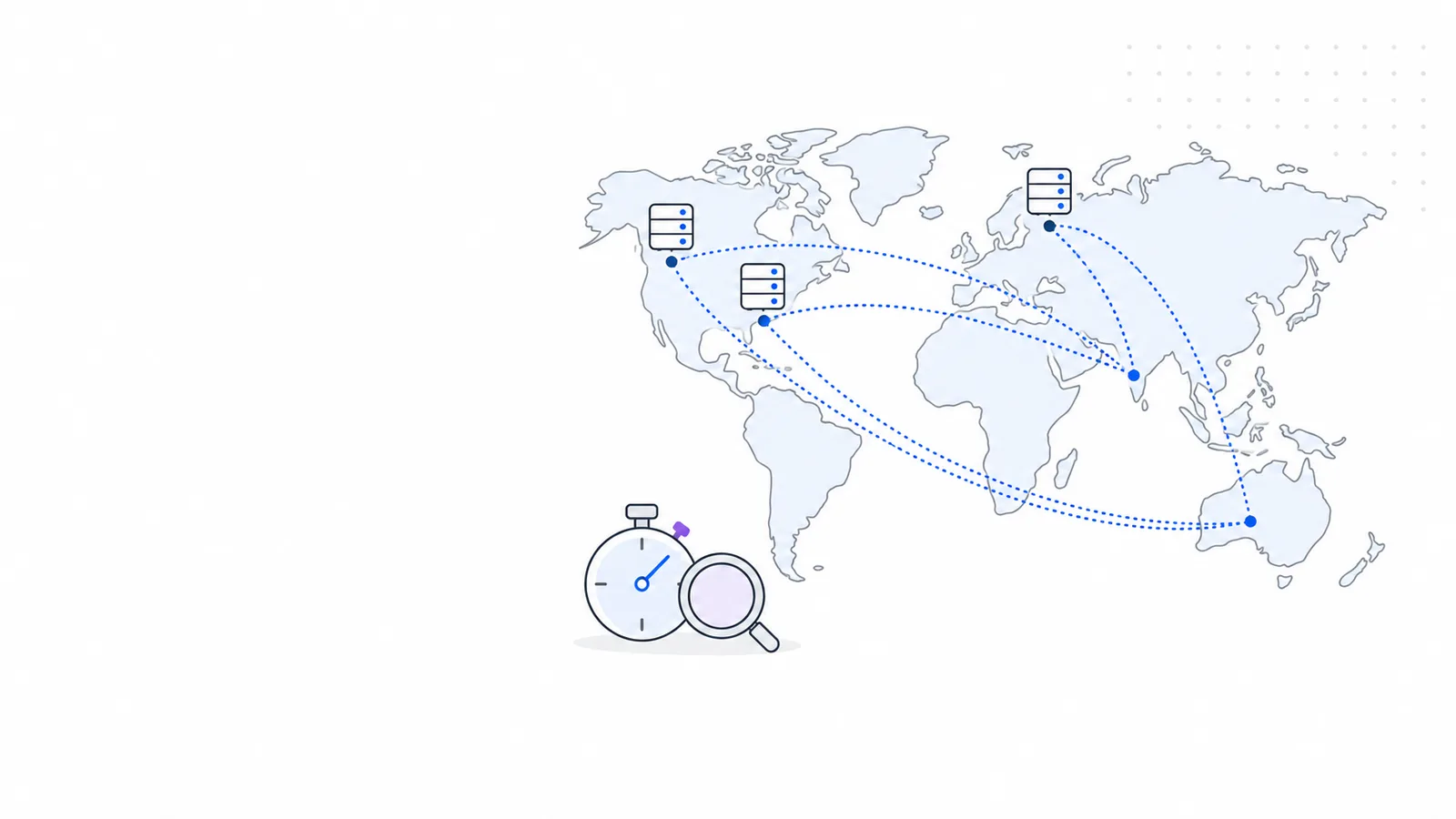
Run the home page and one important inner page through Google's PageSpeed Insights. It reports lab data from a simulated page load and, when enough real visits exist, field data from Chrome users. A new site usually has no field data yet, so use the lab results and the list of suggestions for now.
Google's Core Web Vitals give you three targets, measured at the 75th percentile of page loads.
| Metric | What it measures | Good result |
|---|---|---|
| Largest Contentful Paint (LCP) | Loading | 2.5 seconds or less |
| Interaction to Next Paint (INP) | Response to taps and clicks | 200 milliseconds or less |
| Cumulative Layout Shift (CLS) | Visual stability | 0.1 or less |
PageSpeed Insights lists suggestions under the scores. Work through them from the top, and retest after each change.
8. Backups and security
- Download a full backup before launch. In cPanel, the Backup page creates a full account backup and also offers partial backups of the home directory and each database.
- Know how you would restore it. The cPanel documentation states that a user cannot restore a full backup file from inside cPanel and must ask the hosting provider. A user can restore partial backups of the home directory and databases directly.
- Keep one copy of the backup somewhere other than the web server.
- Give every administrator a unique password, turn on two-factor authentication where the software offers it and delete test accounts.
- Update the site software, theme and plugins to their current versions.
The WordPress security checklist goes further for WordPress sites. For the hosting side, see the WaseerHost website security page.
Launch day checklist
- Take a fresh backup.
- Remove the maintenance page, password protection and any noindex setting.
- If the domain still points to an old host, update the DNS records. If you are moving from another host, the website migration checklist covers that process, and WaseerHost offers free website migration.
- Open the live site over HTTPS and repeat the form and email tests.
- Add the site to Google Search Console. A Domain property covers every subdomain and both
httpandhttps, and you verify it with a DNS record. A URL-prefix property covers one address and accepts other methods, such as an HTML file upload or an HTML tag. - Submit the sitemap in the Search Console Sitemaps report, or add this line to your
robots.txtfile.
Sitemap: https://example.com/sitemap.xml- Set up analytics. For Google Analytics, you create a property, add a data stream for the website and add the Google tag to the site. Google says data collection can take up to 30 minutes to begin, and you can then confirm it in the Realtime report.
- Add or claim your Google Business Profile if you serve local customers. Google does not charge for it.
First-month checklist
| When | Task |
|---|---|
| Week 1 | Use the URL Inspection tool in Search Console to check that Google can index the home page, and request indexing if it has not been crawled. |
| Week 1 | Confirm that analytics records visits and that form messages still arrive. |
| Week 2 | Run PageSpeed Insights again and fix the largest issue it lists. |
| Week 3 | Read the analytics reports to see which pages people visit and where they come from. Improve the pages that get visits but no enquiries. |
| Week 4 | Take a new backup, apply software updates and check the SSL status and domain renewal date. |
Google says crawling can take from a few days to a few weeks, so do not expect every page to show in search during week one. After the first month, repeat the week 4 tasks every month.
Frequently asked questions
It should cover domain ownership and DNS, HTTPS, working email and forms, accurate contact details, legal pages, search engine indexing, speed and backups.

Written by
Web & AI Systems Lead
Web and AI Systems Lead at Wasevo, the company behind WaseerHost. He builds web applications and AI systems.